Workflows
Where can I find my current tasks?
When you log in to the HyperPortal, you should automatically end up on the Dashboard, featuring all your current tasks and activities. Alternatively, you can access the Default dashboard from the Dashboards submenu.
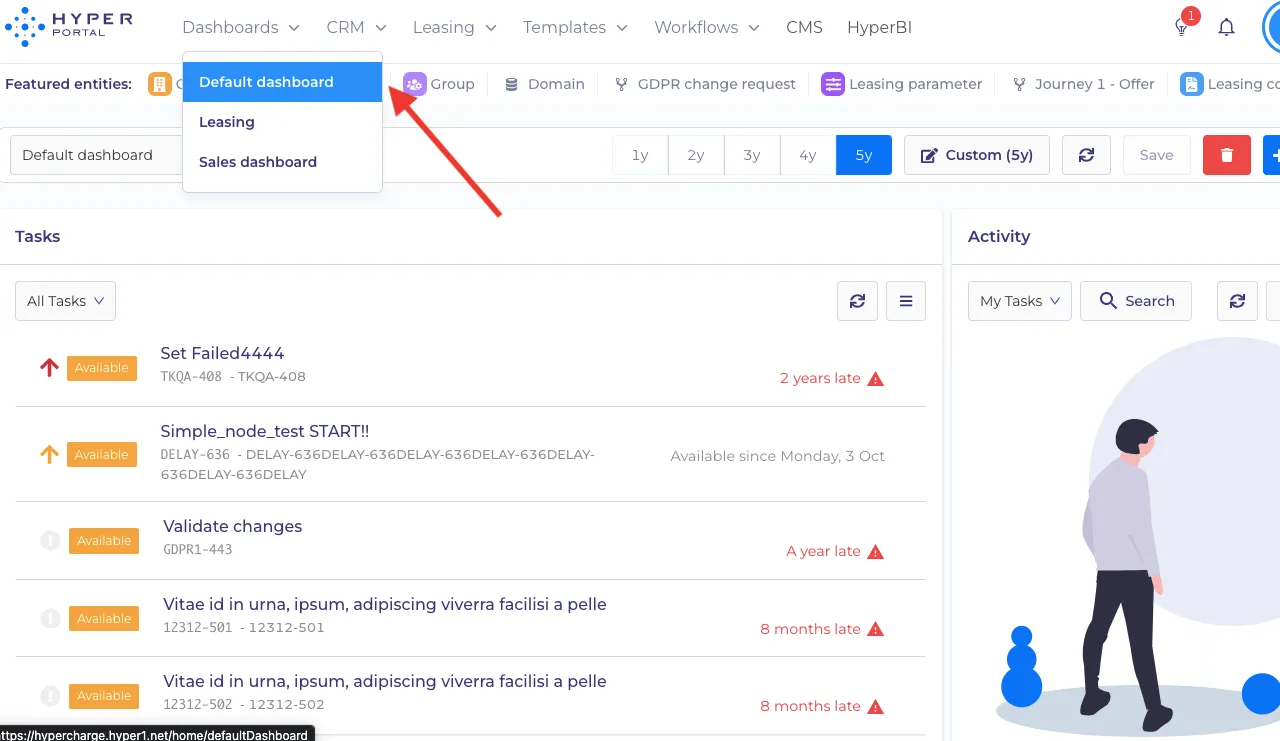
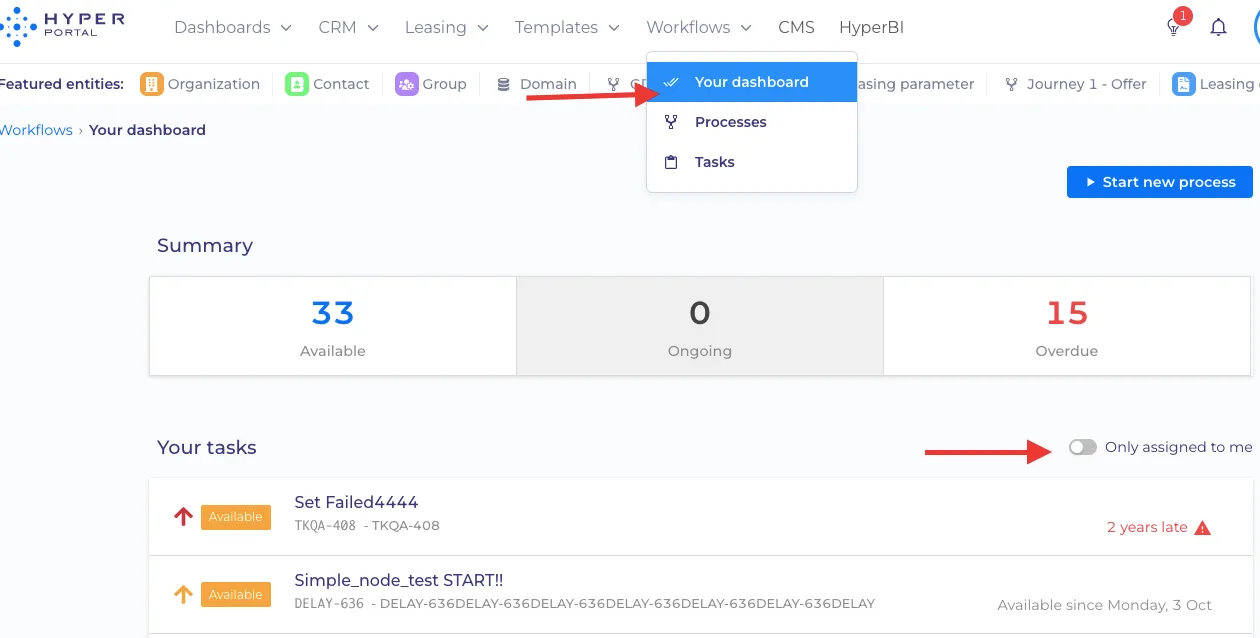
Toggle on the 'Only assigned to me' to see your personal tasks. However, please note, as of now, there is no automatic task assigned in HyperPortal, so you will only see tasks there once somebody has assigned them to you.
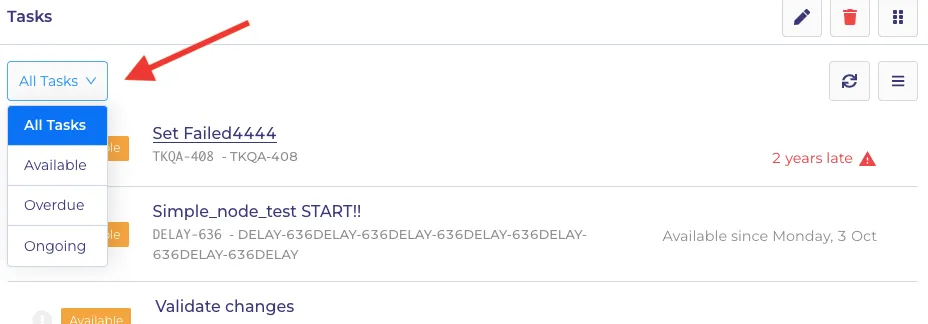
How do I filter my tasks by priority?
There is an option to view tasks by status (all, available, overdue, ongoing), click on all tasks submenu. At this moment there is no other logic for prioritizing tasks from different processes, as we believe, this prioritization has to be determined by the business processes of each individual customer.
Why do I not see any tasks in the process Run?
Technically this means that not a single manual task in your process scope has started yet.
There are 2 possible reasons, why it could happen:
1. Check whether the delay node is active.
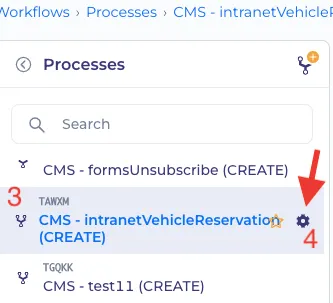
Go to 1.'Workflows' -> 2. 'Processes' -> 3. Choose your process -> 4. Settings -> 5. Tasks
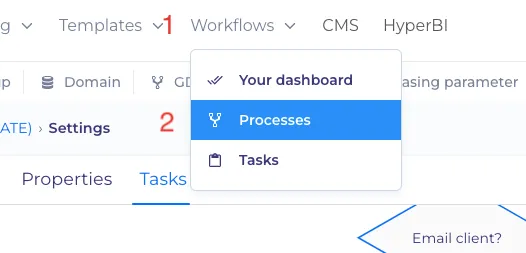
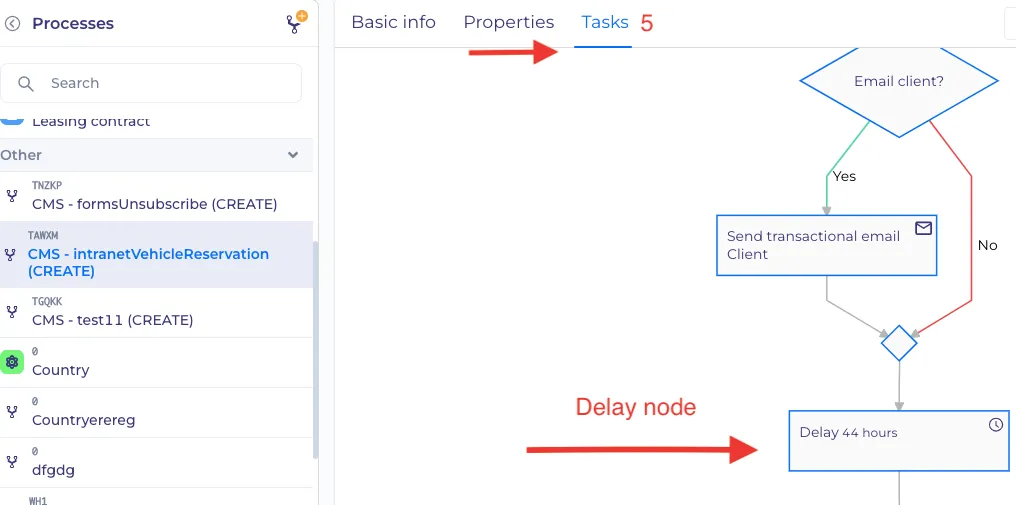
In this example, the delay node implies that the email Client will be delayed for 44 hours. Click twice in the delay node to see the parameters of the node.
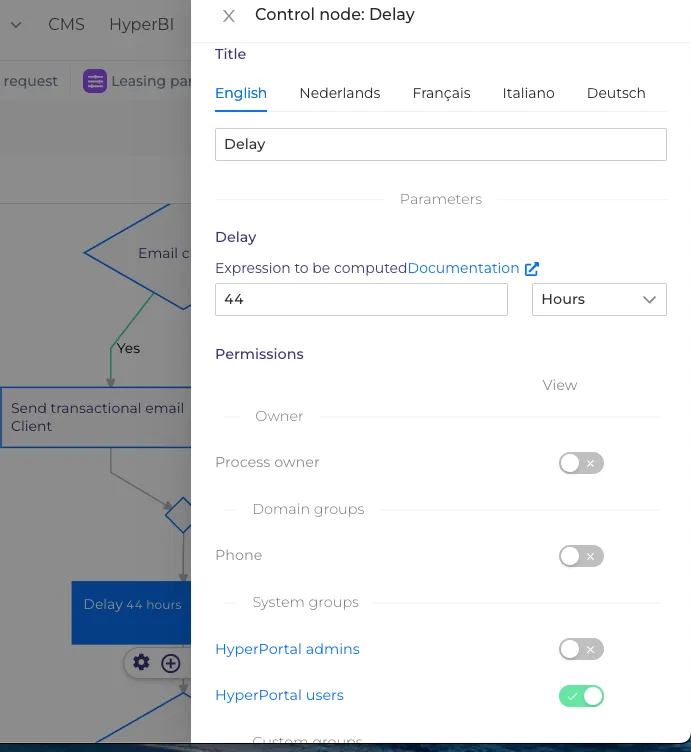
2. Check whether you have sufficient permissions to view existing in-progress tasks.
Permissions are granted per each task individually. You can learn about permissions here.
Why has the process failed?
To investigate the reason for process failure, you need to check the settings of the failed node.
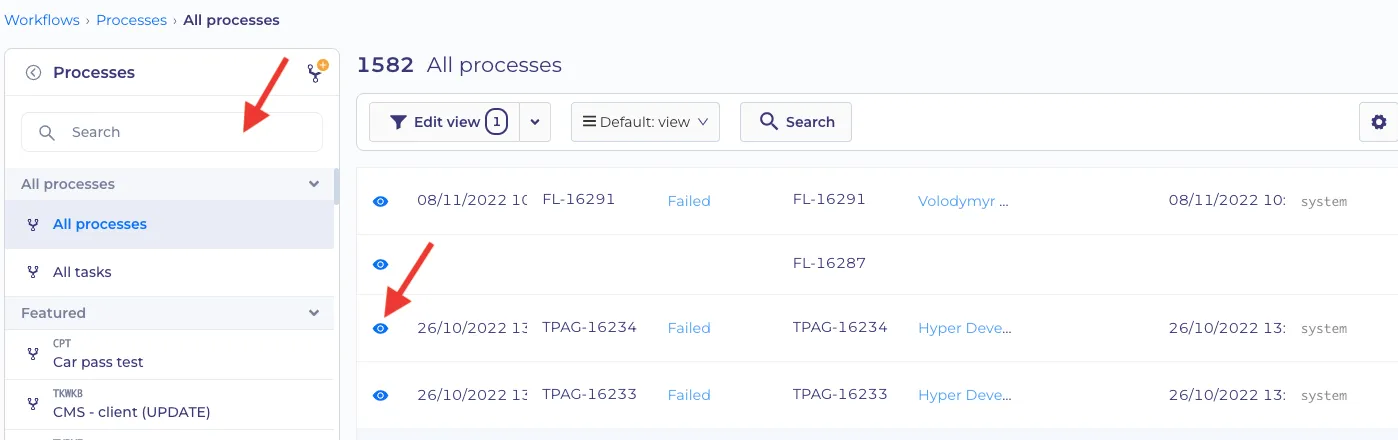
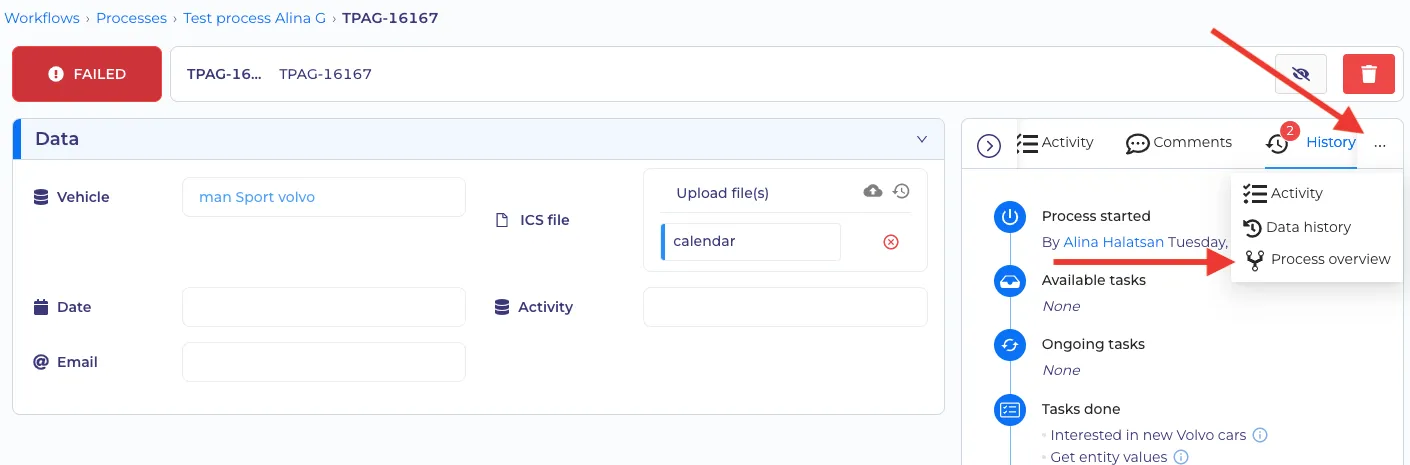
Search for the requested process and click on the 'Eye' button to see the details.
Click on the meatballs menu ( "three dots" button ) and select 'Process overview'.
Pay attention to nodes colored in red.
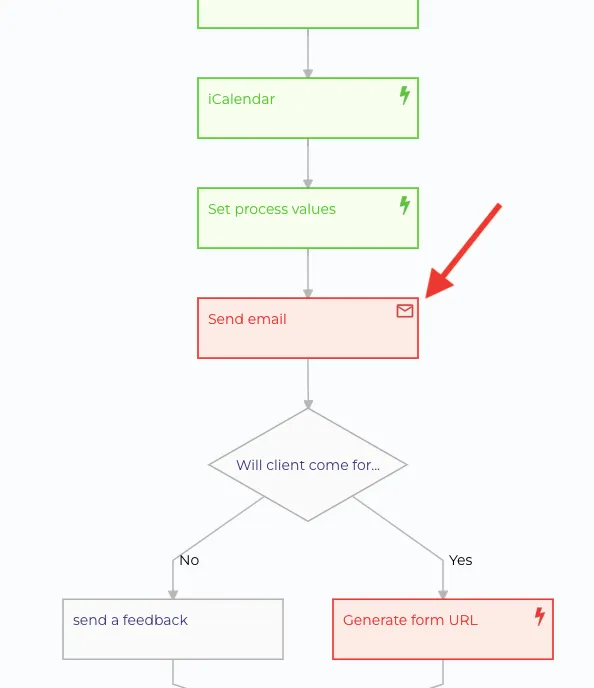
Click on the red node twice and find out if there is an error description there. If none is found, it usually means that the input data, this node needed to receive, was insufficient or incorrect.
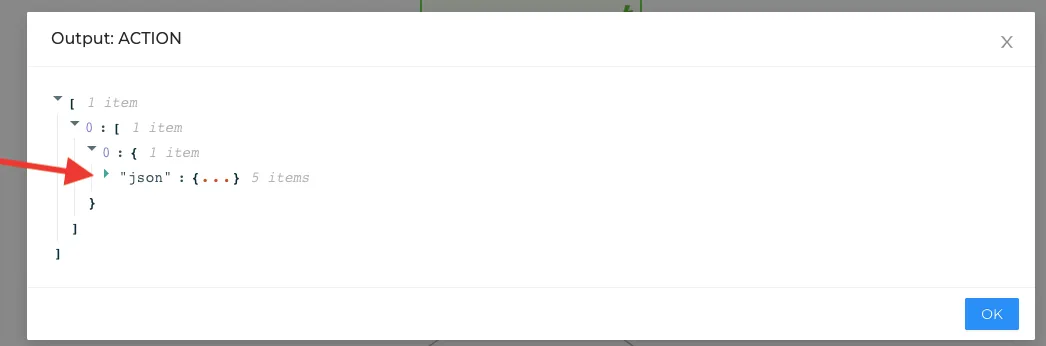
Click on the arrow sign to see the details.
In the below-displayed example, the required text fields were not filled.
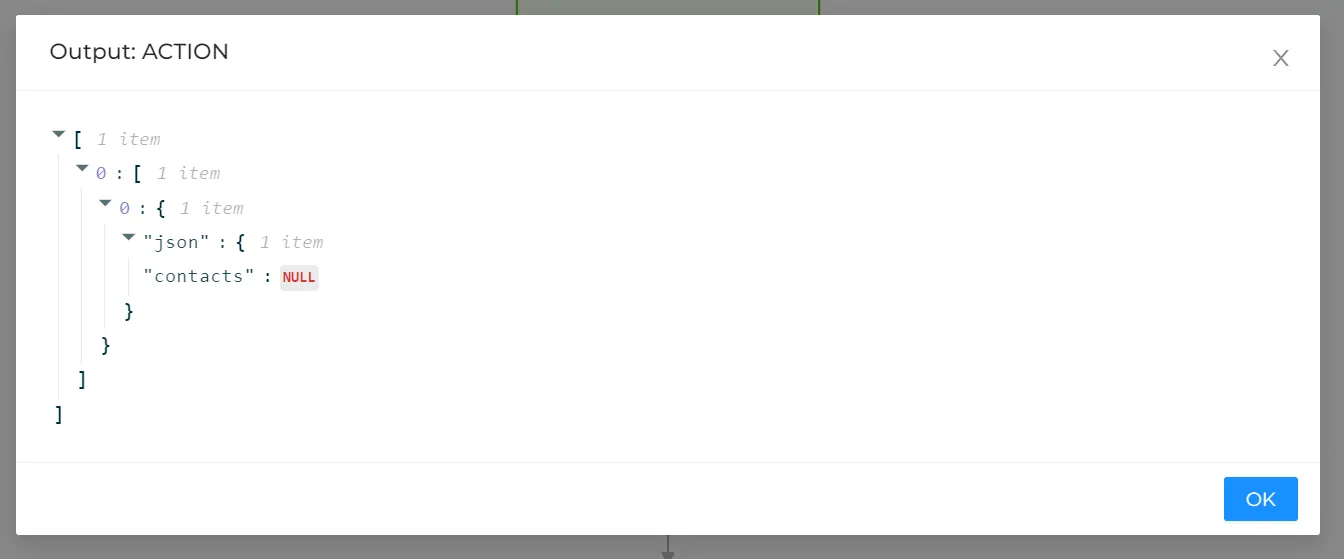
In most cases, you will not see a reason for the failure here. The probable reason is that some data, necessary to run the task, was missing.
Click the previous successful node, to see what data did it pass to the failed node.
Check your process settings, to see if all needed data is in place.
Click failed node, to check for some errors in the output.
Here you can learn more info on how to set up your process correctly.
Why has the email node failed?
There may be several reasons:
- The email address is not filled in. Pay attention that e-mail of the contact/organization should be filled in as well as the Location text box.
- Language mapping is incorrectly set. You can see the reason in the article - Why the language of the email sent to the customer is wrong?
- There is a mistake or misprint in the e-mail address.
Why the language of the email sent to the customer is wrong?
While in most cases, you will map localised templates to the recipient's language, HyperPortal also provides a possibility to map onto any other recipient's property, like country or working location.
Thus being said, first of all, you need to check if the mapping of the language in the email node is correct.
To do that, select 'Processes' from the 'Workflows' submenu:
- Find needed process;
- Open its settings;
- Navigate to task settings;
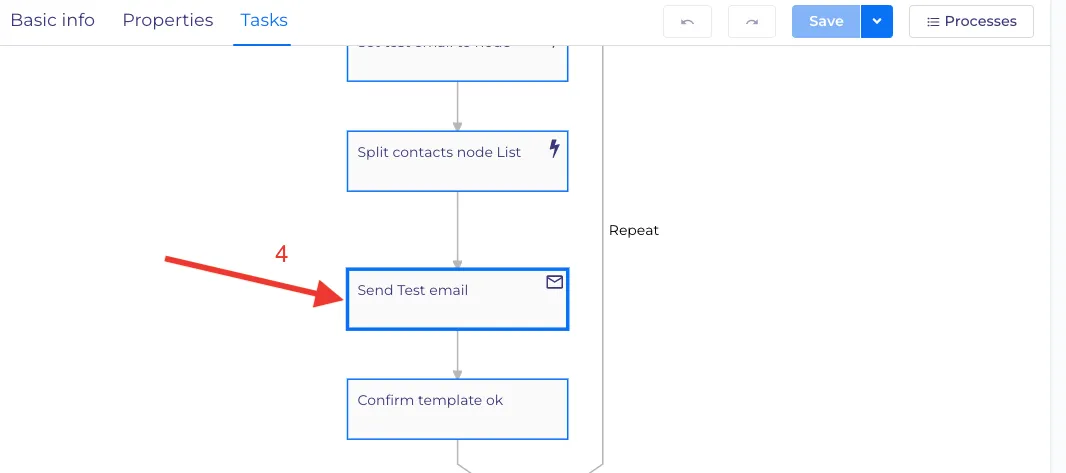
- Open the settings of your email node.
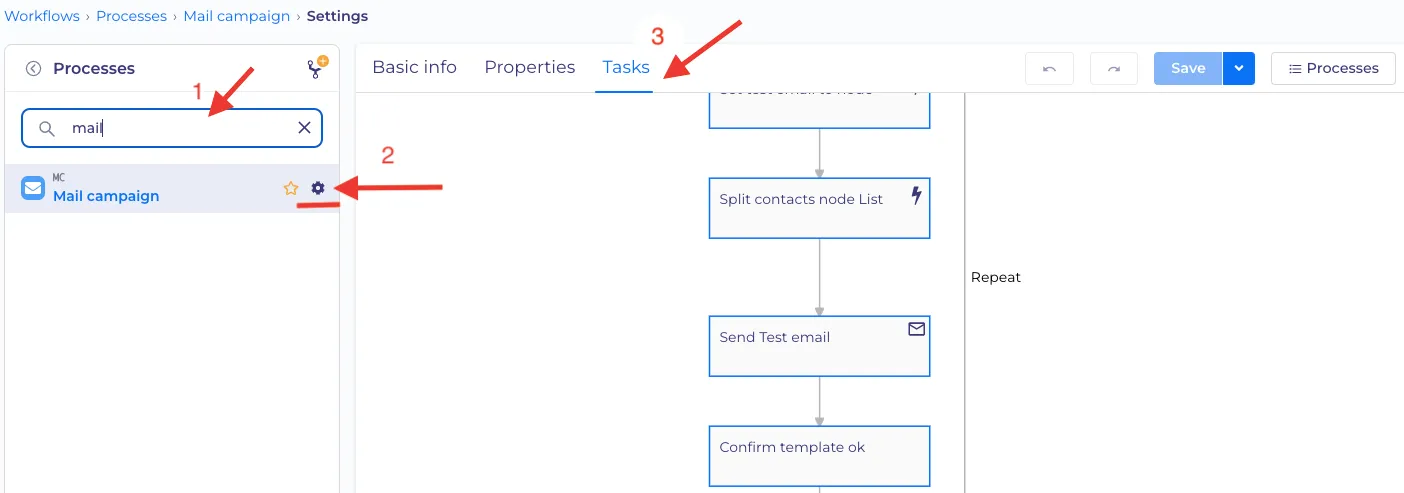
Click twice on an email node in question.
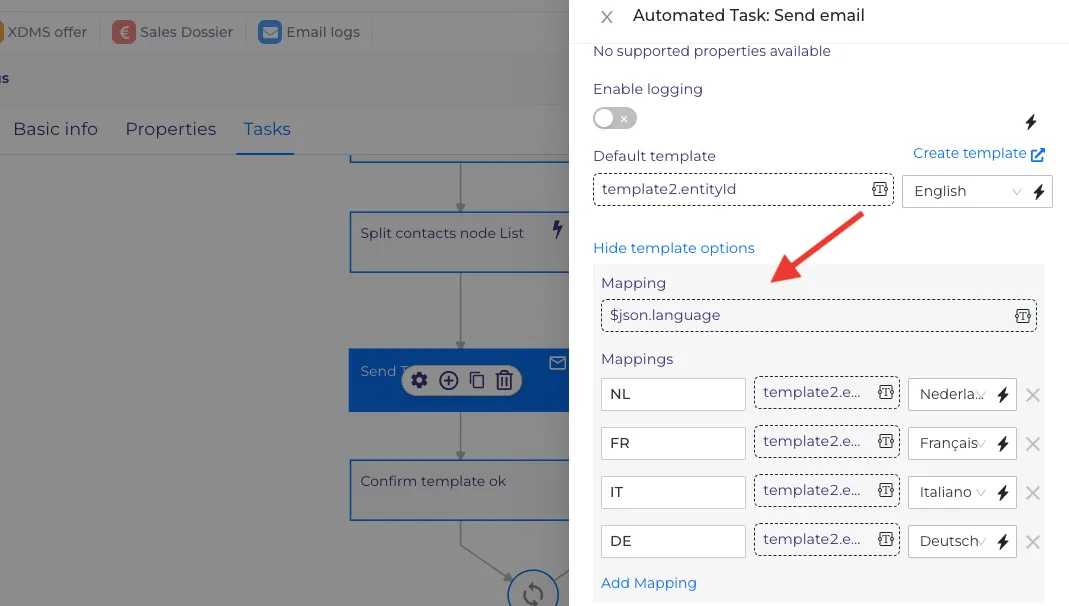
Check if the source where the node will look for mapping values is correct;
then check if the correct template is mapped to each key value. You can learn more here about the email node.
What is the difference between automated and manual tasks?
Manual tasks are used when certain information or data has to be filled in manually so it can be processed by the subsequent nodes, while automated tasks start only after previous tasks were completed or specific starting conditions were met. Here and here you can learn more about the peculiarities of automated and manual tasks.
What the process can do?
A process can perform many functions, some examples are:
- Send emails (invitations/templates) to users.
- Send forms to users.
- A process can create a new trigger process.
- A process is able to get information from one CMS object and insert it in another CMS object.
- Create new contacts.
In general, any business process, implemented in your company can be implemented as a HyperPortal process. Also feel free to request additional training with your Hyper Coach if needed. You can learn more here.