Custom styling for hyper-form branding
We can add custom styles and fonts to tenant forms for brand customization. This setting is currently available on the tenant settings path (there will be a "Hyper Form custom theme" section at the bottom).
Custom fonts
You can add one or more fonts, they will be included in the order they were added.
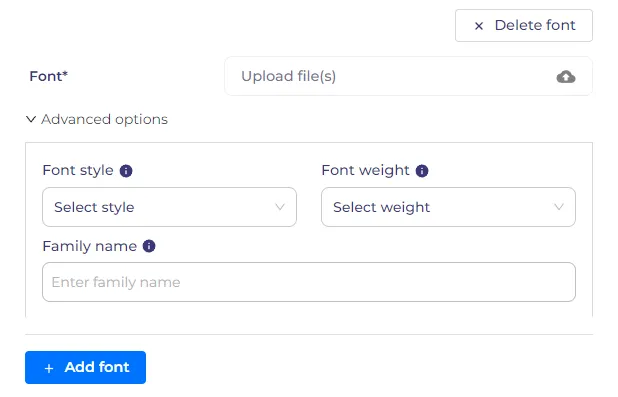
To add, click "Add font" and then fill out the form for the font. If you want to delete a font from set - click "Delete font". It is possible to fill in 4 fields, 1 required and 3 optional. Required: - font file; Optional: - font style; - font weight; - the name of the font family;
The optional fields are hidden under the "advanced options" button.
Font file
The field for adding a font file. The following types are available for download: ttf, otf, woff and woff2.
The field is required. Can be added only one file.
Upon successful uploading of the font file, the file extension will be determined and the format value for importing the font in css will be set in the hidden form field (name="format") for the font. .otf => opentype; .ttf => truetype; .woff => woff; .woff2 => woff2.
Font style
Field for specifying the style of font. The following values are available for selection: normal and italic.
This field is optional. If you have a variable font (flex font) and the file has all the letter sets for different styles, you can leave this field empty. But if your font has a certain style, you must set the value, otherwise the client browser will try to change the style based on its own algorithms (not recommended)
Font weight
Field for specifying the weight of font. The following values are available for selection: 100, 200, 300, 400, 500, 600, 700, 800, 900.
This field is optional. If you have a variable font (flex font) and the file has all the letter sets for different weights, you can leave this field empty. But if your font has a certain weight, you must set the value, otherwise the client browser will try to change the style based on its own algorithms (not recommended)
Family name
Field for specifying the name of the font family. This name will be used to connect the font in CSS. You can also use this name in the CSS block below to specify a private font for a particular selector. The field is optional.
Custom CSS
This field is optional.
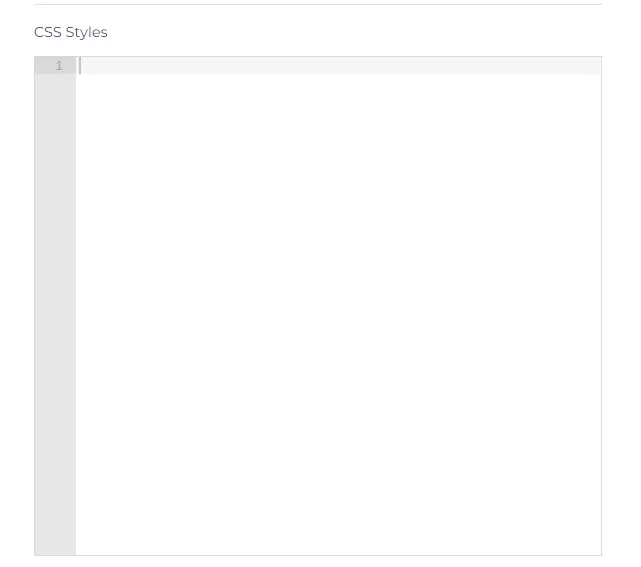
This field is an editor for CSS styles. The value of this field will be applied to the style of the form as simple CSS. If you make mistakes in composing styles, then only the correct styles will be applied.
Before working with this field, it is recommended to learn the basics of CSS.
Be careful with inheritance of style rules, because if the rules are not specified correctly, they may not be applied due to incorrect priority of the rules, or vice versa, they can overwrite all the default styles of the form
For the convenience of working with custom styles for the application for the form, the following classes were added:
- form-submit-button
- form-banner-wrapper
- form-description-wrapper
- form-logo-wrapper
- form-language-switcher-button
To change the styles of a particular block, specify the desired class.
To change the styles of a button for submitting a form, you must specify its class twice (this is a feature of using the forms library, since the bootstrap styles are wrapped into the .bootsrap-styles class, and to override the custom button styles, you should add a priority weight)
Custom styles for a form
You can add a class to the form itself (but be careful, it will be added to the root element of the form, but not to the application for the form) or to a specific field.
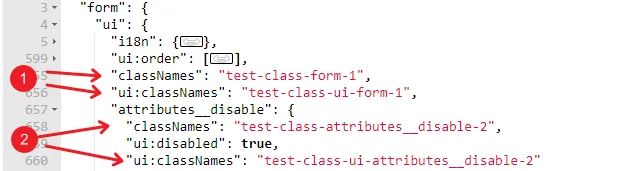
To add a class using a schema, you can add a classNames or ui:classNames field (these keys are the same). Adding this key to the root of the form.ui object will add a class for the form (the number 1 on the screenshot), and in form.ui.[form-control-id] it will add a class to the field (the number 2 on the screenshot). Playing with these classes, you can style the shape pointwise.