QuickSight
We can create dataset | analysis from two ways:
- Left main menu Dashboards and Analyses
- You can create folder and choose New menu.
I recomended to create folder in the Shared folders with tenant name and create all items in this area. Because in this case you can share you dataset or analysis for you calleagues or partners that they can improve your analytics too. And of course, in the future you will not be confused to which tenant belongs to which item when will be distributed into folders.
For example, hypercharge shared folder for hypercharge tenant
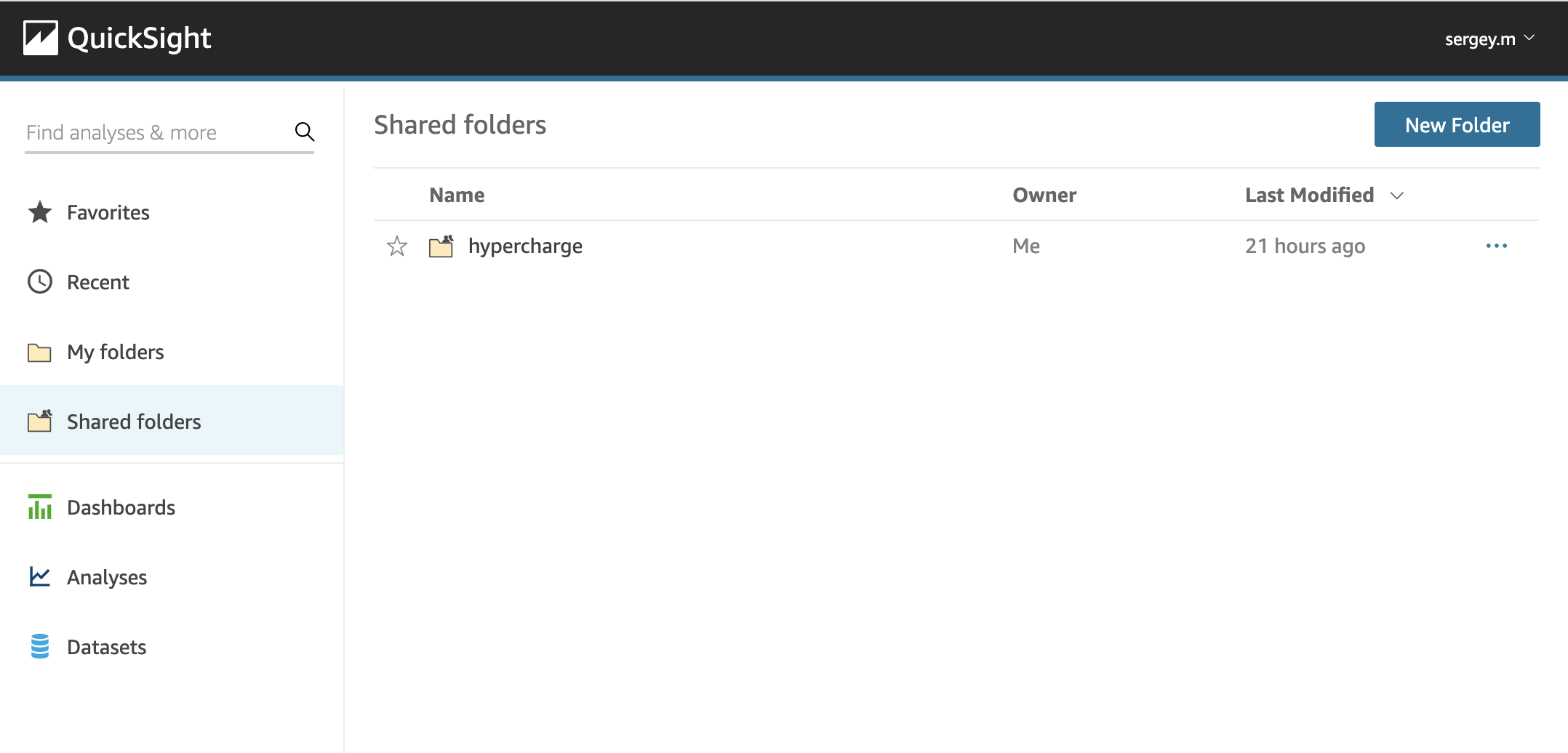
That create analysis or dataset you should open folder and find New button.
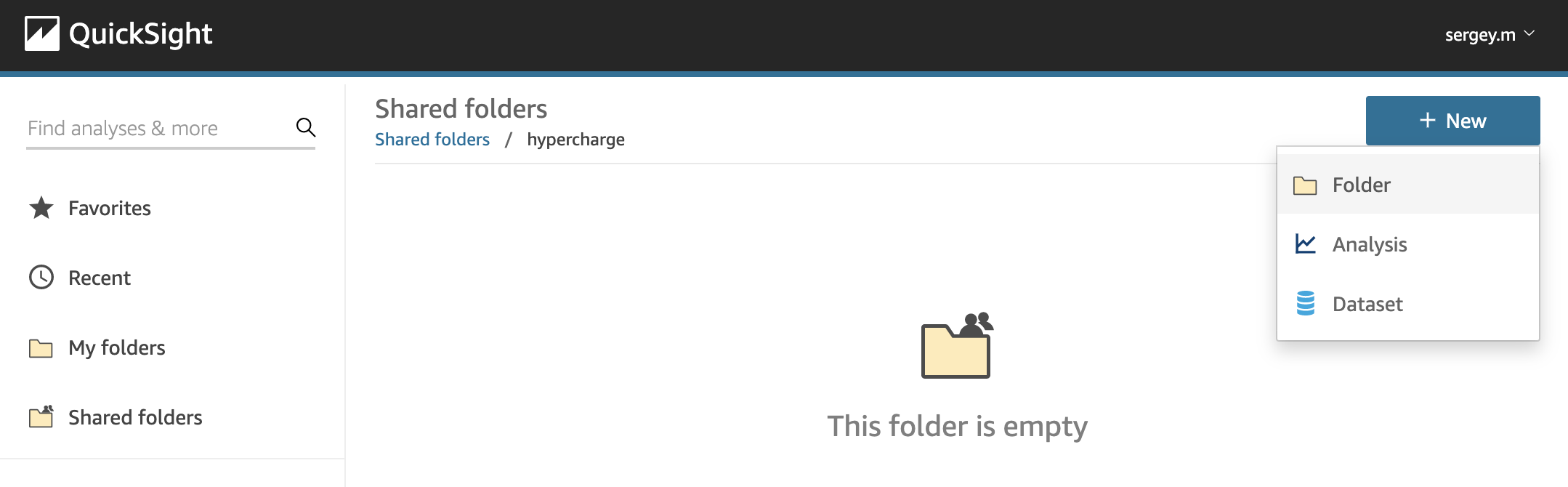
Create dataset
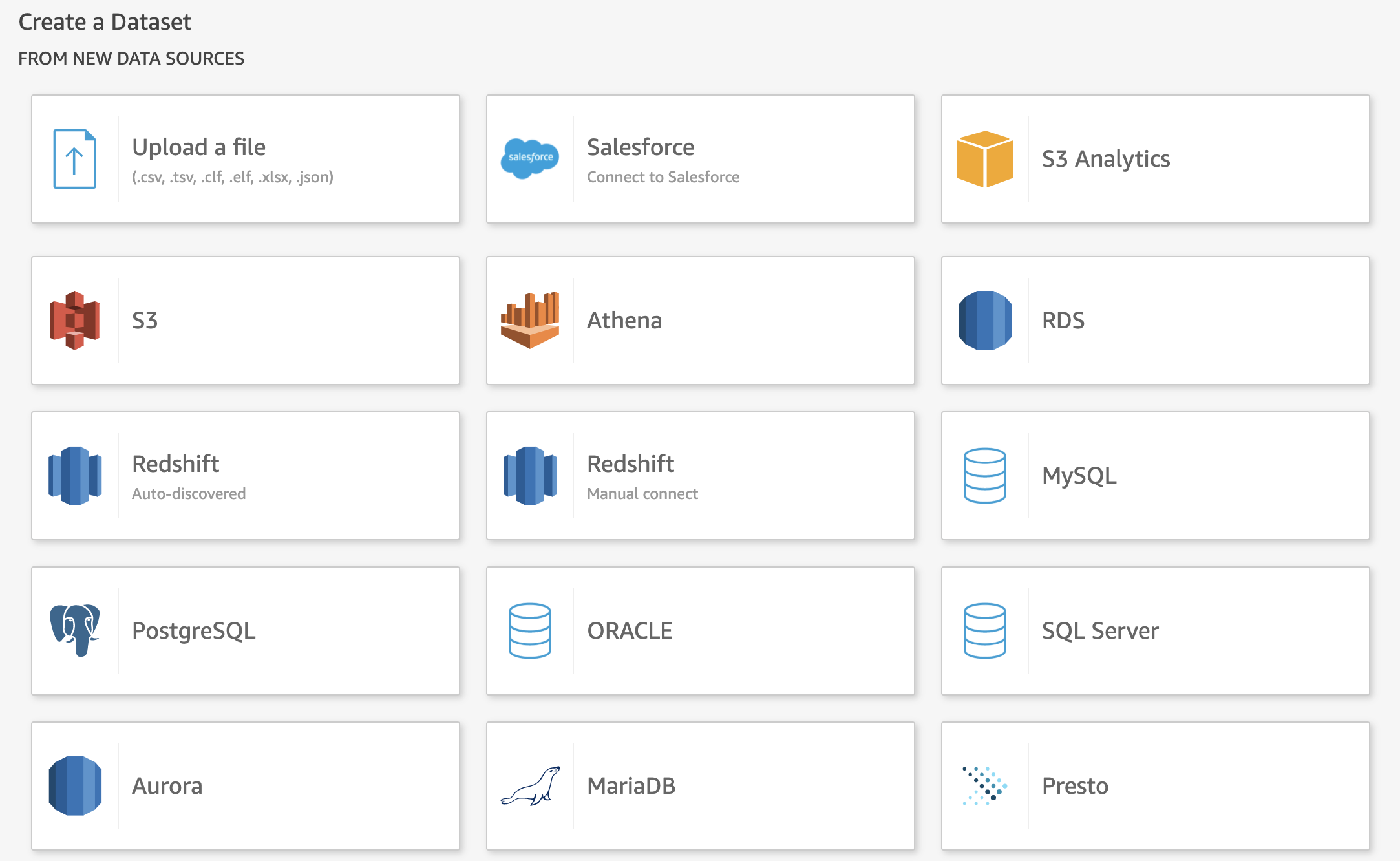
Click Dataset item in the menu. For our case we can create dataset from RDS or Aurora sourse
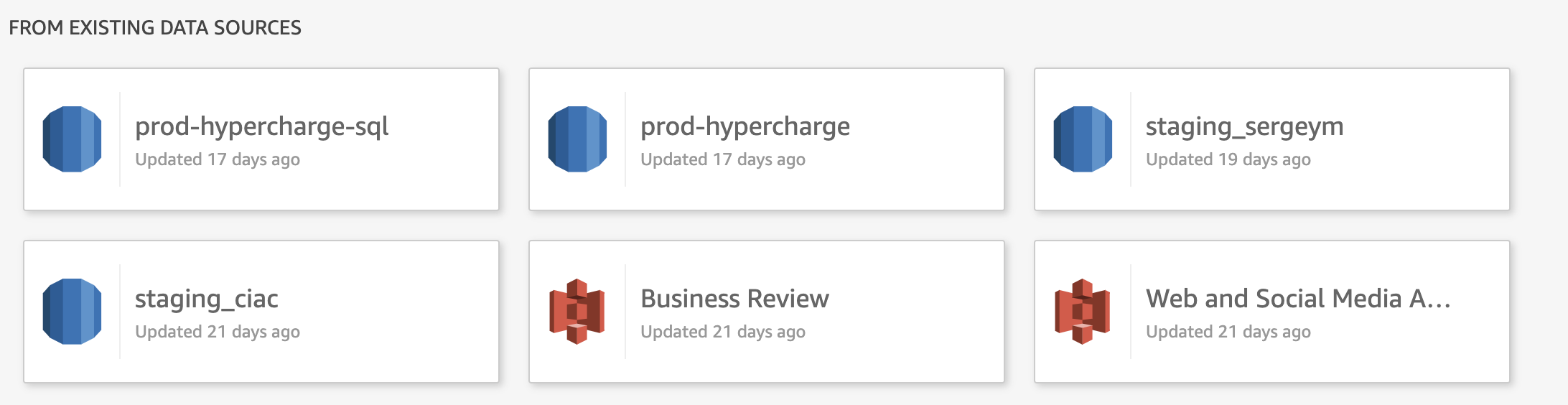
Also you can scroll bottom and choose extising data sourse
After you prepare new dataset don't forget click Save or Save & visualize. The second button will immediately propose to create analysis.
After click to a dataset in the your folder you can see few opportunities:
- Refresh Now - refersh data from your source
- Schedule (refresh) - you can set shedules when QuickSight will load data from you sorce
- Create analysis
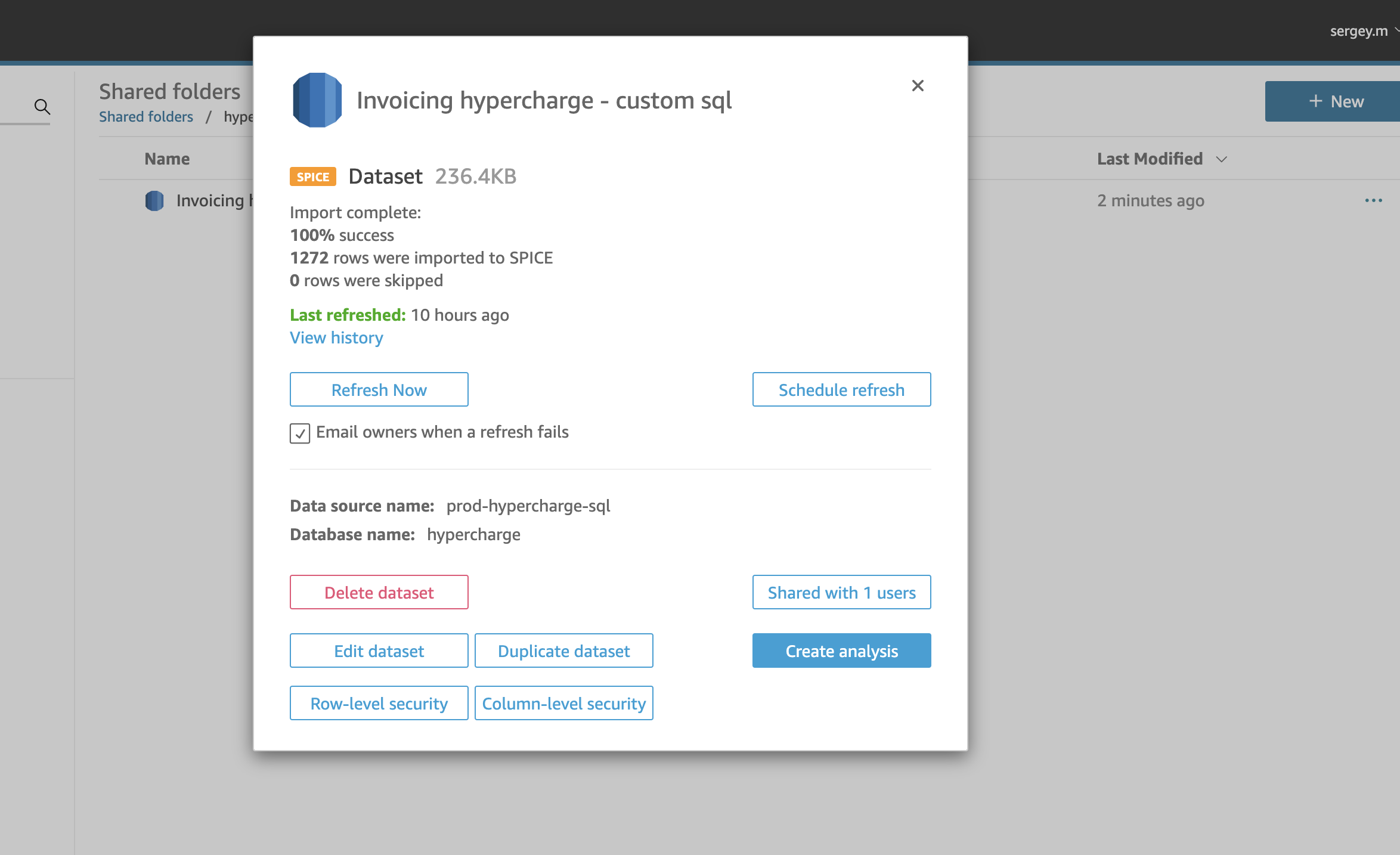
Create analysis
You can create analysis from New menu in the folder or button in the window of dataset, first way ask you to choose dataset on the second step.
Need rember that dashbord is still not dashboard for page on the portal.
Create dashboard
You can only create dashboard from analyses.
All changes need to do in analysis, dashboard isn't open for it. Dashboard has only sharing functionality.
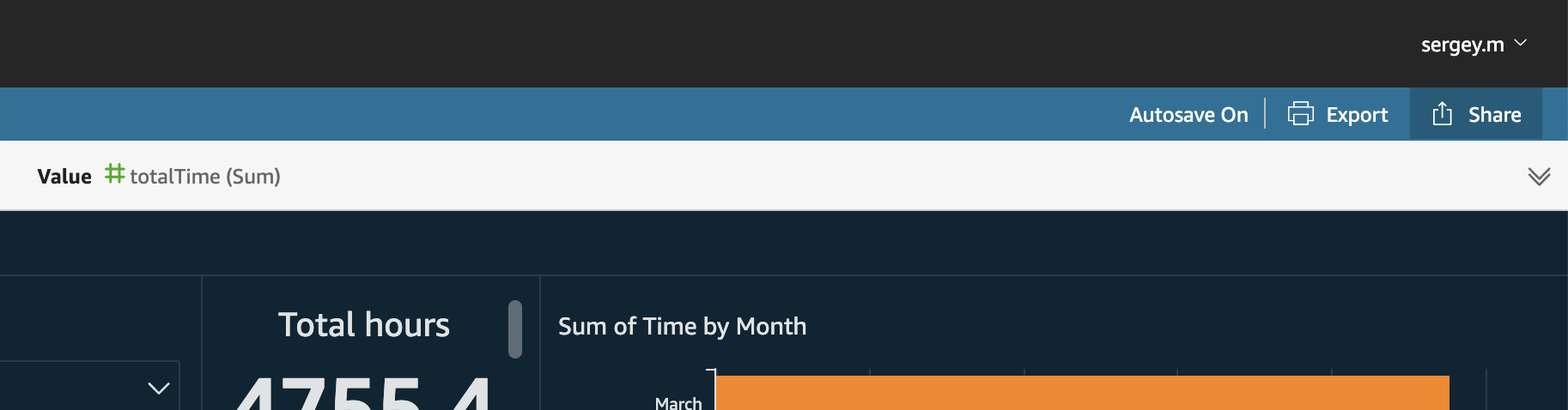
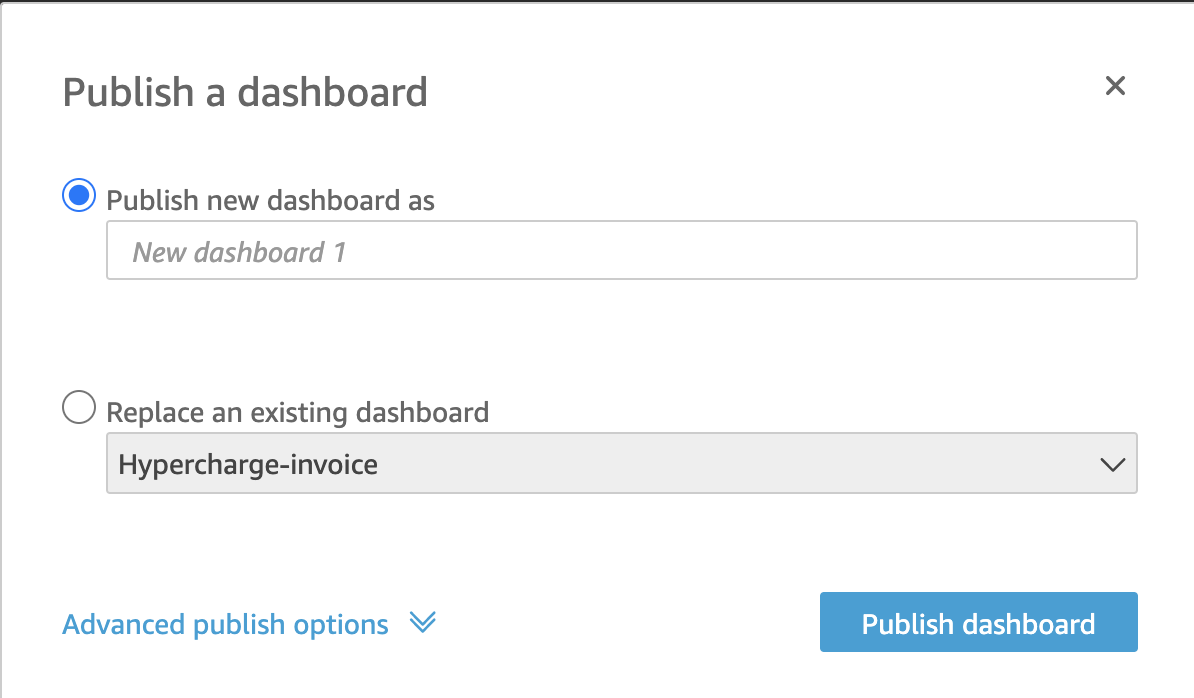
After create analysis need to publish it to dashboard that your changes will visualize on the portal page. Click Share -> Publish dashboard
You can choose existing dashboard. This makes it clear that we can publish one analysis, possibly with different modifications, to different dashboards.
So, when we publish dashboard we can share it for tenant or user from this tenant.
Share for user or group
When dashboard is openning you can click Share -> Share dashboard (this menu is positioned as in the analysis)
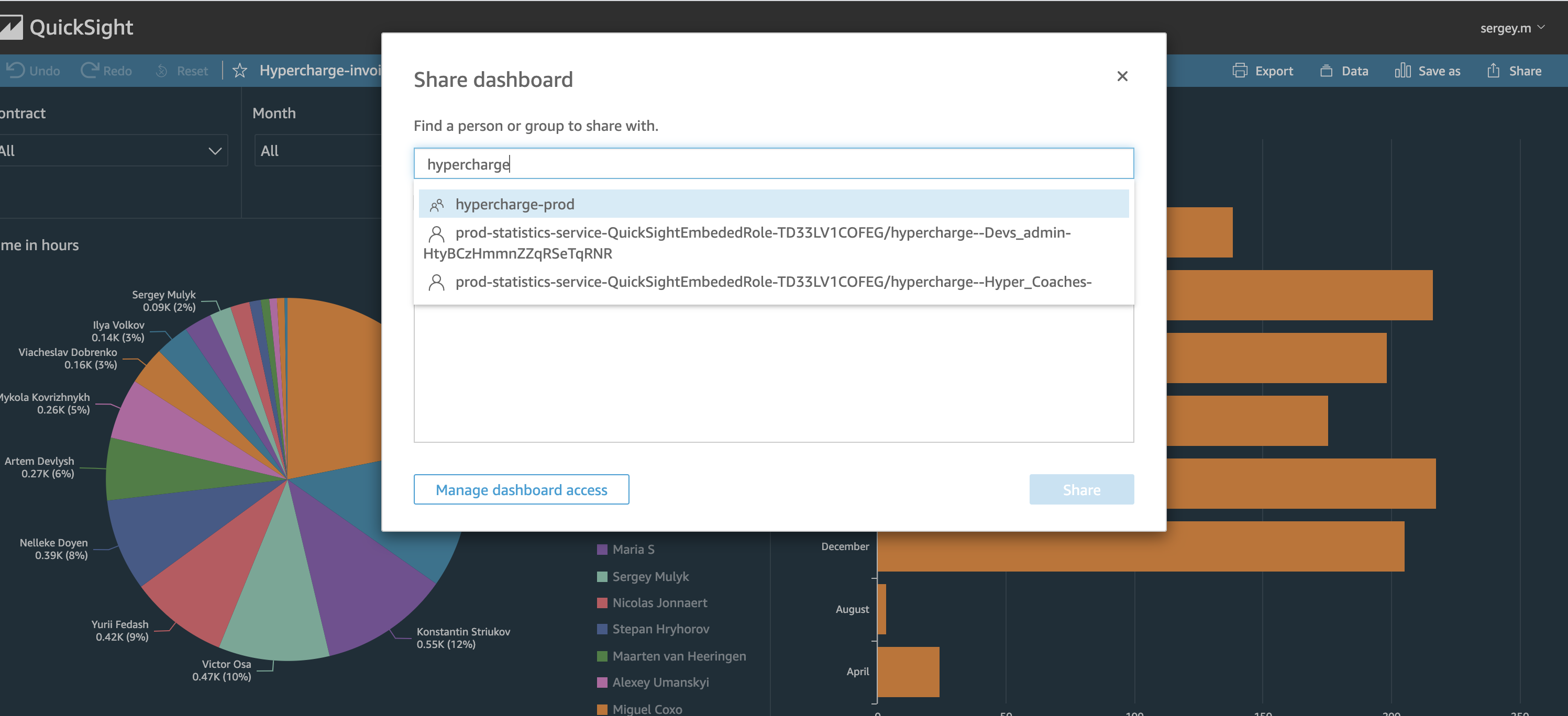
You can share for one user, like Devs admin or Hyper Coaches in the picture or for all users in the tenant by choosing group, like hypercharge-prod in the picture.