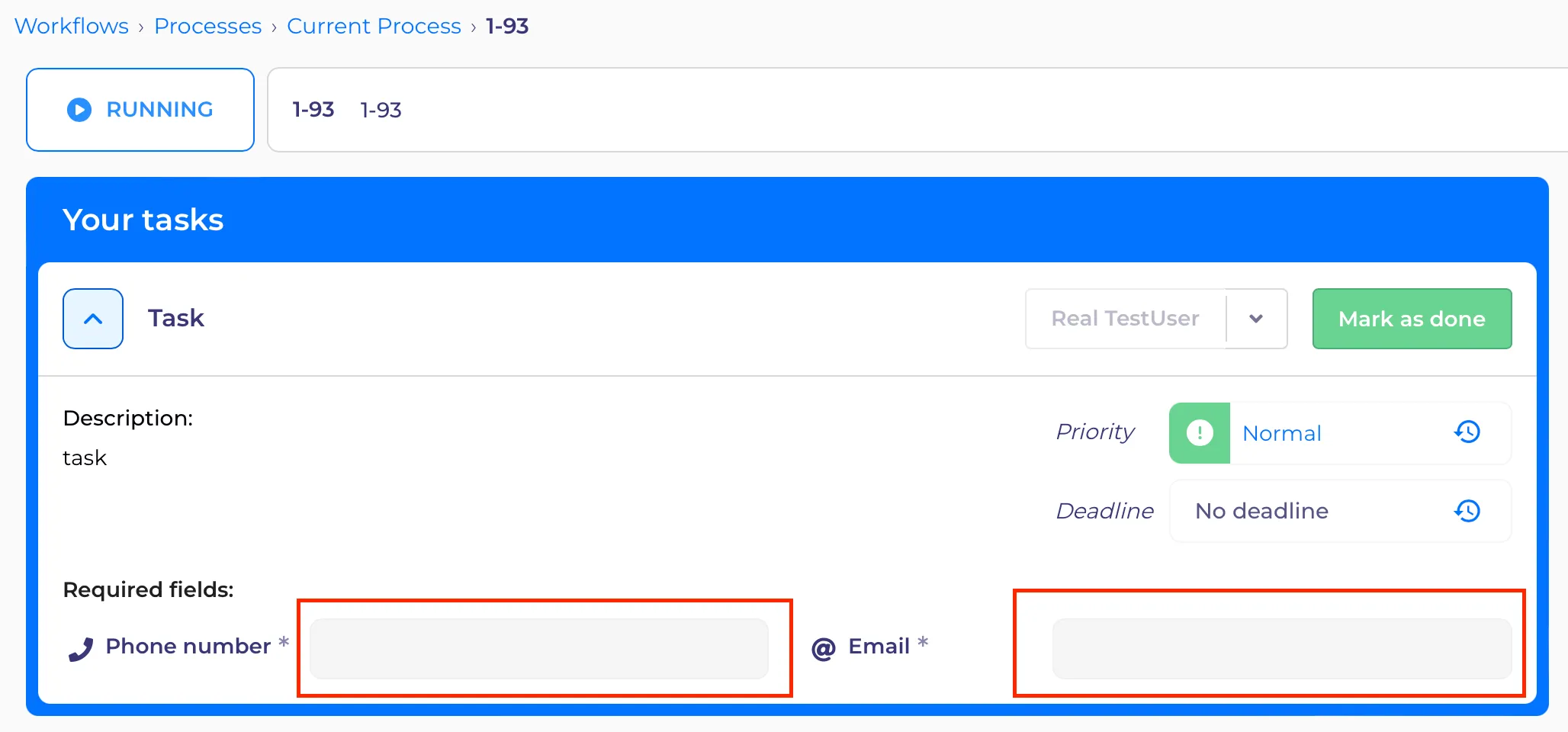
Override edit permission
Introduction
Workflow processes have the ability to "override edit permission" for manual task/activity settings
To add the "Override Editing Permission" option, the user needs to:
1.“Override Editing Permission” can be added in Tasks.
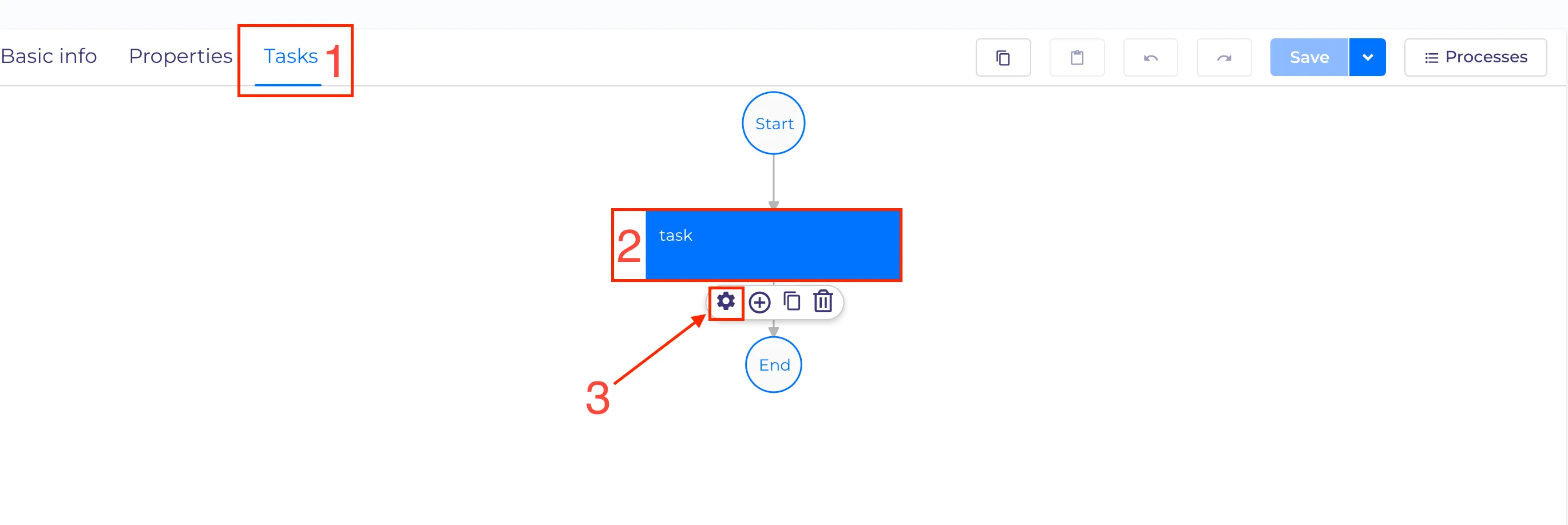
2. In Processes select the Tasks (1) tab.
3. Add task (2) to the process branch and click on task.
4. Click on configure settings(3).
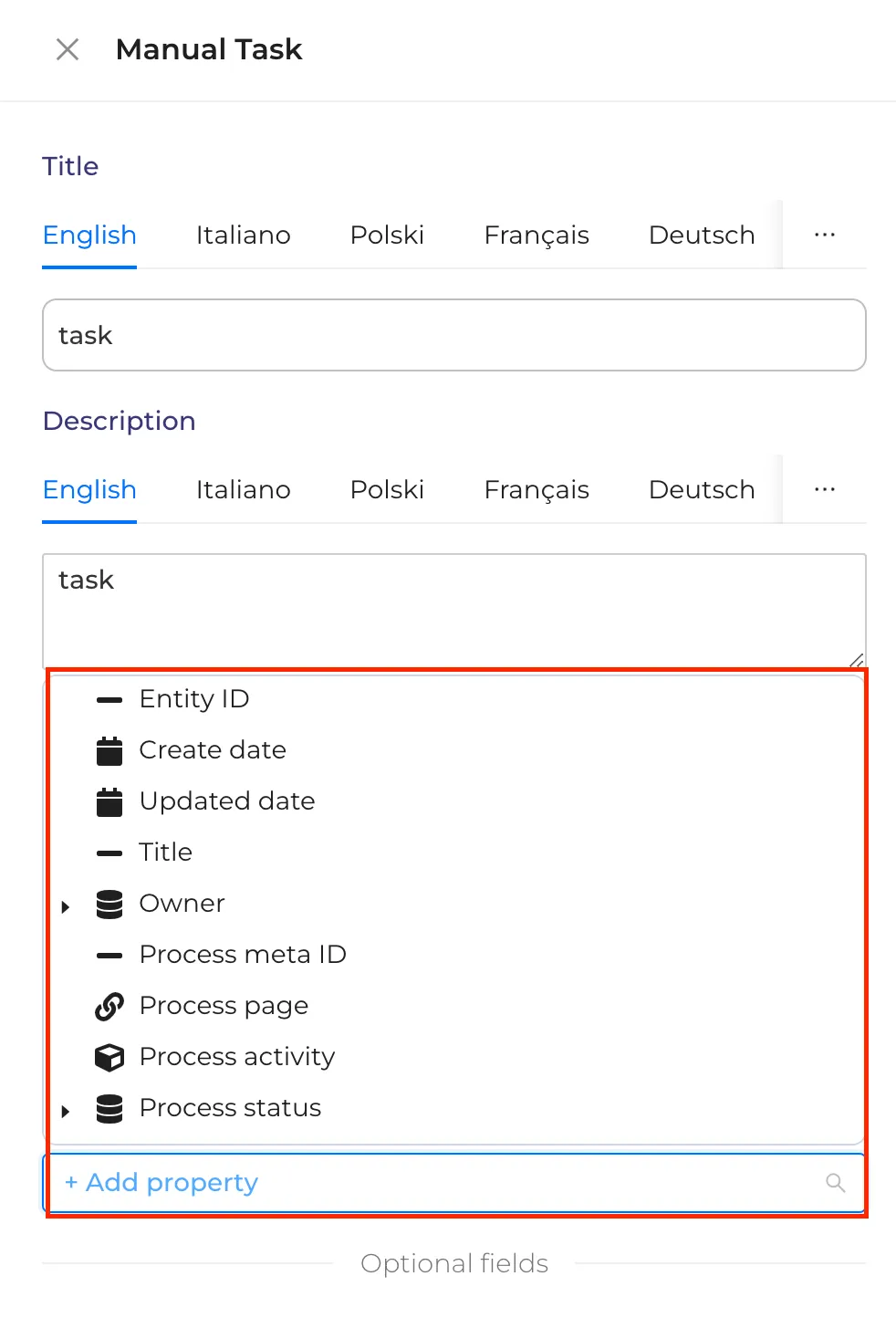
5. In the open popup on the right side click on the dropdown "+Add Property" and add 1 or more parameters.
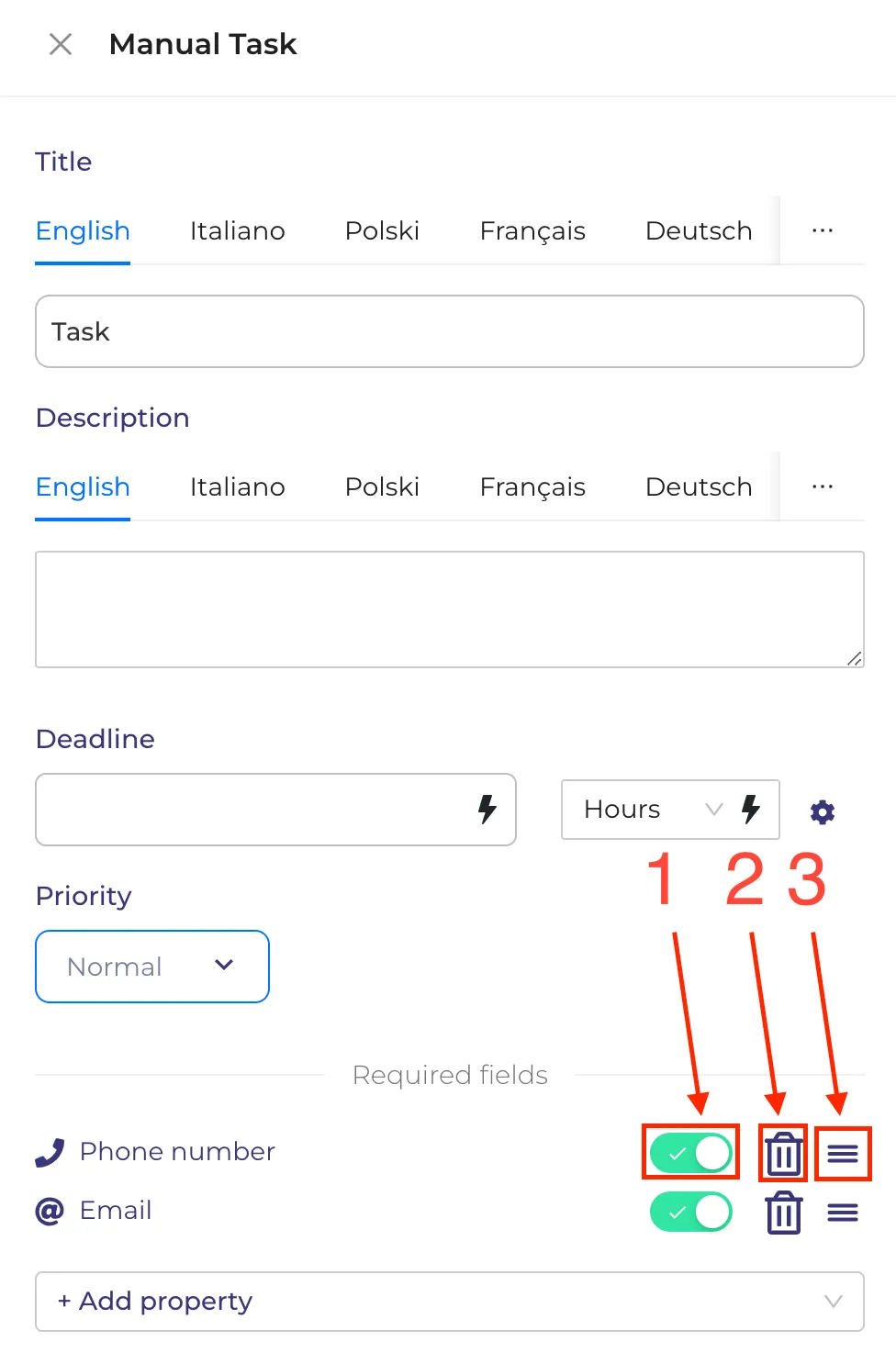
6. "Override edit permissions" have options buttons:
- 1 -> toggle on/off - override edit permissions
- 2 -> basket - delete property
- 3 -> move a property up/down
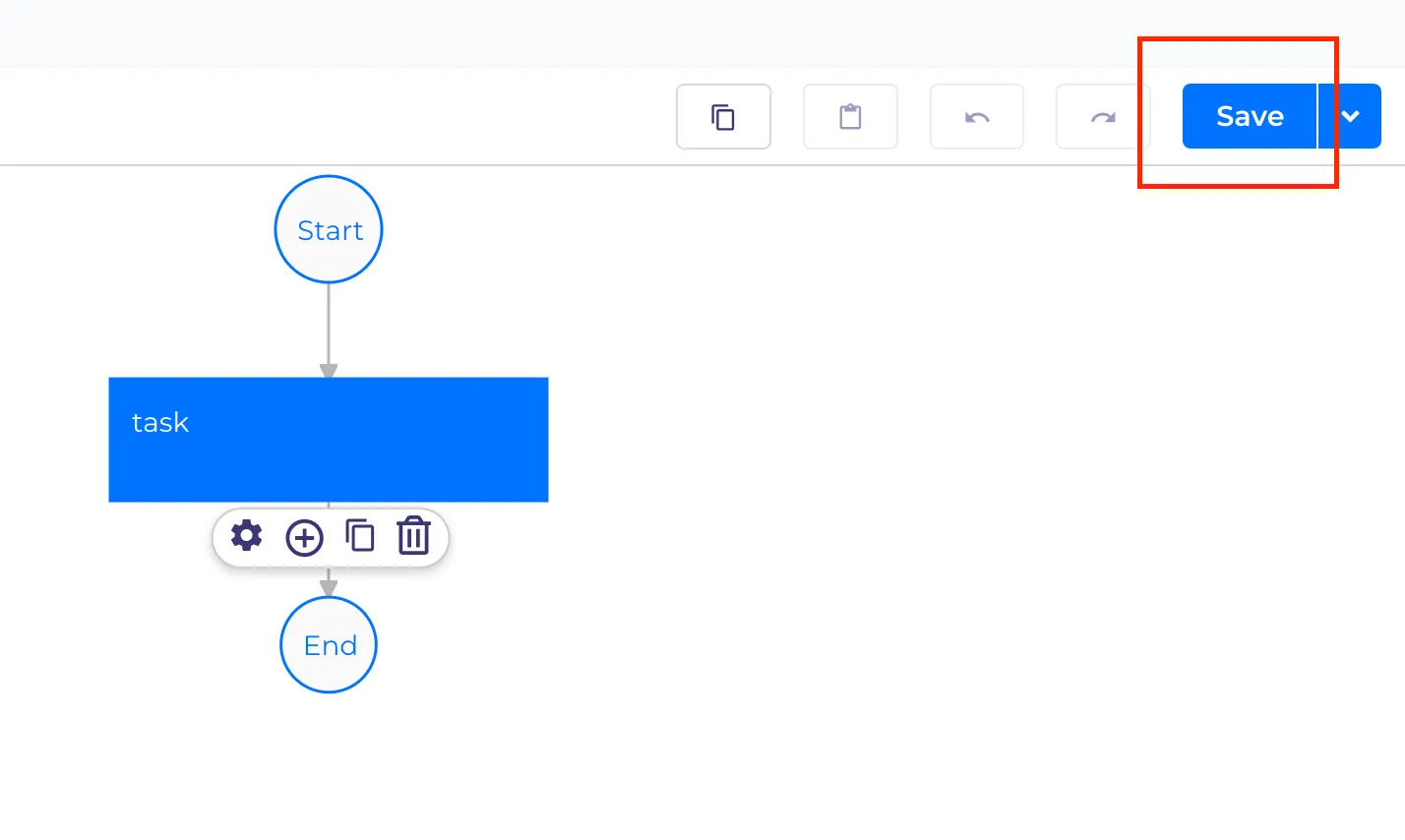
7. After finishing editing the parameters - close the popup Task and press the button Save.
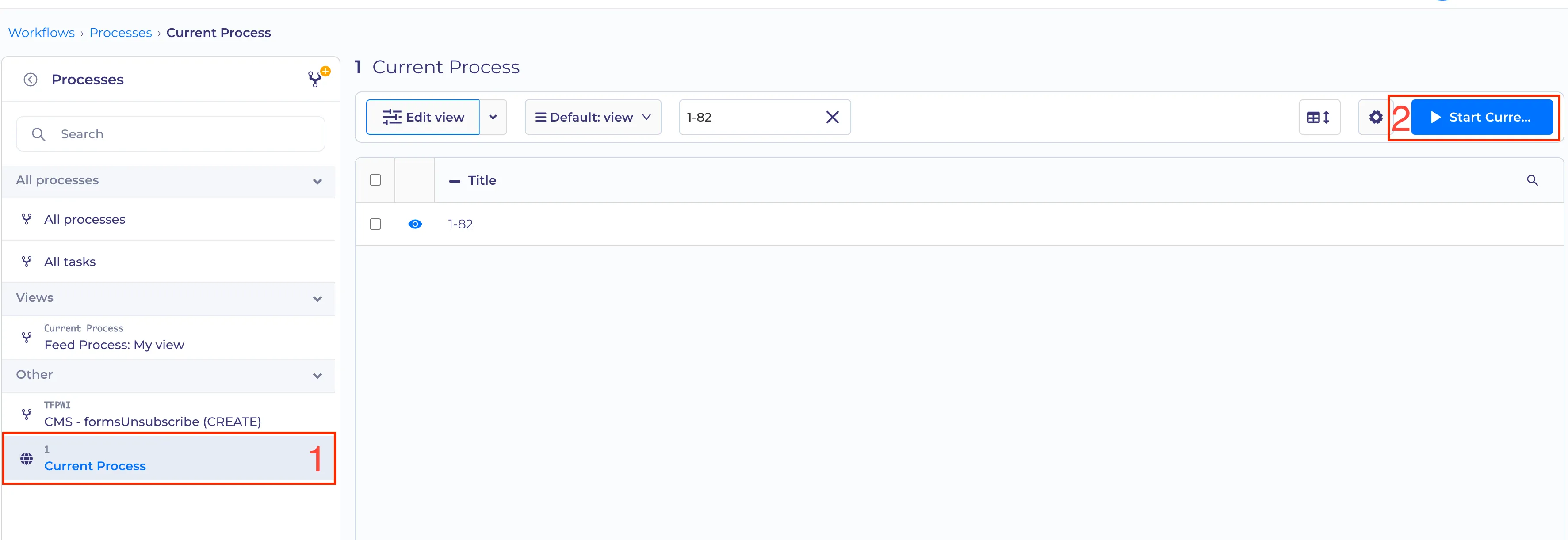
8. Select processes (1) with task parameters and run processes (2).
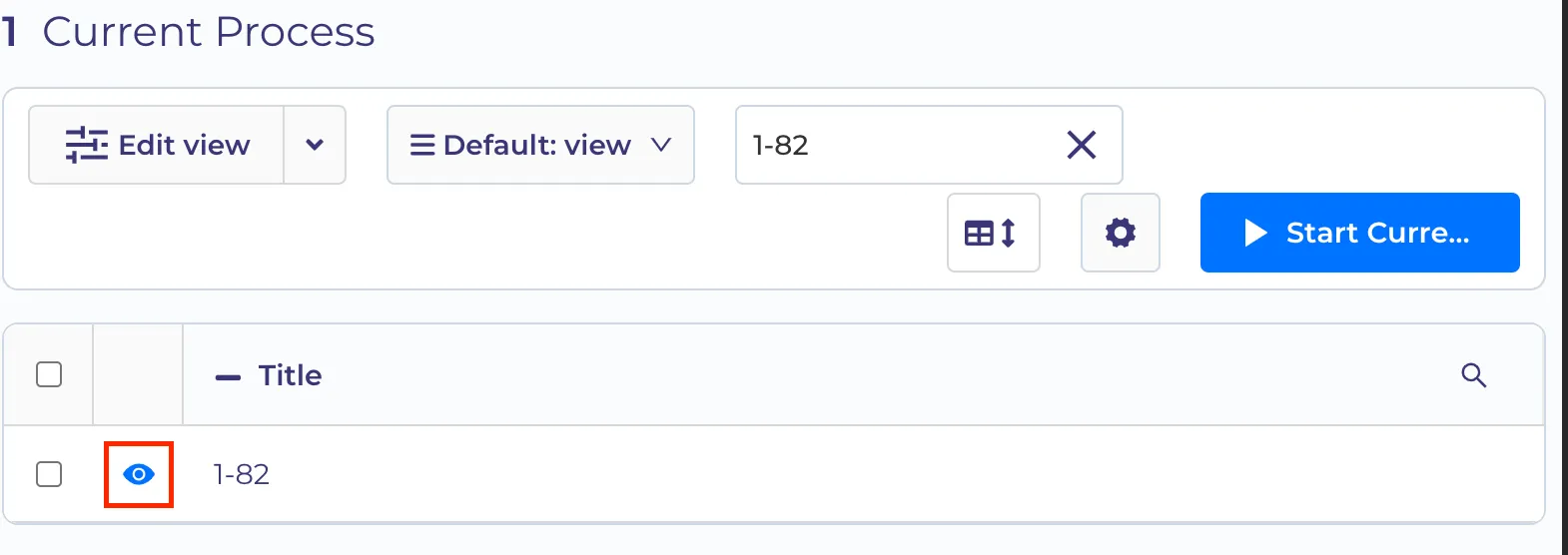
9. From the Table list click on the icon "go to process"
10. In the task have option parameters
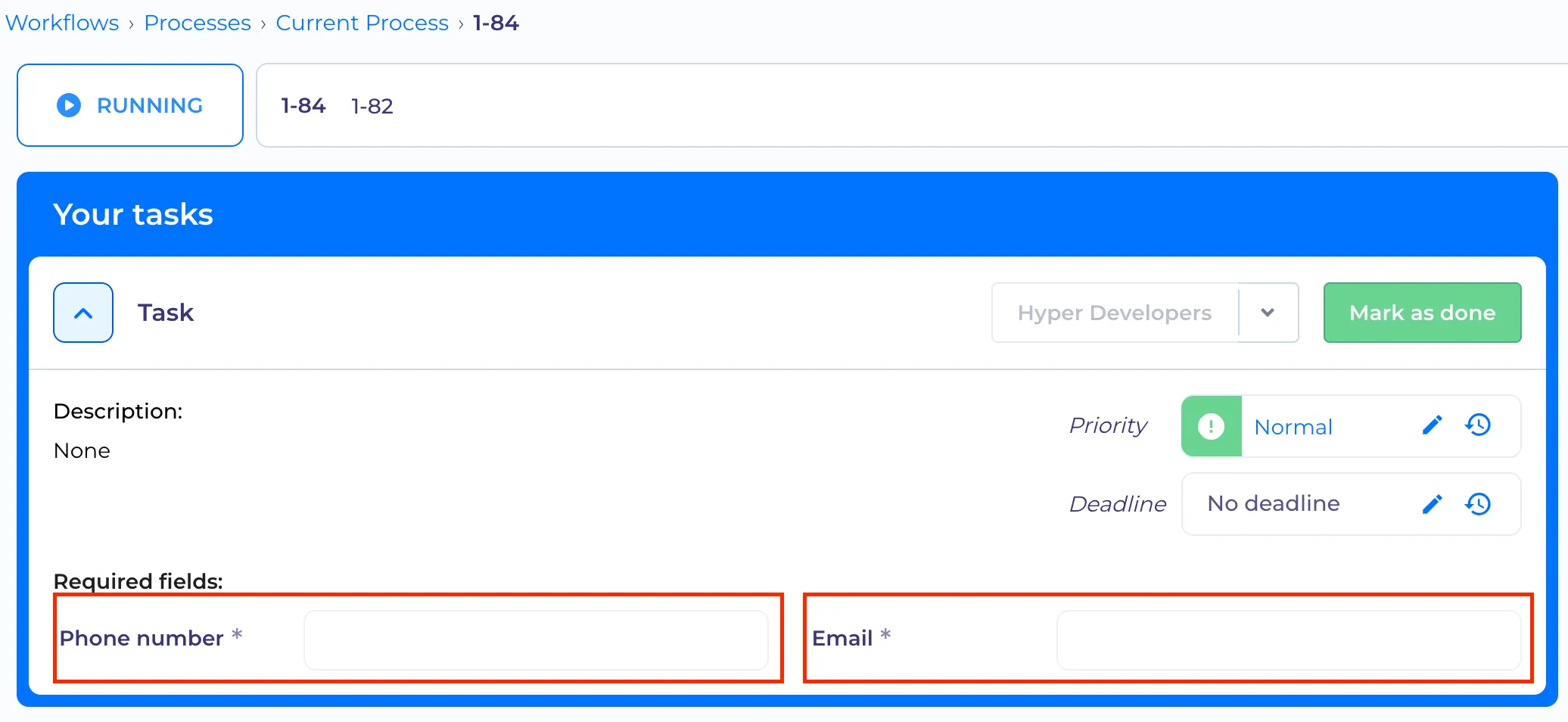
11. If turn off "override edit permissions", then the field be unavailable for edit