Subscriptions. Payment details
All information that we managed on Payment details page is not stored locally in our database.. The payment microservice is responsible for this page and it acts as a proxy service with data conversion into the required formats for HyperPortal and the Stripe service
Contact information
First you need to fill in contact information, which is required for further payments.
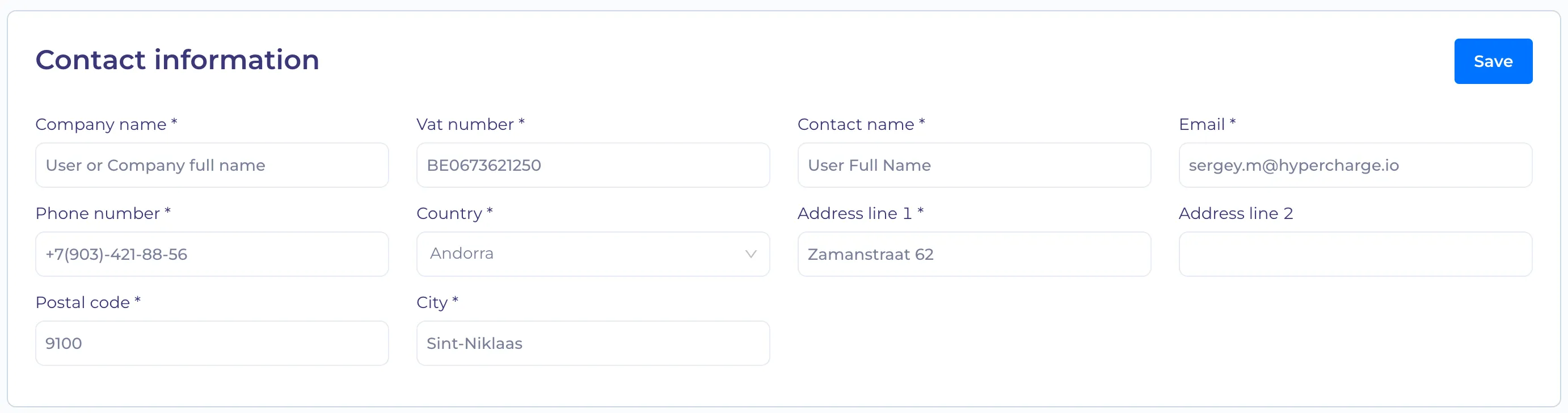
This information is added to the Stripe service for the customer object.
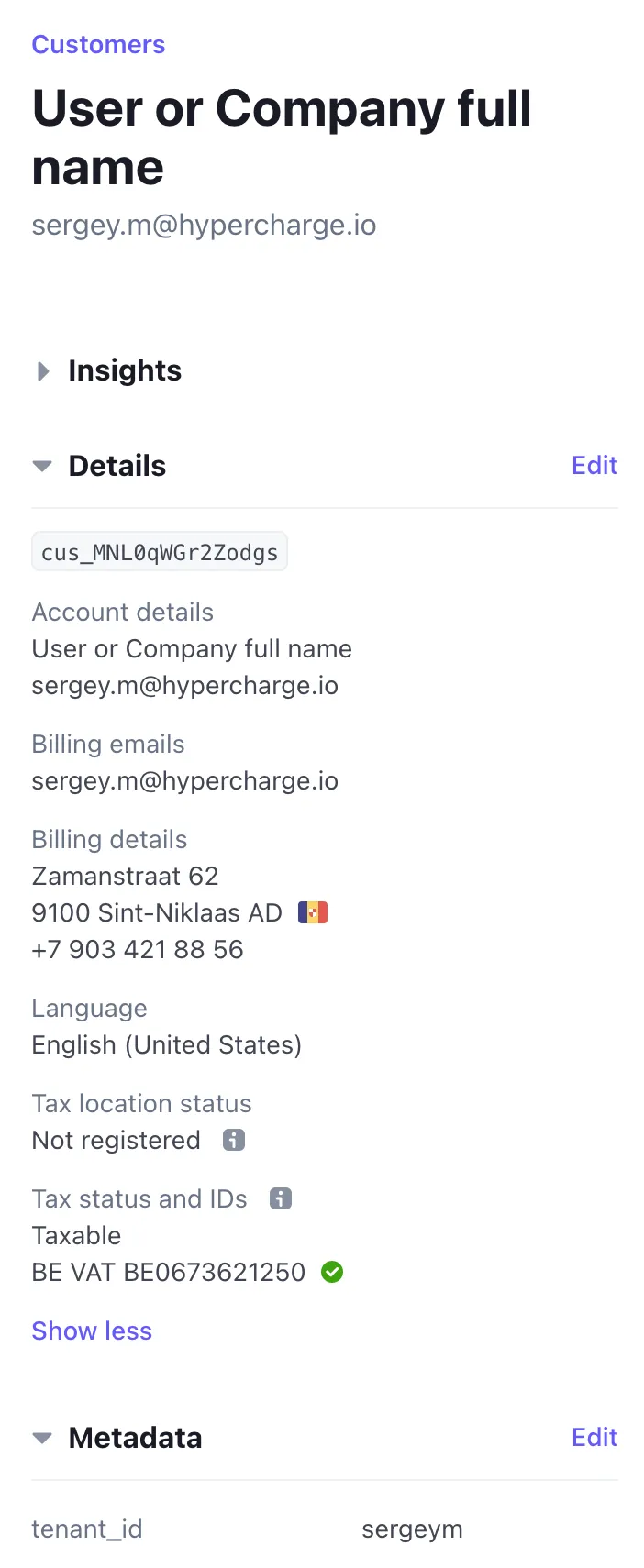
When HyperPortal add a customer to a Stripe, it save the tenant_id key in the metadata, so we have a portal tenant connection and a Stripe customer. According to this metada, the portal will search for a customer, if it does not find it, it adds a new one, otherwise it edits it. The customer can be added both through the portal interface and through the Stripe interface - it doesn't matter how it's done.
After there is a customer in the Stripe for the tenant, you can add payment cards or choose a pricing plan.
Payment cards
Stripe allows to add multiple cards for payment and choose the default card that will be used for automatic payment. You can always delete a card and change the default one through the portal interface.

Radio button on the right side for the choose default card and delete button for delete card. Default card cannot be deleted.
Cards store the customer id to which they belong (cus_MNL0qWGr2Zodgs from customer screenshot above), and their list can also be viewed in the customer card on the Stripe.
If you do not add a card or do not select by default, invoices will be sent to the mail.
Pricing plans
Pricing plans on the HyperPortal are formed from products and prices in Stripe. Pricing plans can only be added/changed via the Stripe GUI by adding products and prices with the necessary metadata.
Let's look at an example Pro plan new
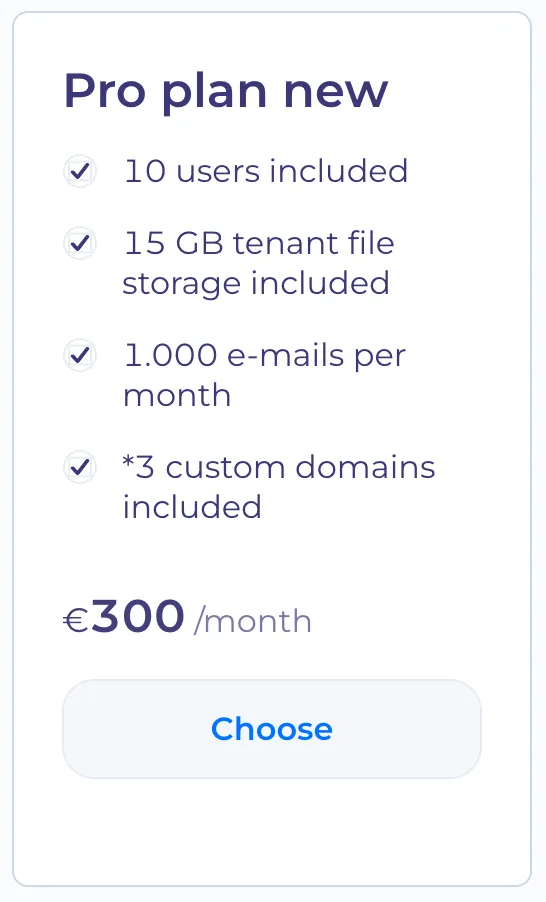
what should we do in the Stripe system to make such a pricing plan appear on the tenant for selection?
- create product with title Pro plan new and a description listing the benefits of the subscription, separated by commas 10 users included, 15 GB tenant file storage included, 1.000 e-mails per month, *3 custom domains included, so that they are then displayed on the HyperPortal as seen in the screenshot above.
- add a price to a product. The price in the default status will be displayed for all tenants. If you want to add an individual price, add a new price here in the product with metadata {tenantId}: 1 (there can be several such keys if several tenants have the same individual price)
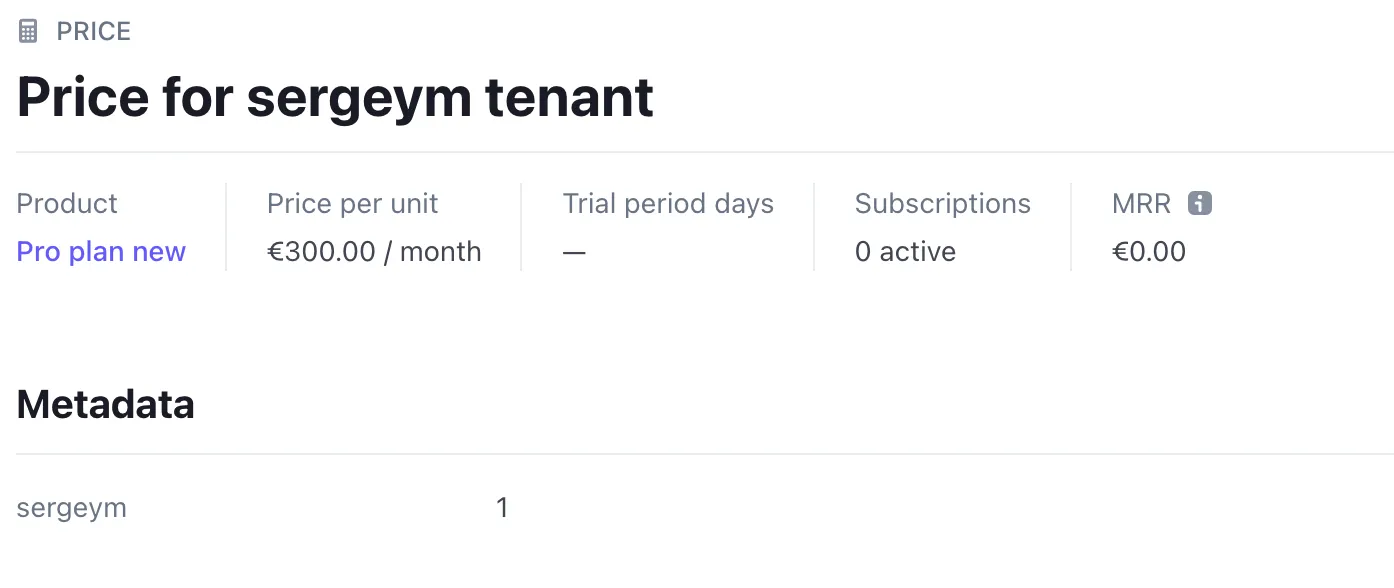
- in order for the product to be defined as a price plan and displayed on the HyperPortal, you need to add a metadata:
- all: 1 - pricing plan for all tenants
- {tenantId}: 1 format - individual pricing plan
That's it, the pricing plan has been created and will be displayed on the portal. But, now we need to add extra subscriptions for the current plan, this is when the limit of what is indicated in the plan description is exceeded. These subscriptions will not be displayed on the portal, but will be included in the invoice. For this, the same products are created, but no metadata is indicated for them, which will mean that this is not a price plan. The title of the product will be displayed on the invoice.
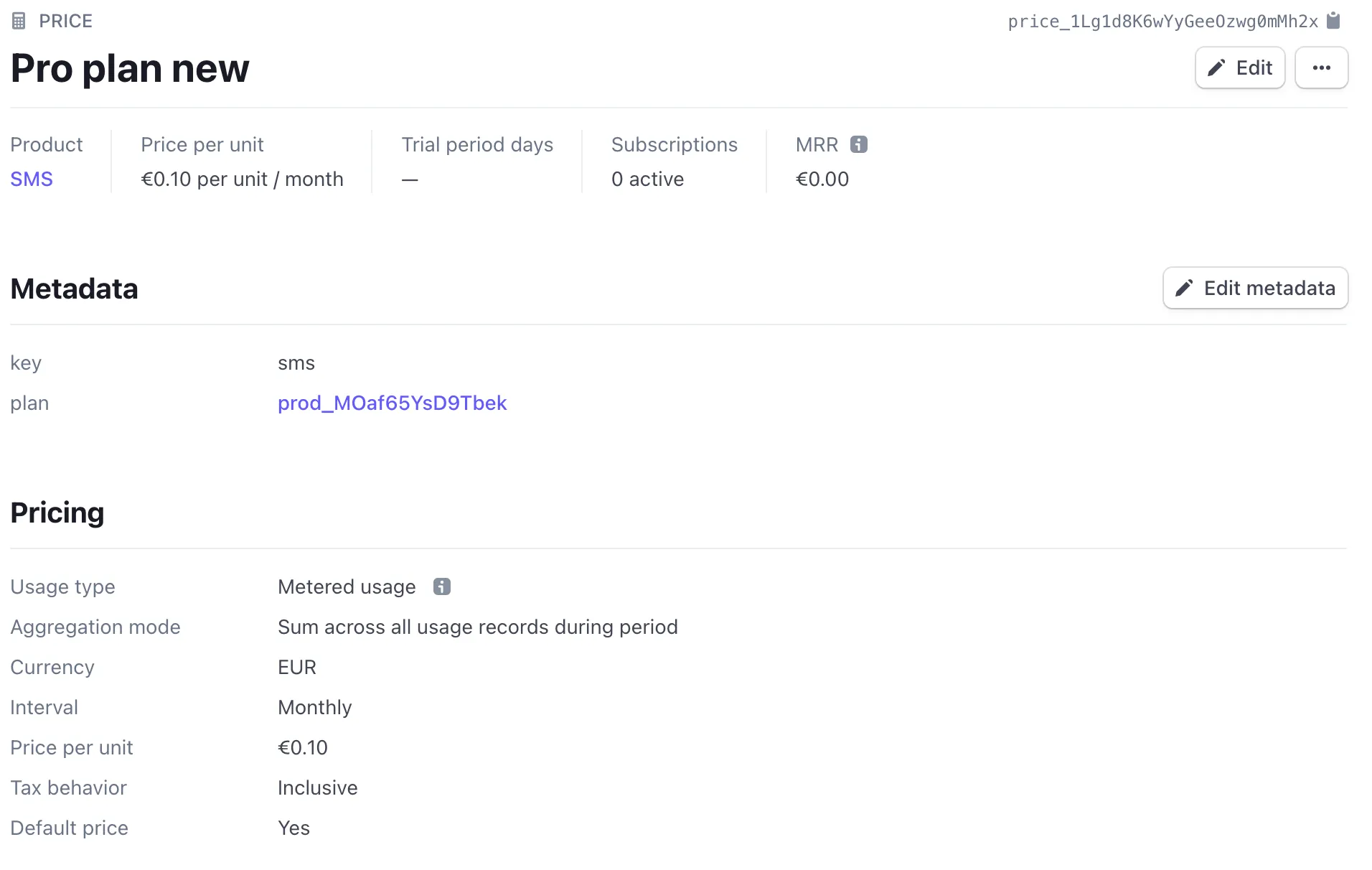
For example, sms service:
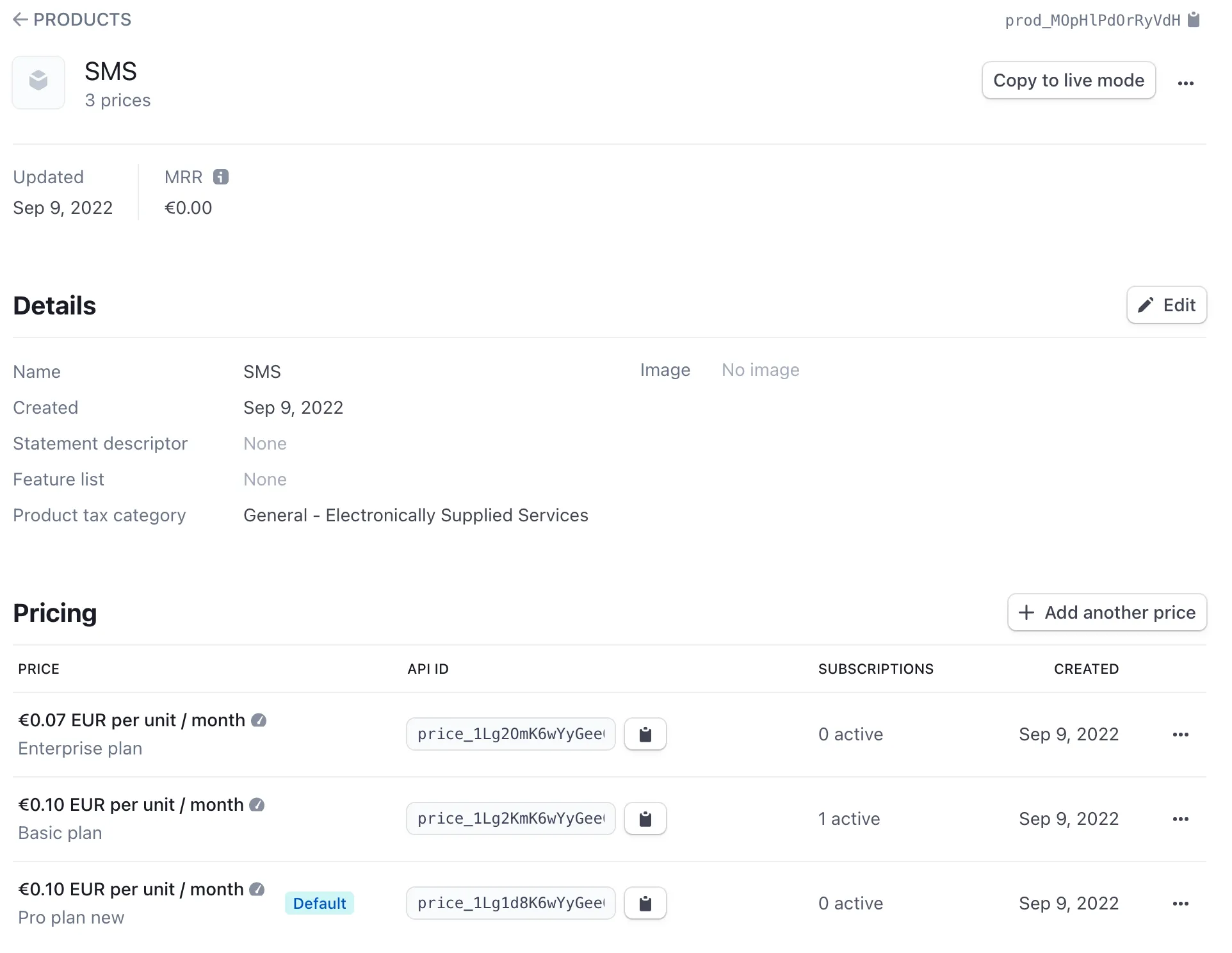
inside the product, we create price lists with prices for price plans. To attach an extra price to our price plan, you need to add data to metadata in the format plan: {productId of price plan} and add a unique identifier for this price: key: {uniqueId} - both of these parameters are required for correct working. Also, use this key to send statistics for the desired price. Here in prices, you can also use metadata logic all: 1 and {tenantId}: 1, to create individual prices.