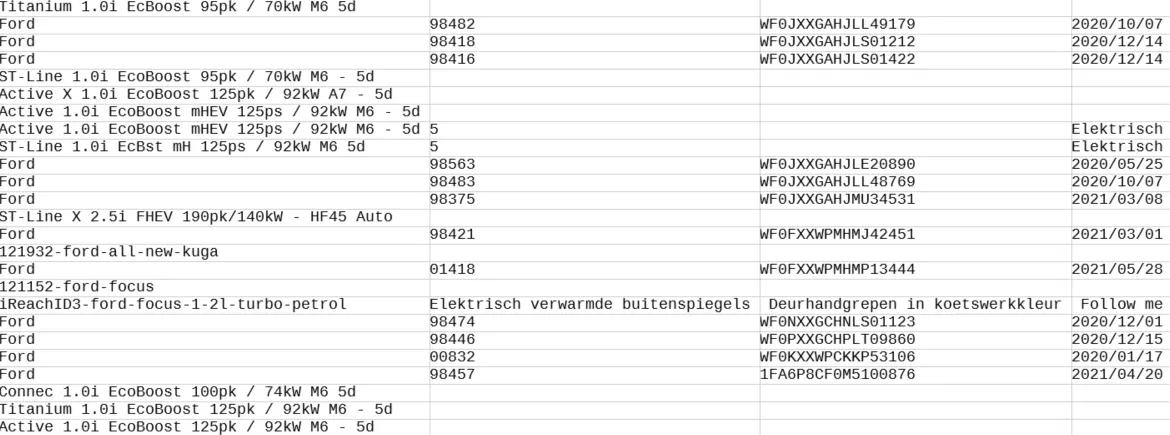
Importer
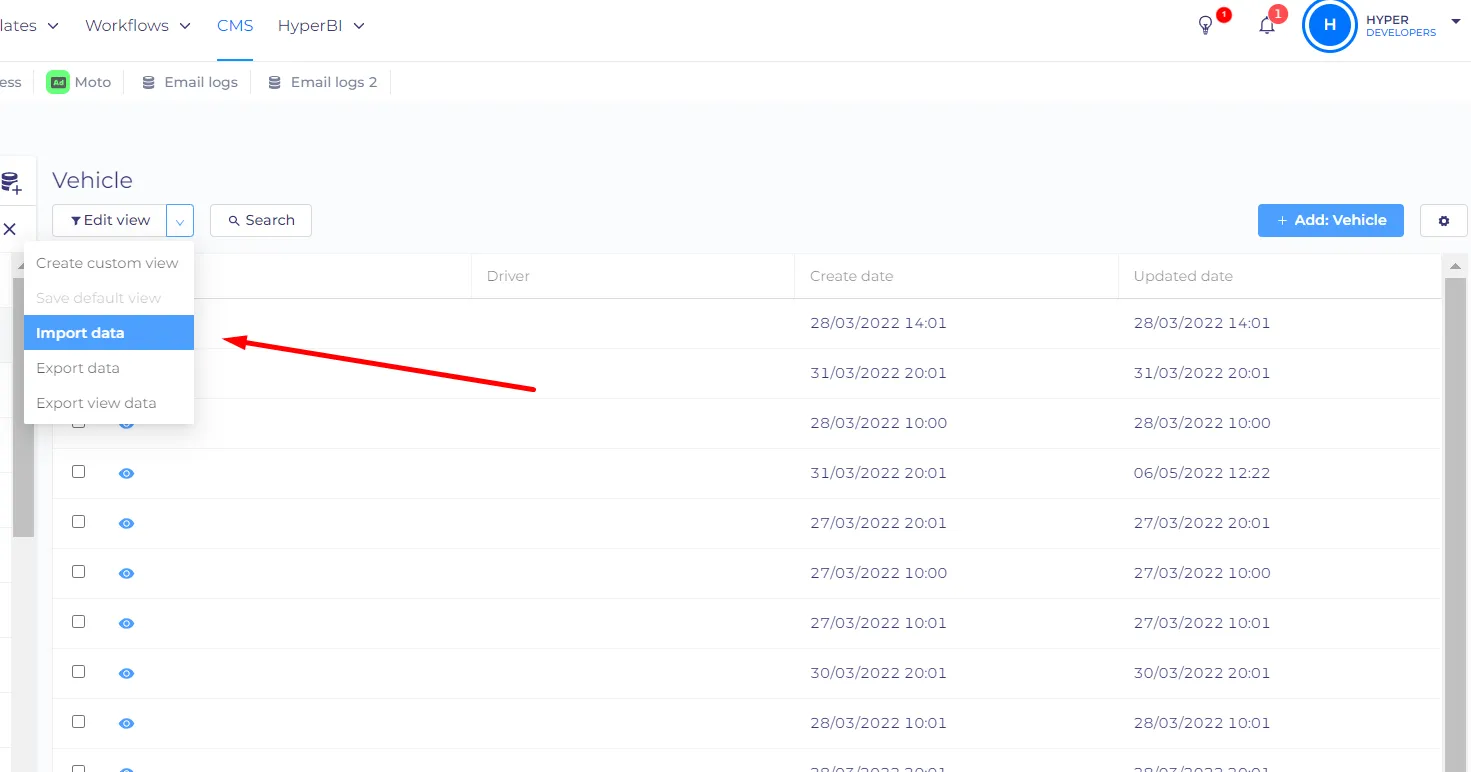
To import data you should first go to the entity that you need to import data to, then click on the icon near the 'Edit view', then on 'import data'.
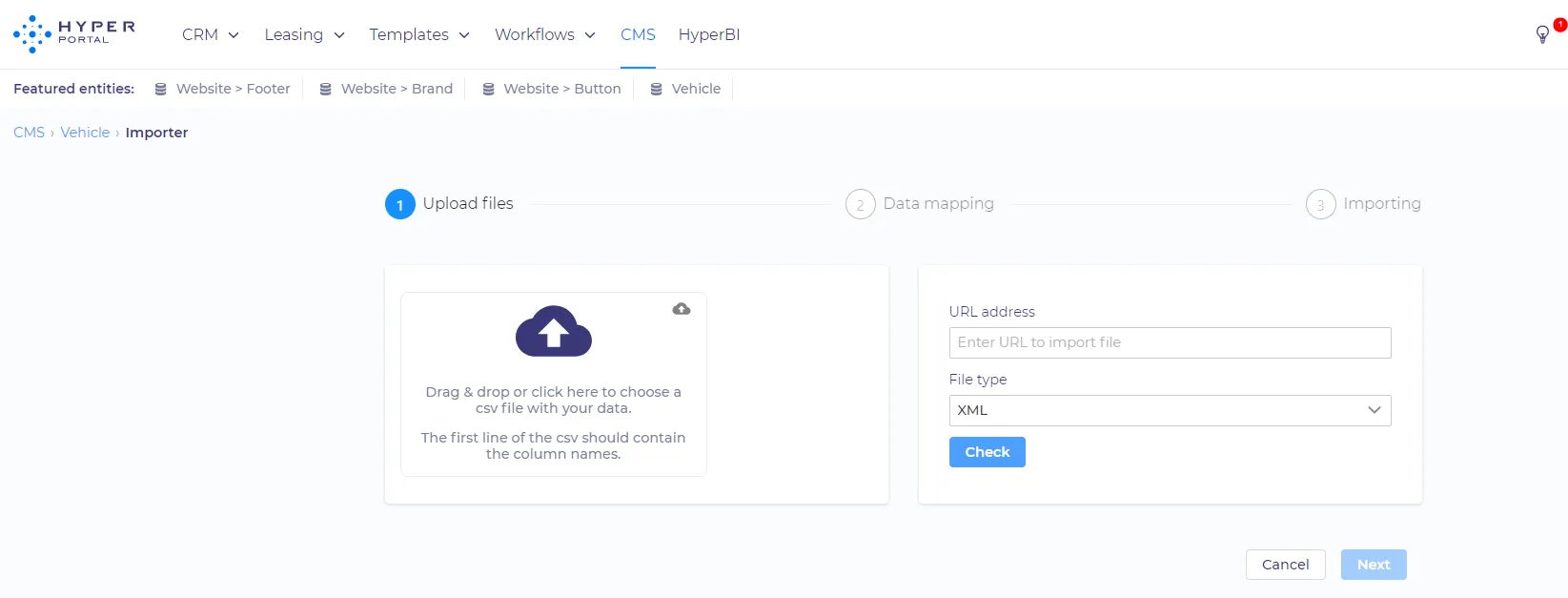
On the first tab, you can upload a file. You can either upload a CSV (the first line should contain the column names) or JSON file from your device, or you can choose the URL address and the file type (currently supports XML, JSON, and CSV).
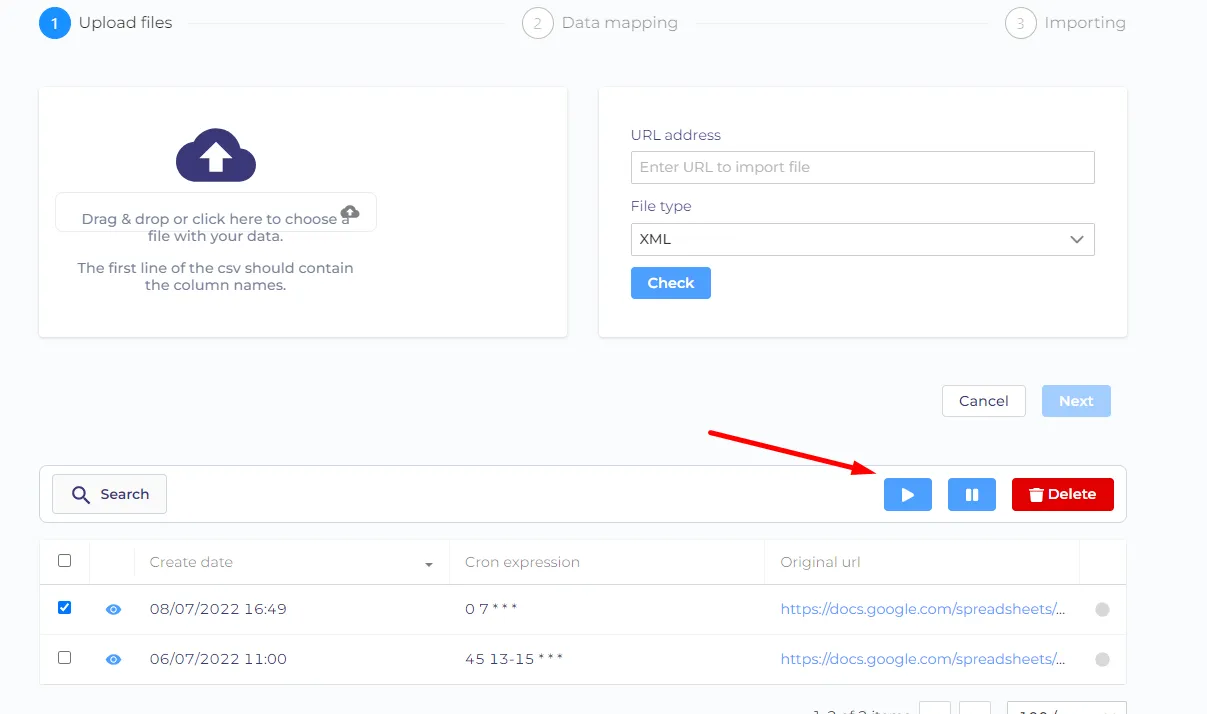
At the bottom of the page, you can see the list of scheduled imports. You can edit them by clicking on the 'eye' icon.
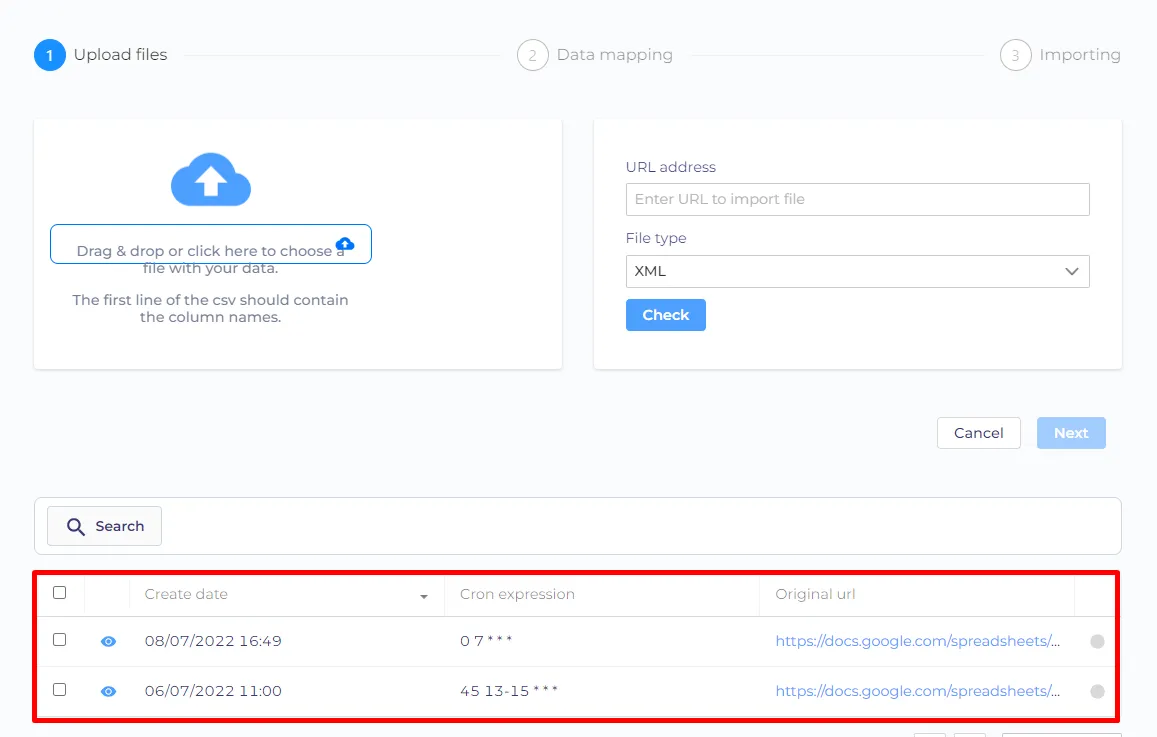
You can also pause, unpause or delete scheduled imports by clicking on the checkbox next to the import and then pressing a corresponding button on the right side.
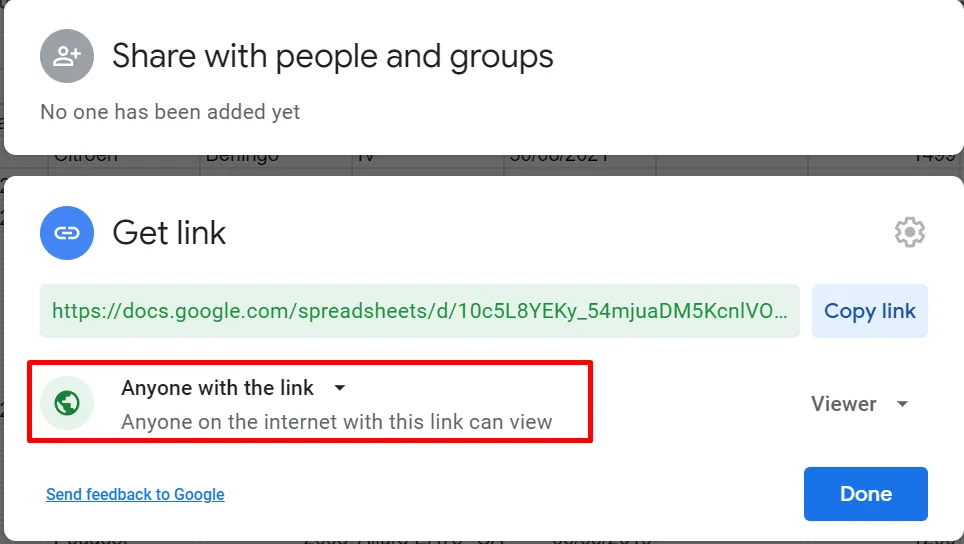
If you are uploading from a link, please make sure that you have the right permissions. For example - I want to import a Google sheet. For the import to be successful I need to change permissions to 'anyone with the link'.
Mapping
In this section, you can customize your imports.
Import mode has three available options:
- "Create only" - Select this option if you are importing data for the first time. Only new records will be created.
- "Update only" - Select this option if you want to update existing records for this entity based on a unique property. If there is no match for the unique property, the item will be skipped.
- "Create & update" - Select this option if you want to update existing records for the entity based on a unique property. If there is no match for the unique property, a new item will be created.
Unique property - Here you can choose a CMS property. The value of this property will be used to check for an existing item. Most of the time it`s some kind of ID number that is unique.
Trigger entity events - Here you can set whether to trigger entity events. Events are needed to start processes and work with integrations (XDMS, Webhooks) enable if any of these are configured.
Scheduling - this feature is only available for imports from URL addresses. You can set the time and frequency of the imports here
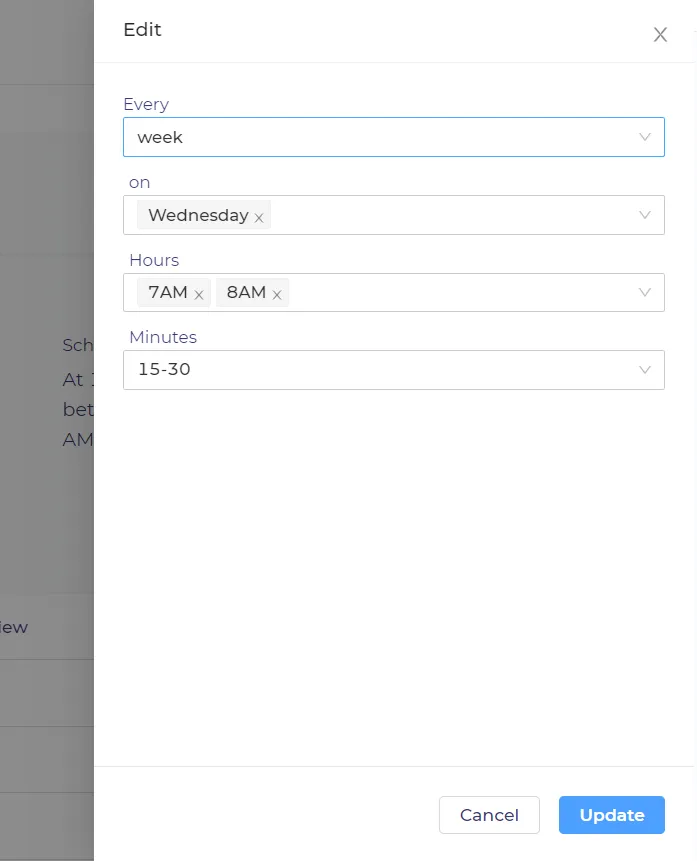
Keep in mind that the time is always displayed in the UTC timezone.
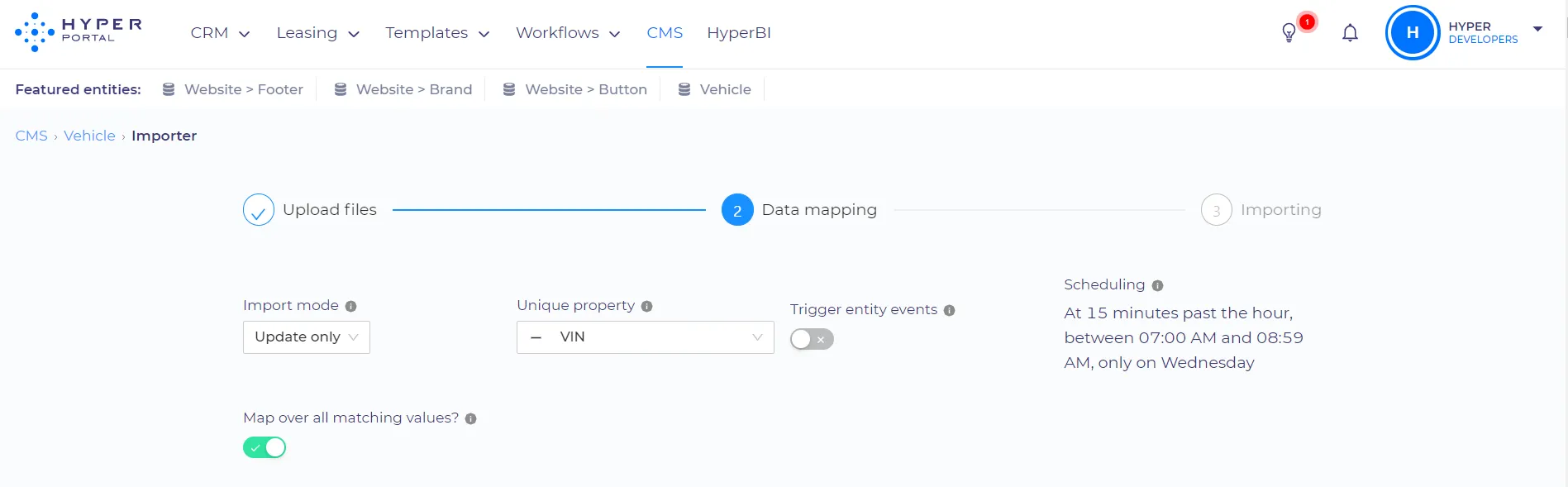
Map over all matching values? - If enabled, this setting will make the importer override ALL the items with matching unique property IDs. (For example - The vehicle in CMS with ID (unique property): 2005 is blue, and the vehicle with ID (unique property): 2005 in the imported file is red. The vehicle in CMS will become red if the setting is enabled.)
Keep in mind that this also works when you are importing empty values (For example - The vehicle in CMS with ID: 2005 is blue, and the vehicle with ID: 2005 in the imported file has the empty color value. The vehicle in CMS will have empty color property)
Bellow, you can map entity properties. You can choose the column from the imported file that corresponds with the property.
Keep in mind that you need to map all 'required' properties, also the item will not be imported if the required property field is empty.
You can choose the number format for the number type properties.

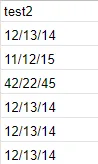
Also, you can choose the date format and a Timezone for 'date' type property fields.

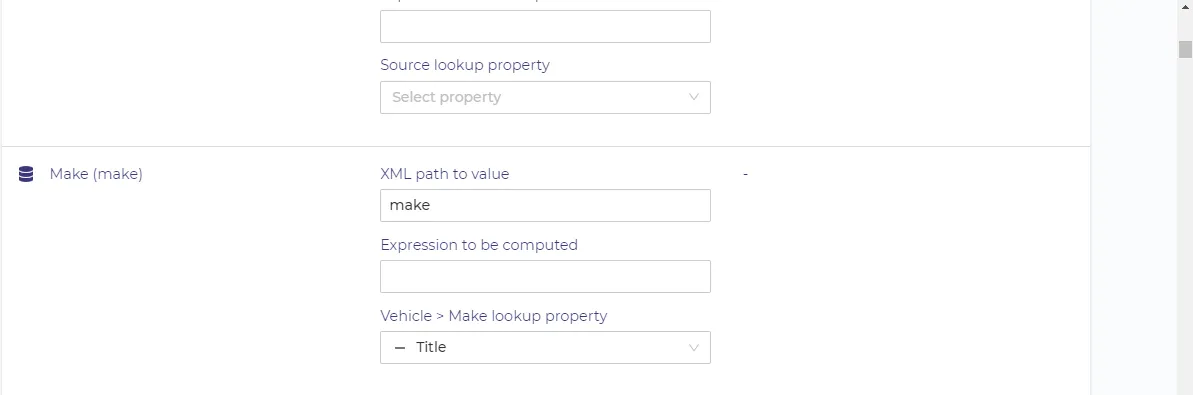
If you are importing data to the 'entity' type field, you should also choose the lookup property. The system will compare the data from the lookup property with the chosen column of the imported file. It will set the entity item as a property if there is a match.
If you are importing data to fields that support lists of data, you should choose a separator(a symbol that separates values in a cell). In this column, the separator is '/'.
Computed expressions
You can also use computed expressions here.
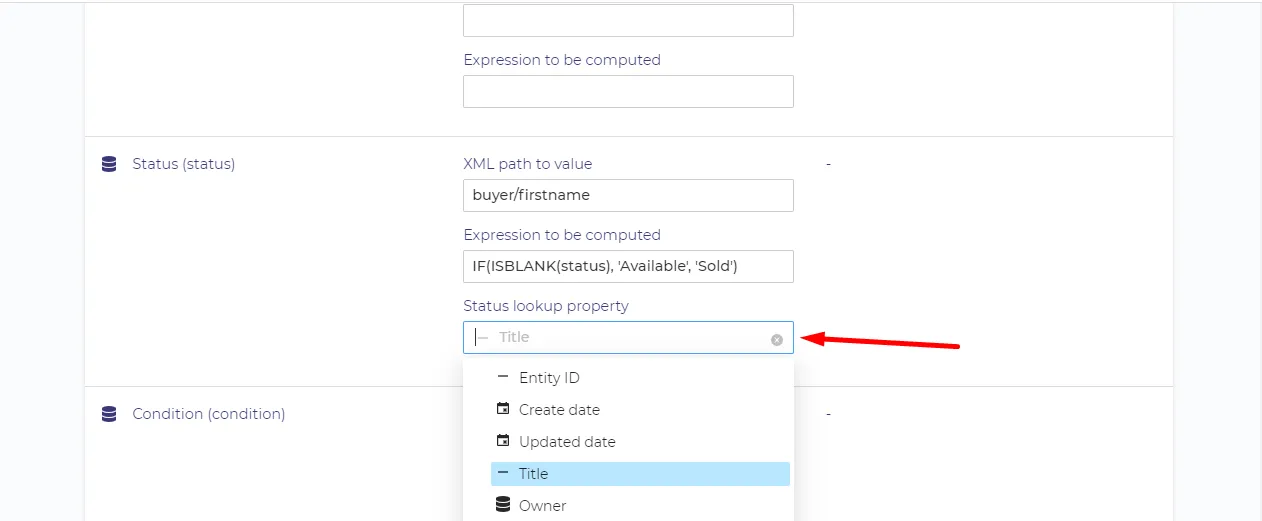
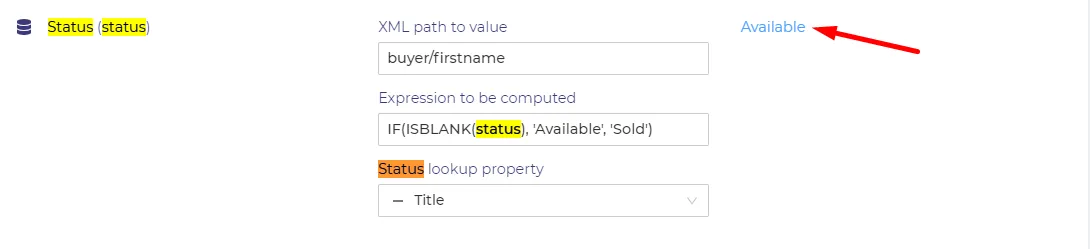
For example - you are mapping the 'status' property, which has two available options in CMS - 'Available' and 'Sold'. But the XML file that you are importing doesn`t have the status section, it only stores the name of the buyer if the vehicle was sold. Keep in mind that you need to refer to the property ID (status - for example) of the field in CMS, not to the name of the field of the imported item. You can use this expression to solve the issue - "IF(ISBLANK(status), 'Available', 'Sold')". This expression checks if the 'ISBLANK(status)' (checks whether the XML value is empty), then it set the status to 'Available' if the buyer field is empty, and to 'Sold' if it`s not empty.

Starting the import
Before starting the import you can check the results of the mapping by clicking on the 'preview' button at the bottom.
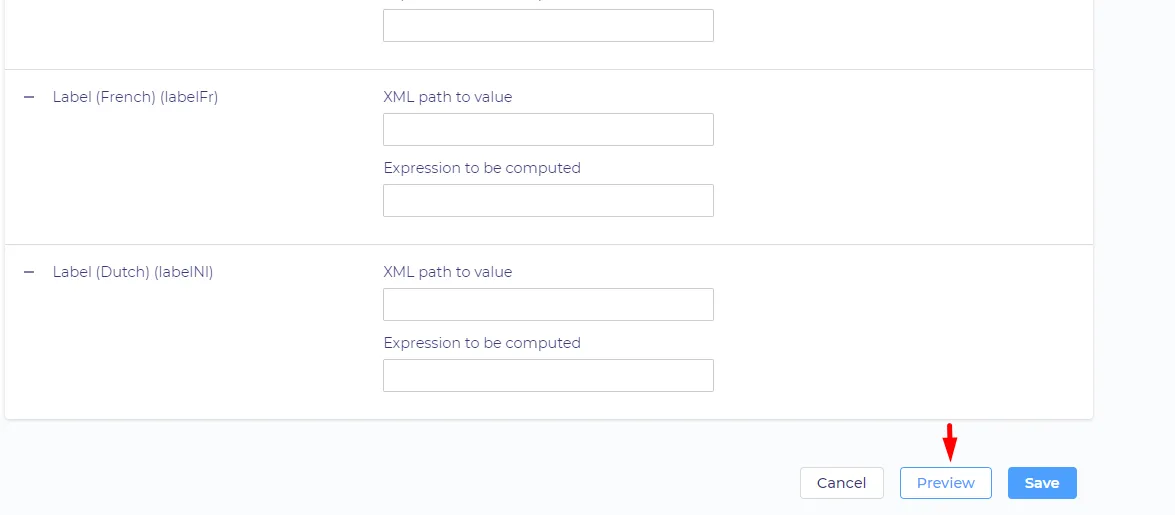
It will also warn you if some of the required fields are not mapped. The result will be shown next to every field where the mapping was correctly set.
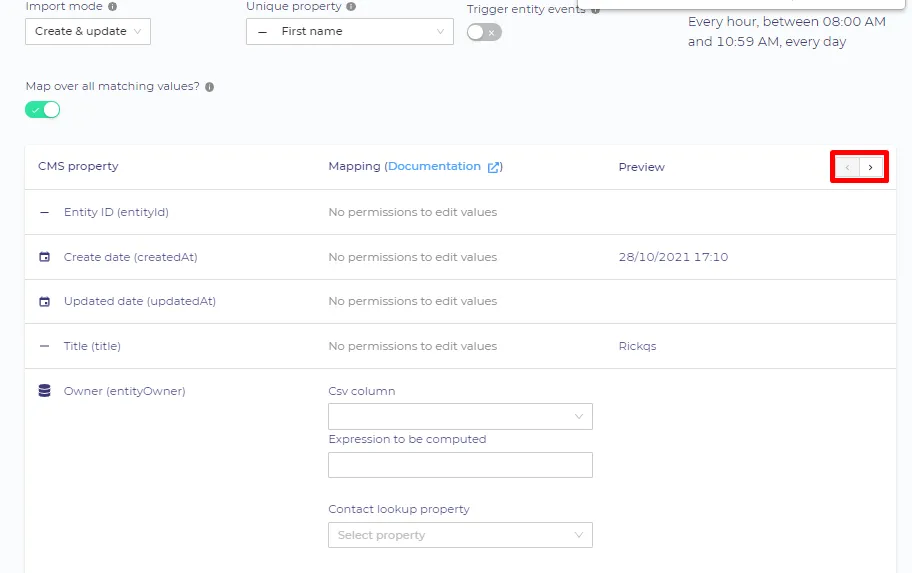
You can switch items in preview by clicking on the arrows in the right top corner.
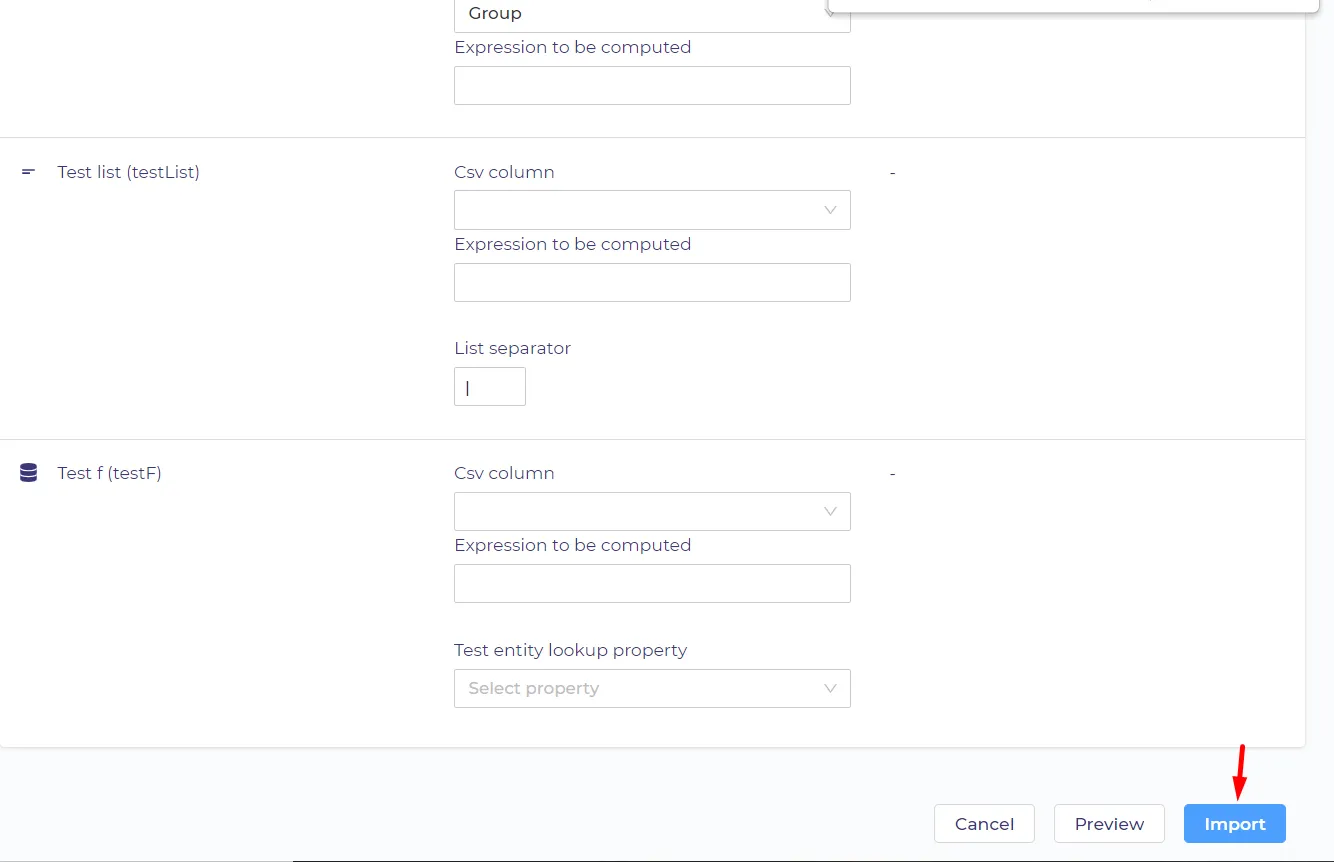
To start the import you should click on the 'import' button at the bottom.
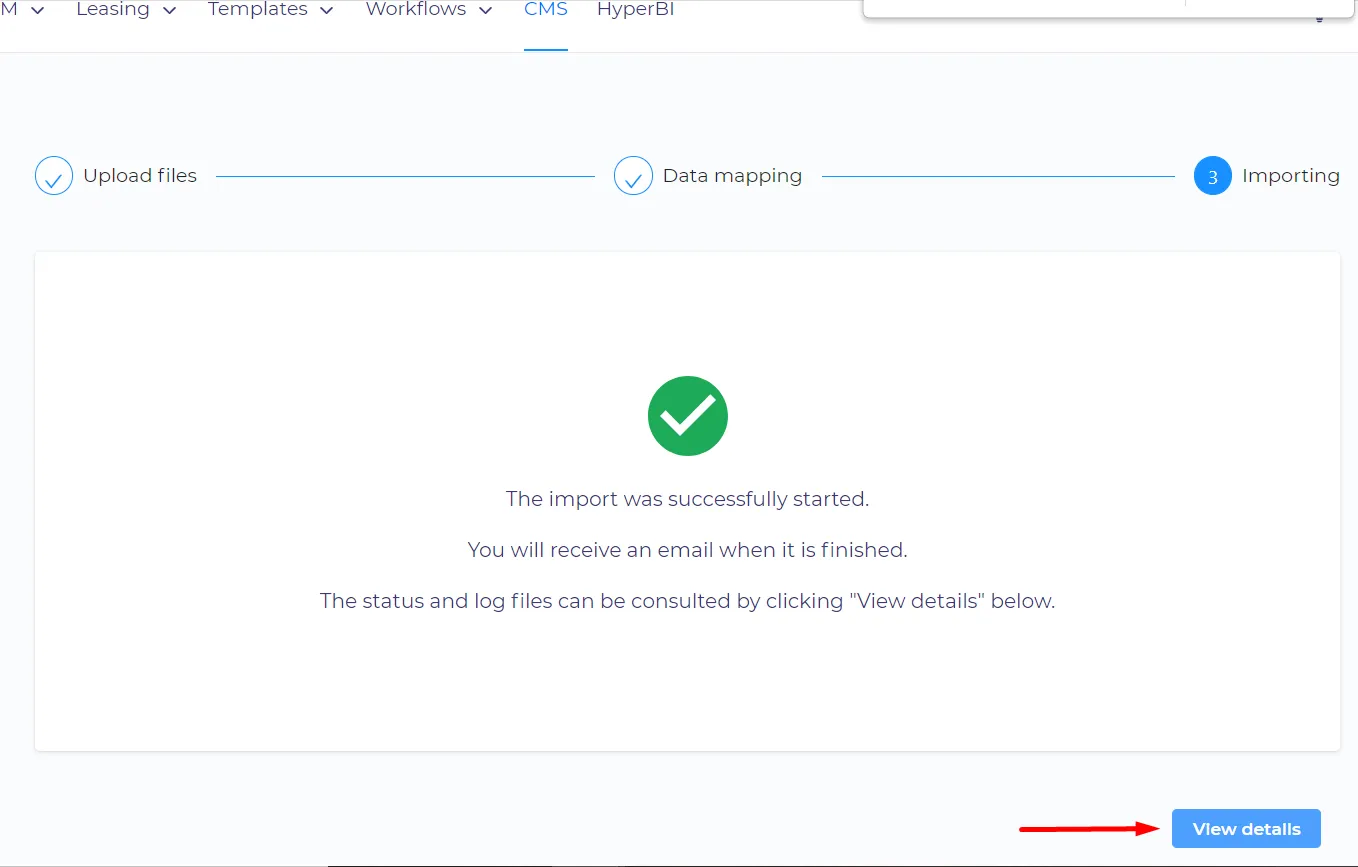
It will inform you that you will get an email when the import is finished (It can take some time if you imported a lot of items.)
Then you can see the details of the import by clicking the 'view details' button.
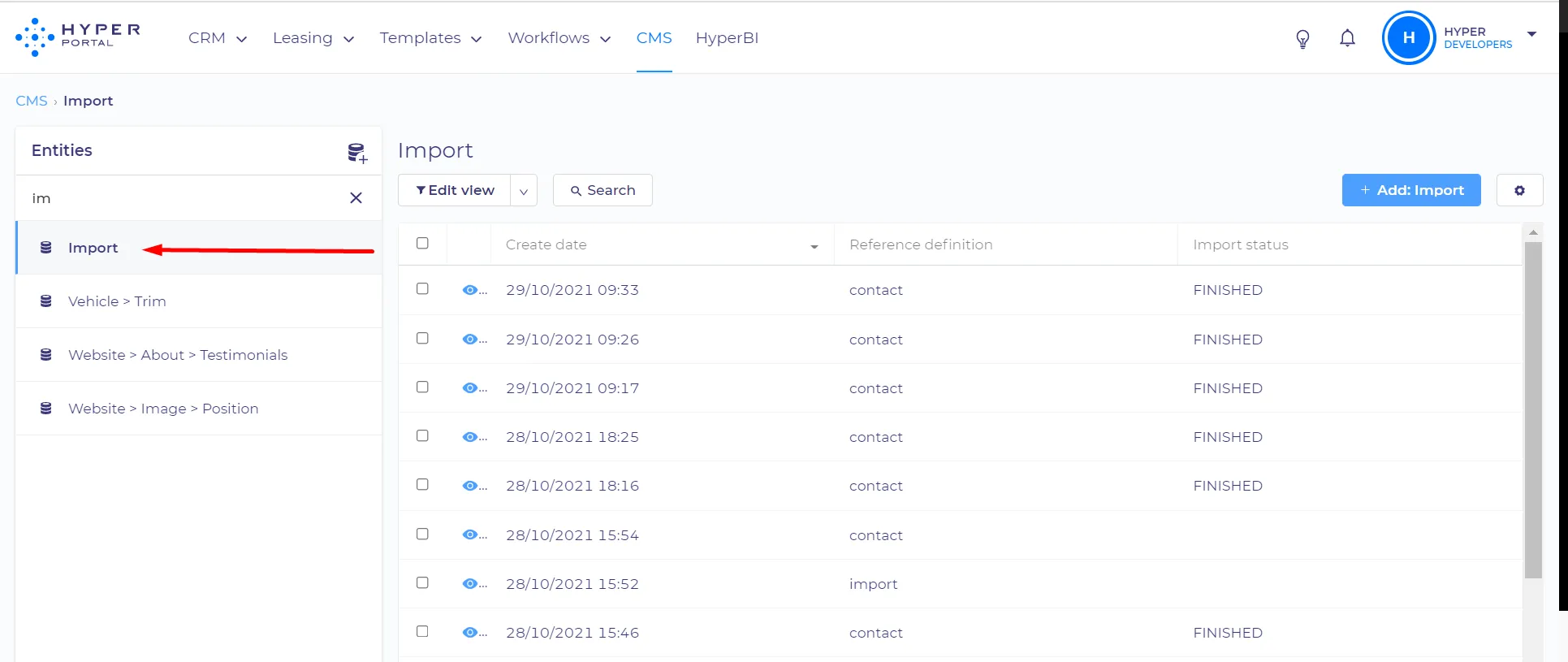
It will redirect you to the page with information about your import. You can also access this information through the 'Import' CMS entity, where you can see the list of all previous imports.
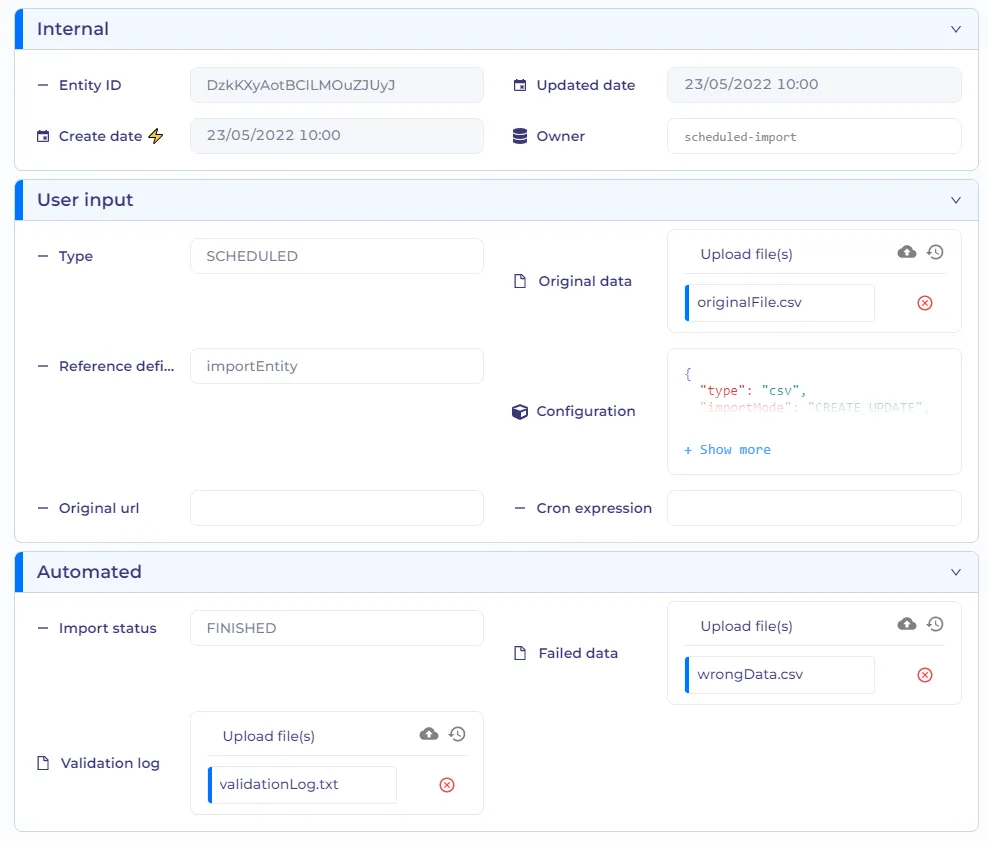
On the page, you can check such information as - the entity that the data was imported to (reference definition), the data source of the import (original url, original data), and the schedule of the import (It is stored as the Cron expression), you can see the status of the import and you can check the logs (Valdtaion log, Failed data.)
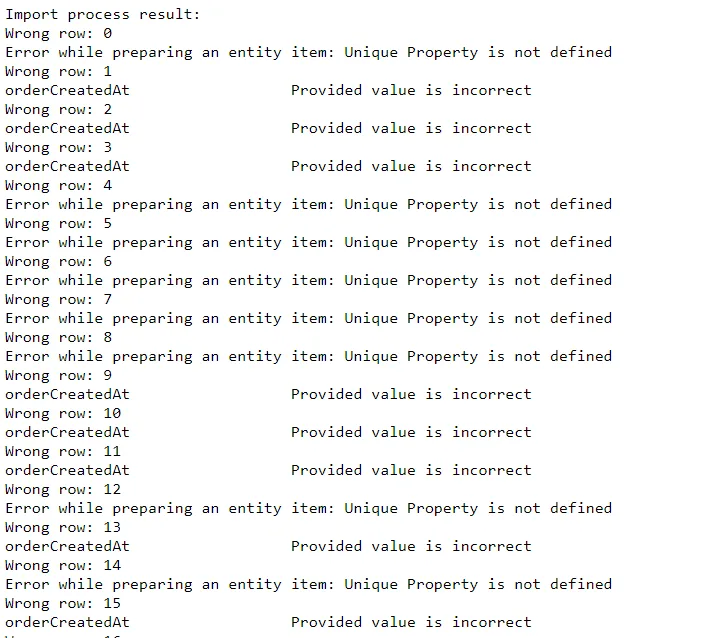
Validation log will show you messages and warnings regarding the imports.
Failed data will show you the list of items that were not imported