Table view navigation
How do I add a new column to my table?
Click the " Edit view " to adjust your table layout for the given Entity.
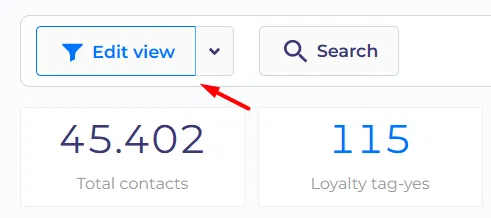
Here you can choose the set of columns to be shown on the table. Inside the edit view, you can move the columns, delete them or add new columns.
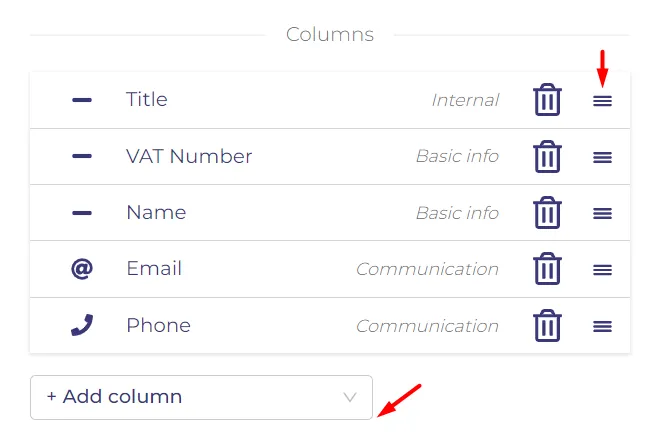
Each column represents 1 property of the Entity you are working with. You can learn more about table view here.

How do I sort the items in my table?
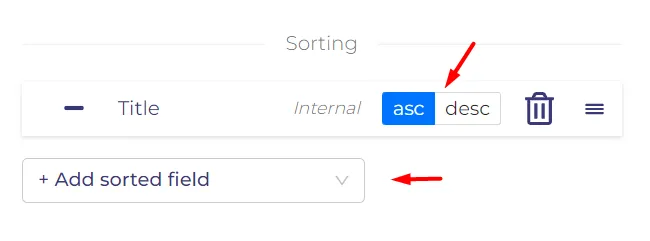
To change the sorting order in your view, you can use the "Edit view" section. Here you can decide which fields to sort on, also the sorting direction asc/desc which means ascendent and descendent.
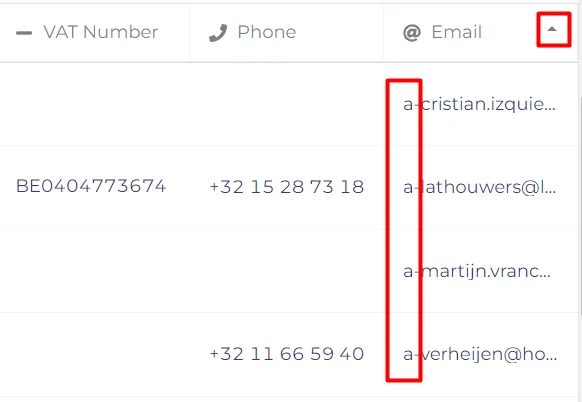
There is no need to open the "Edit view" section every time you want to change your sorting. To do that, simply click desired table header. The whole table will automatically be sorted ascendingly, or descendingly.
Can I have multiple metrics at the same time?
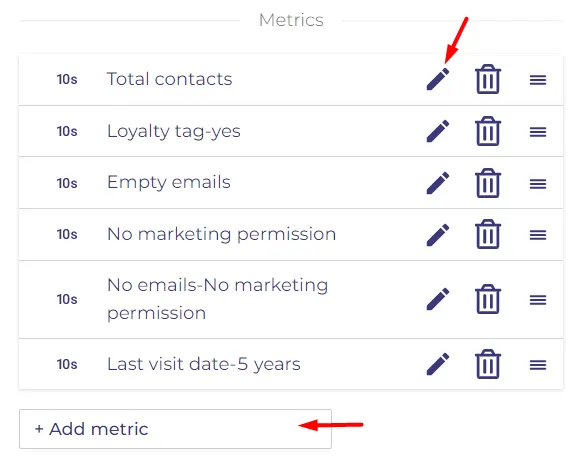
You can create a few metrics simultaneously and you can do changes for every metric independently as well, more about metrics here.
Can I set up metrics to monitor my table contents?
If you open a metric you will see that it has a few components that need to be filled in. Like everywhere else, you can insert different metric titles and units for every language.
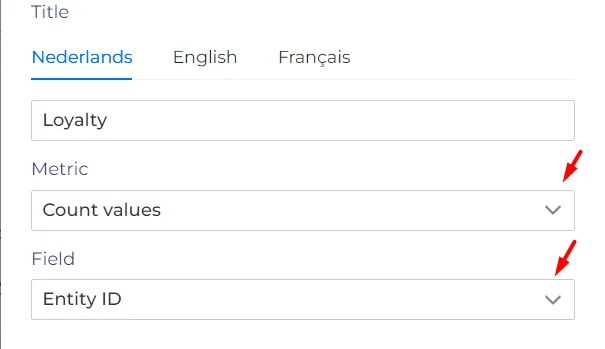
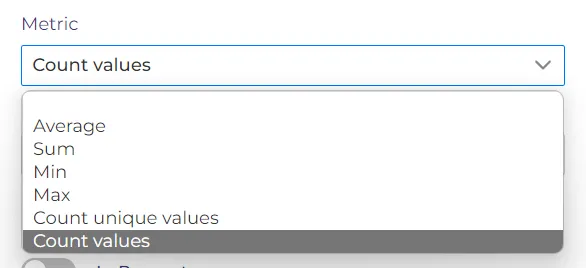
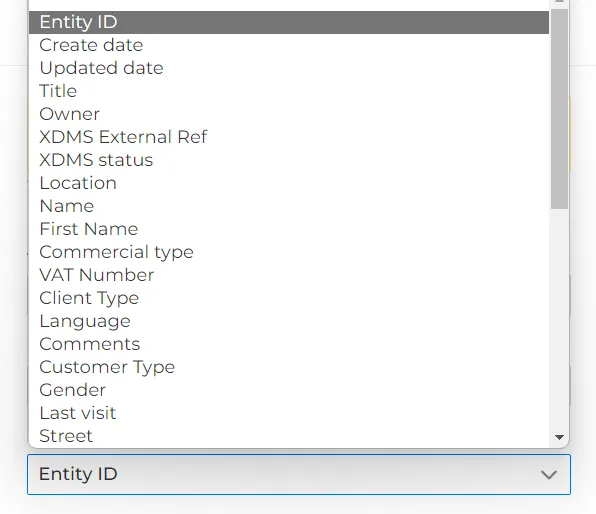
Also here you can choose what will this metric count and how.
You can choose only one property for your metric at a time.
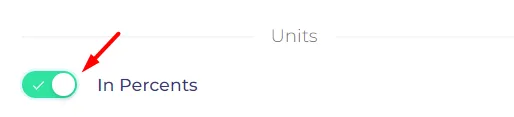
For some calculation methods, the value of your metric can be converted to % with a special setting.
By default the metric accounts for all records in your table. However, you can also add some filtering conditions to create a more targeted metric. Filters work in the same principle as in view editing. And if you have some filters set up for the metric, it will become clickable, allowing you to quickly view sorted content in your table.
Can I sort on multiple columns at the same time?
When you press on a specific column and then go for the other column automatically table will automatically be sorted by the second column content. At this moment there is no cascade sorting supported.

Can I filter to see only those items, which are accounted into my metric?
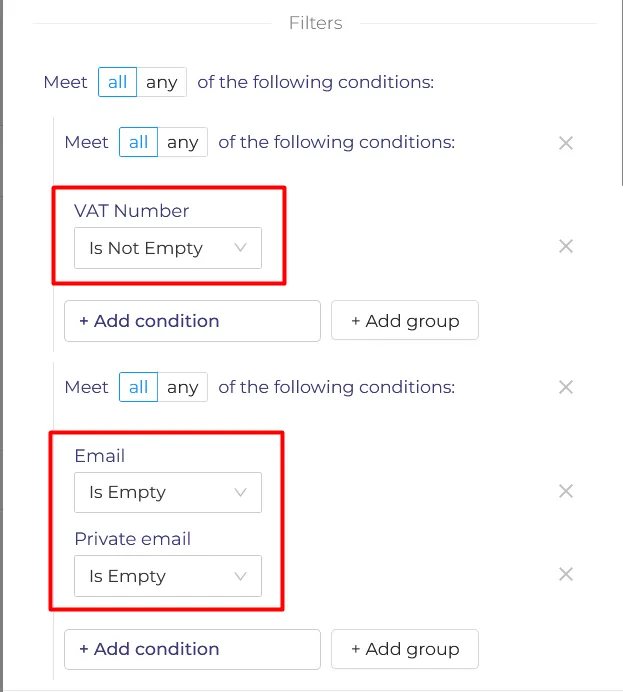
You can do that in case your metric has a filter applied to it. Click to filter. Very important to choose "all/any " correctly.
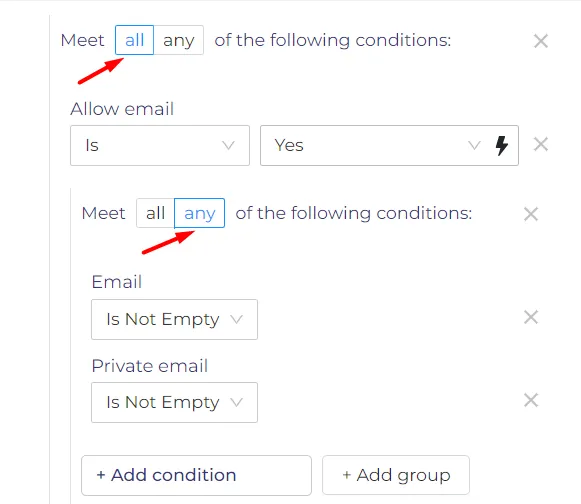
In this case, "all" means that all emails should have turned on the "allow email" section. "Any" will get only the specific emails with the following conditions (email is not empty/private email is not empty).
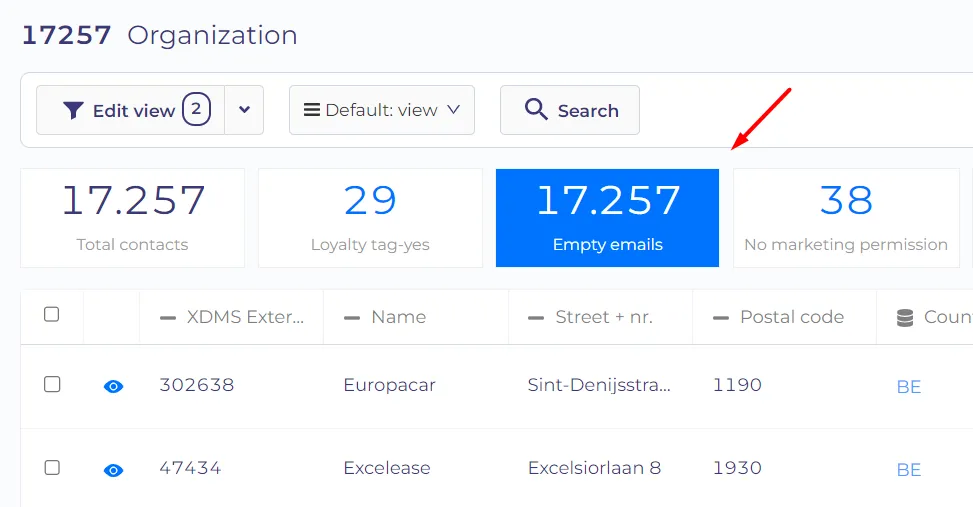
What I will get if I press on two metrics simultaneously?
If you click on two or more metrics, you'll get results that match all conditions of all active metrics simultaneously. All active metrics will also recalculate their values for filtered records automatically.
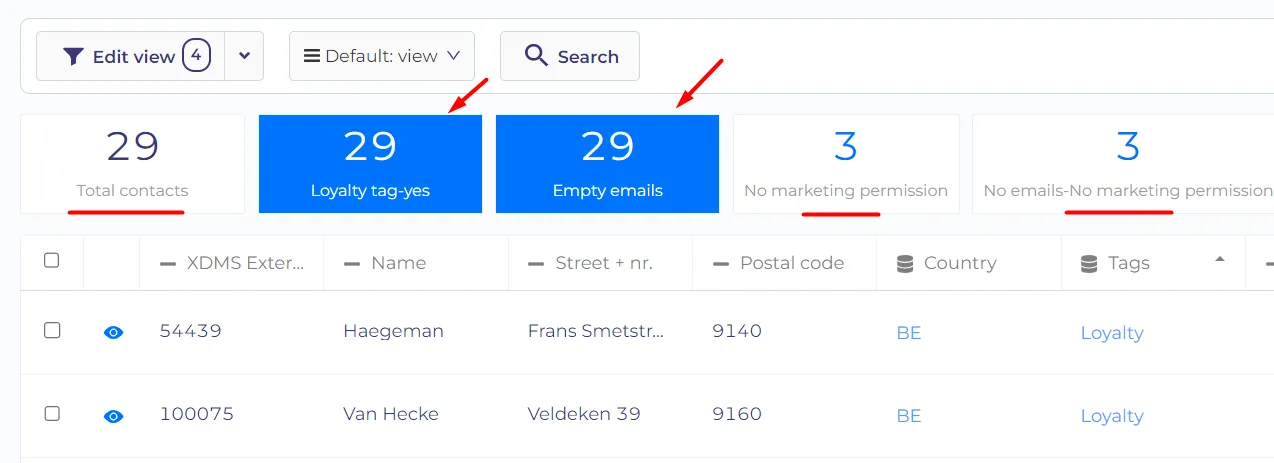
I clicked to filter on the metric, but the results seem irrelevant, why?
In this case, you need to check the conditions filled in your metric, if one of that conditions is incorrect you will get a wrong number.
At the moment you press on two metrics the filters of these metrics are automatically combined in the "Edit view" section, more about filters here.
Can I view my Entity table as a Kanban board?
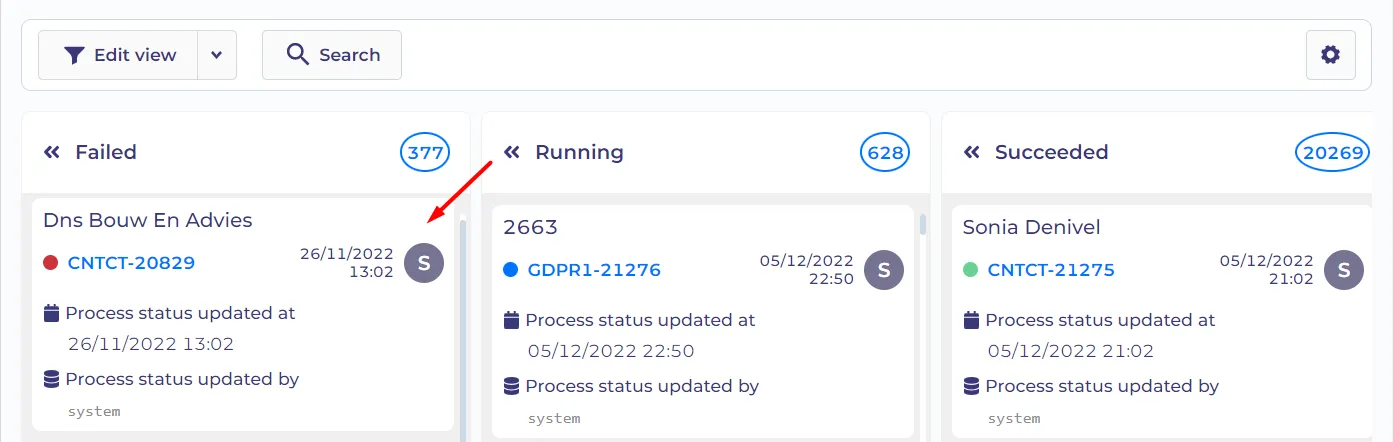
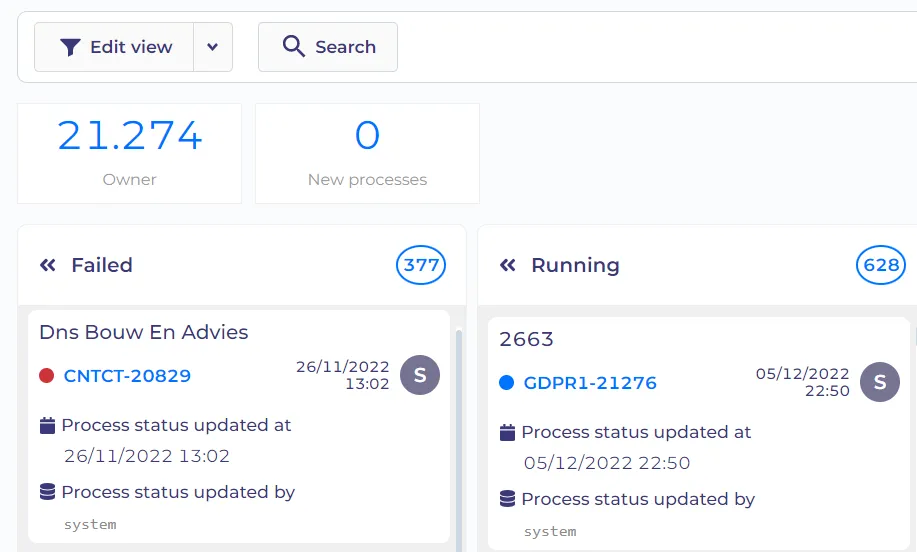
Yes, you can! Kanban view is a tool that helps us to analyze work for CMS/CRM objects, and workflow processes. After saving the view you will see the displayed records converted to columns and cards. To start working with it you have to go to edit view and then press on 'kanban'. For more information about Kanban view click here.
Can I start a new process through Kanban view?
To analyze the processes you have to go to workflows processes and create Kanban view for any process you need. After you've set up Kanban View for your process table, you can still start new process runs from there.
Can I add metrics to a Kanban board view?
Yes, this is possible. In the Kanban view, you can add any metrics you need to use at the same time as all the filters.
Can I change card fields in Kanban view?
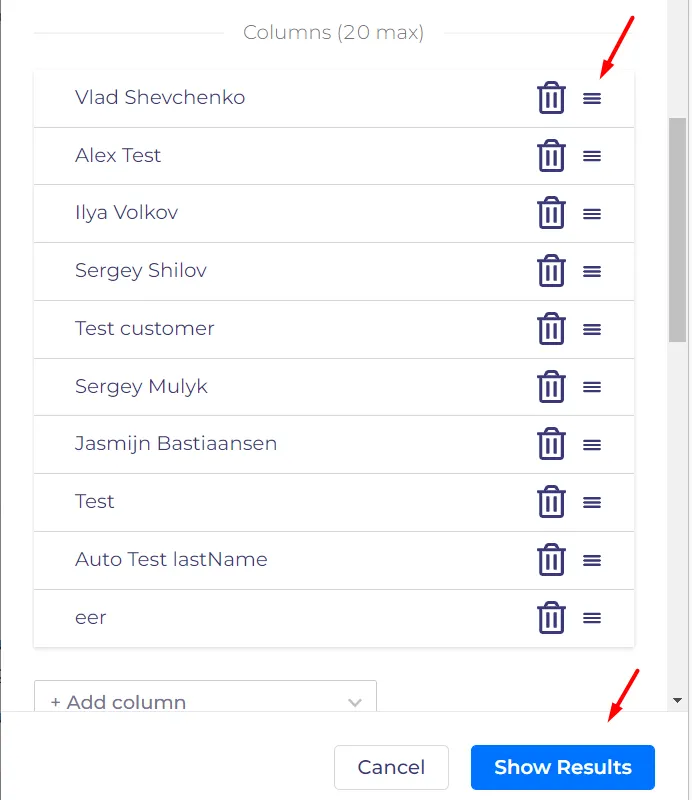
When you're using the Kanban view, Card fields correspond to the table columns in the classic table view. It is still possible to add/remove/or reorder card fields in the Edit View section.
How do I save my table view preferences?
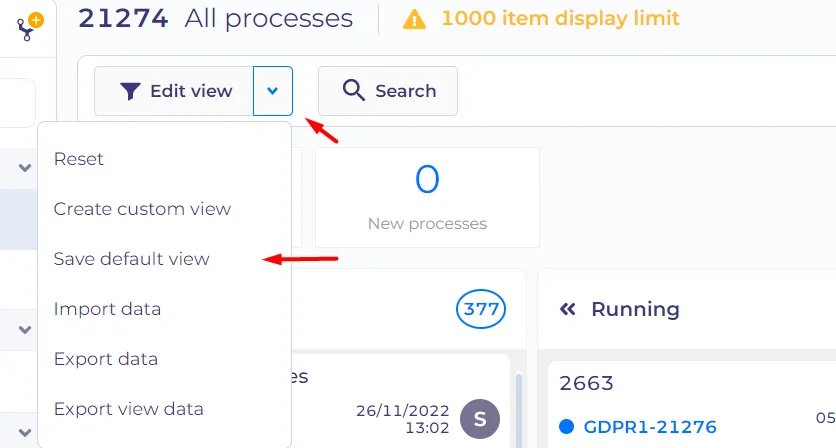
You go to the icon 'edit view' and click on the arrow, then on 'save default view'. In this way, you will save all your changes in the edit view and the Kanban view.
Why do I not get any results when using "search"?
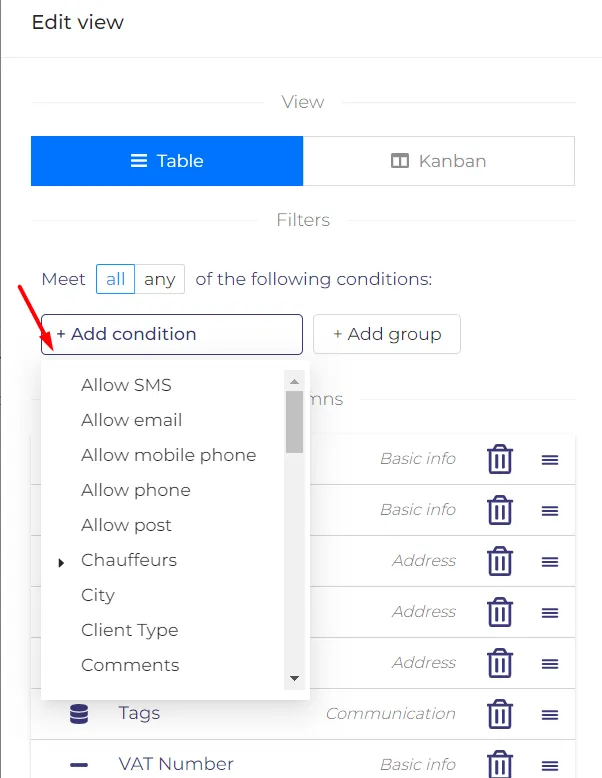
It searches only those properties which are added to your view. If you want to search for properties that were not added to the table, use property-specific search. Just add a condition in your table in 'Edit view'.
Can I share my table view with other users?
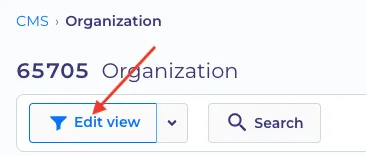
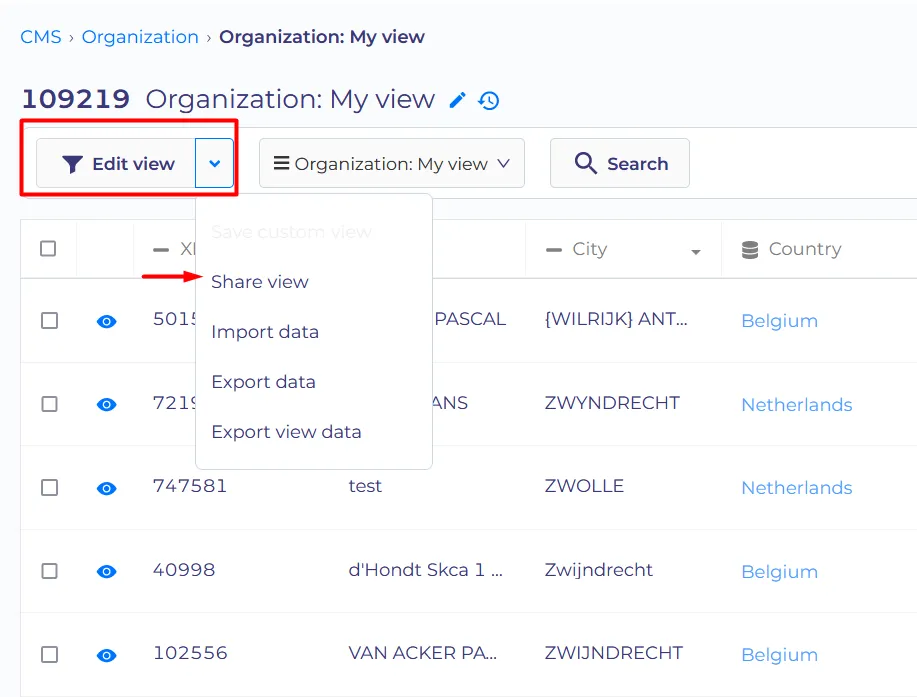
To share your view with other users you need to create your custom view in the "Edit view" section. After the saving, you have the option "share view", just click on the arrow in the "Edit view" section.
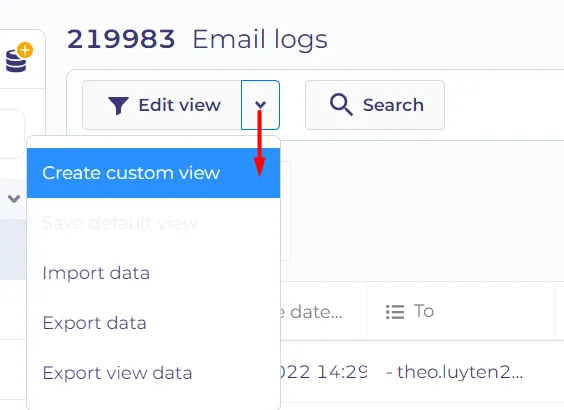
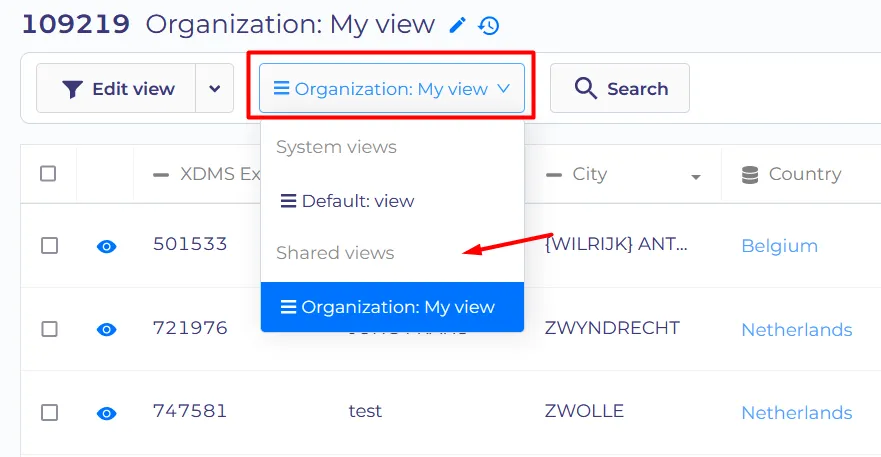
If you want to see your all shared views, you can click on "Organization: My view" where you can see the "Shared views" section. In this table, you have your saved views which are visible by yourself only. To save your views you have to click on the arrow from the "Edit view" table where you will have the "Create custom view" option.
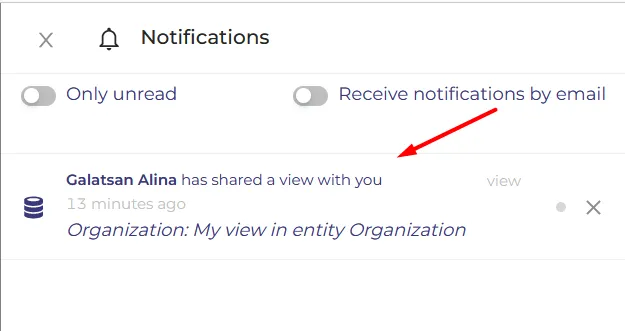
If somebody shares a view with you, you will receive a notification about a new "Shared view" on your "Notifications" panel.