Conditional display properties
Conditional Display (visibility rules) lets an administrator define when specific parts of a record should be hidden, based on the record's own data.
By default, a record always shows all of its fields, sections and tabs — regardless of the record's type or stage. On large, shared data models this clutters the screen and increases the risk of entering data in the wrong place.
When a rule's conditions are met, its selected fields, sections, tabs, relation sections or charts are hidden on the record's detail page.
Examples:
- When you have a vehicle object, different fields can be relevant for different vehicle types. For example if you sell trucks and cars, you want to hide certain fields for vehicle type truck, and other ones for vehicle type car.
- Hide a section until the record reaches the relevant stage.
- Show one set of fields for one contract type and another set for another type.
Key principle: visibility, not security
Visibility rules control only what is shown on screen. They are not a permissions or security mechanism:
- No data is removed or deleted.
- Any user can temporarily reveal hidden elements (see Show hidden conditional fields).
- Access rights are a separate mechanism and are not affected.
Where it applies
Works on the record detail page:
- CMS record detail page
- Process detail page
Why:
While a record is being created or filled in, fields appearing and disappearing would be confusing, and "hiding" something before the record exists makes little sense. Rules therefore apply only when viewing the full card of an already existing record.
How an administrator configures rules
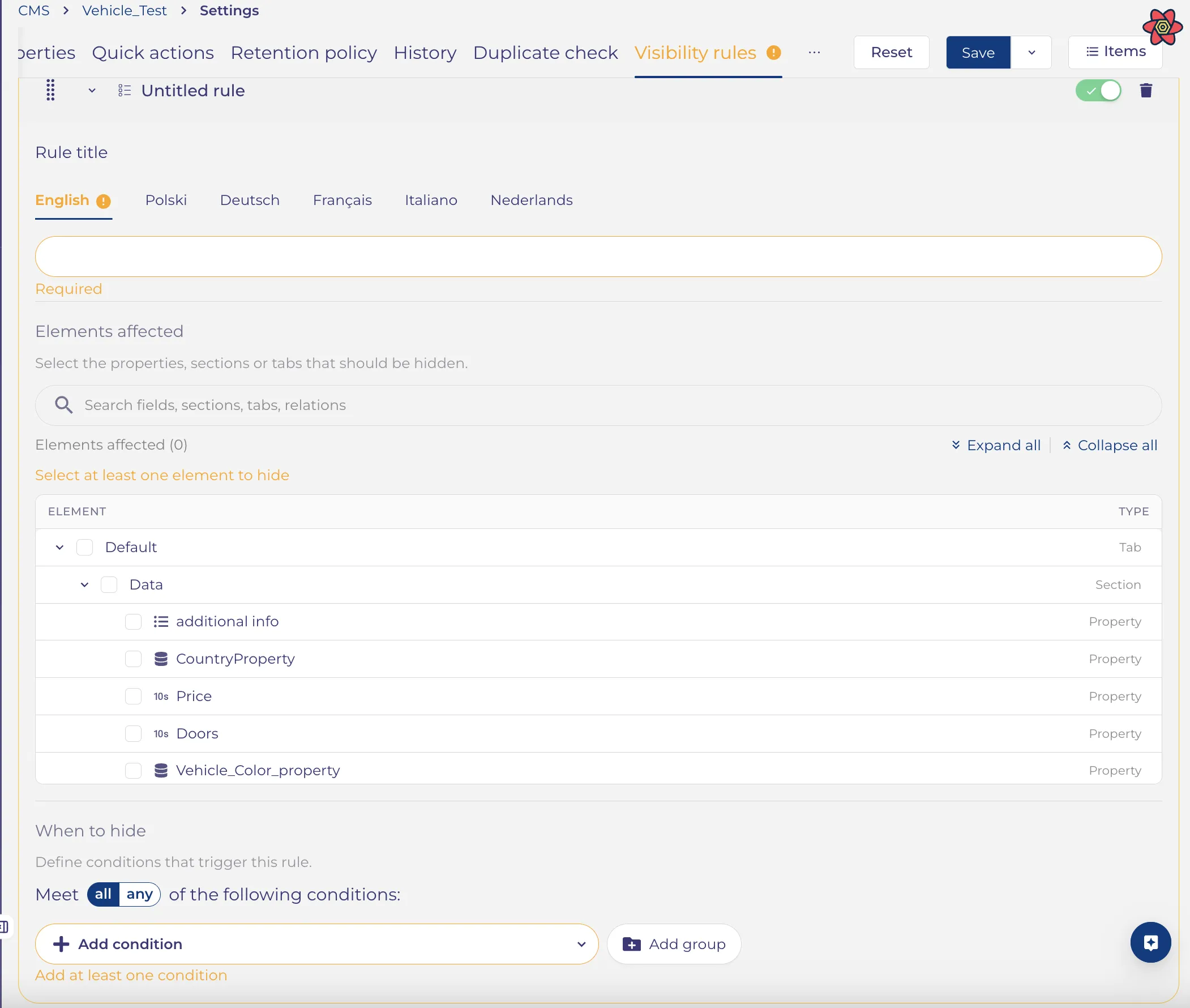
A new "Visibility rules" tab appears in Entity settings. The tab is available for both CMS entity and process settings.
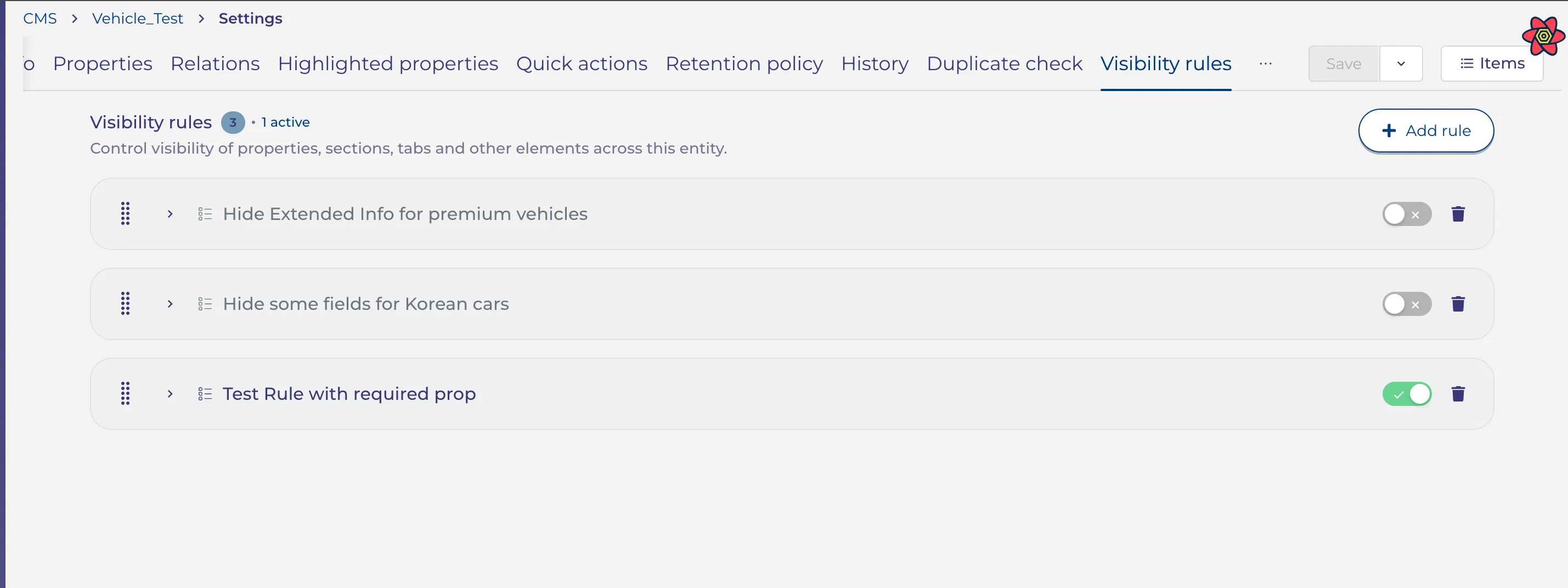
For each entity you can create one or more rules. Rules can be reordered via drag-and-drop.
Rule structure
Each rule has:
- Rule title — the rule's name, multilingual.
- Enabled toggle — a rule can be turned off without deleting it. A disabled rule is ignored entirely.
- Elements affected — what exactly this rule hides.
- When to hide (conditions) — for which record data to hide.
Elements affected
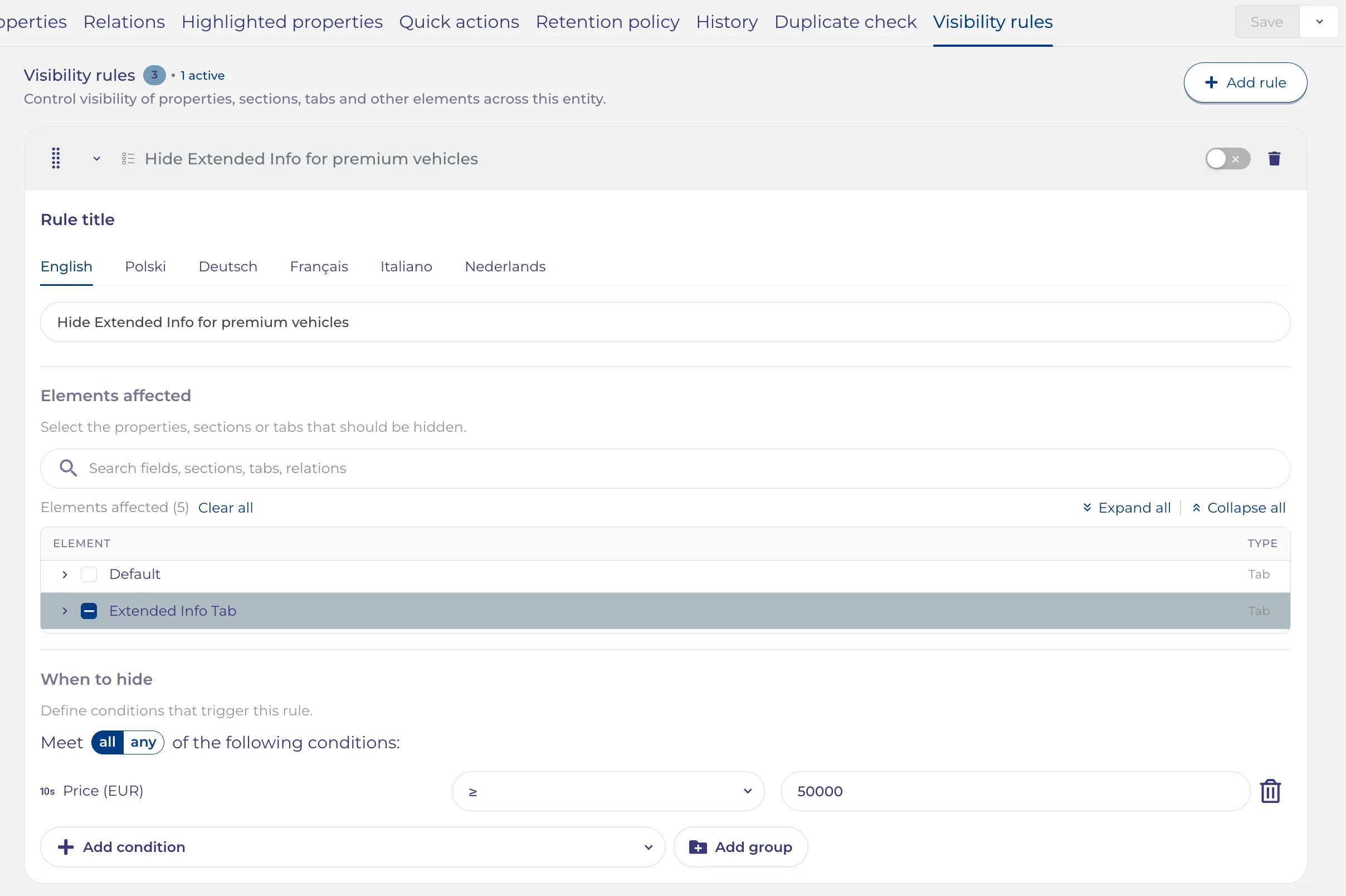
Elements are picked from the entity's tree of tabs → sections → fields (relations and charts are shown as sections). You can select:
- an entire tab (everything inside is hidden), or
- an entire section, or
- individual fields, or
- a relation or dashboard — as a whole section only.
To manage the list there is search, Expand all / Collapse all, and an "Elements affected (N)" counter.

Checkbox states:
State | Meaning |
|---|---|
☐ (empty) | Not selected, the element is visible |
✓ (blue) | Explicitly selected at this level |
− (minus, blue) | Not selected itself, but has selected descendants (partial selection) |
Conditions (When to hide)
The same condition builder as elsewhere in the product is used:
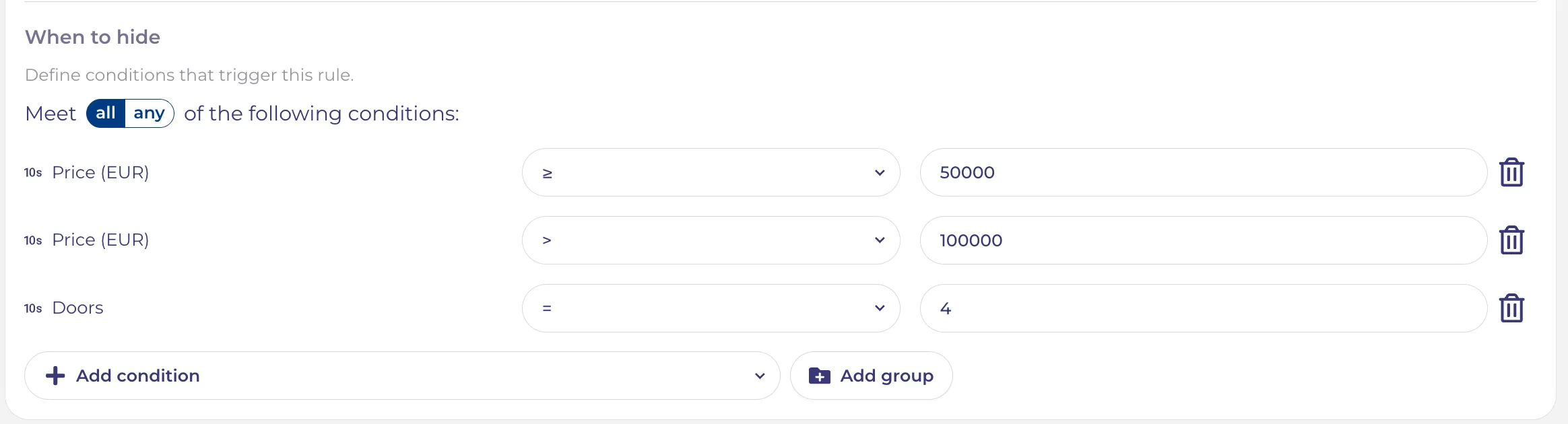
- Meet All / Any of the conditions;
- each condition is Field — Operator — Value;
- there can be several conditions, and they can be grouped (nested groups).
Conditions are evaluated against the record's own field values.
What the end user sees
On the record detail page:
- The system checks every enabled rule against the record's current values.
- For each rule whose conditions are met, its elements are hidden.
- If several rules apply, an element is hidden when at least one matching rule hides it (OR logic between rules).
- Everything else is shown as usual.
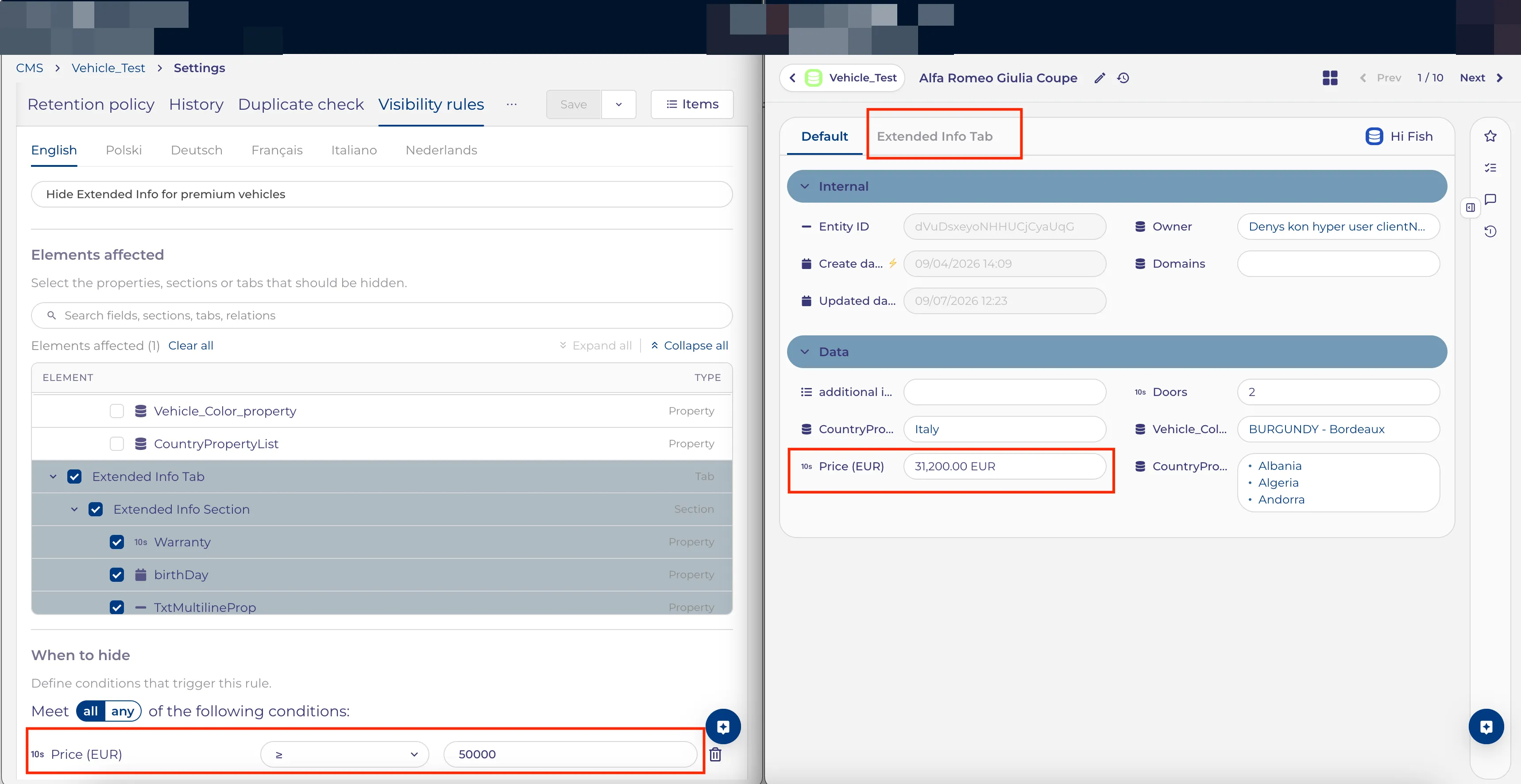
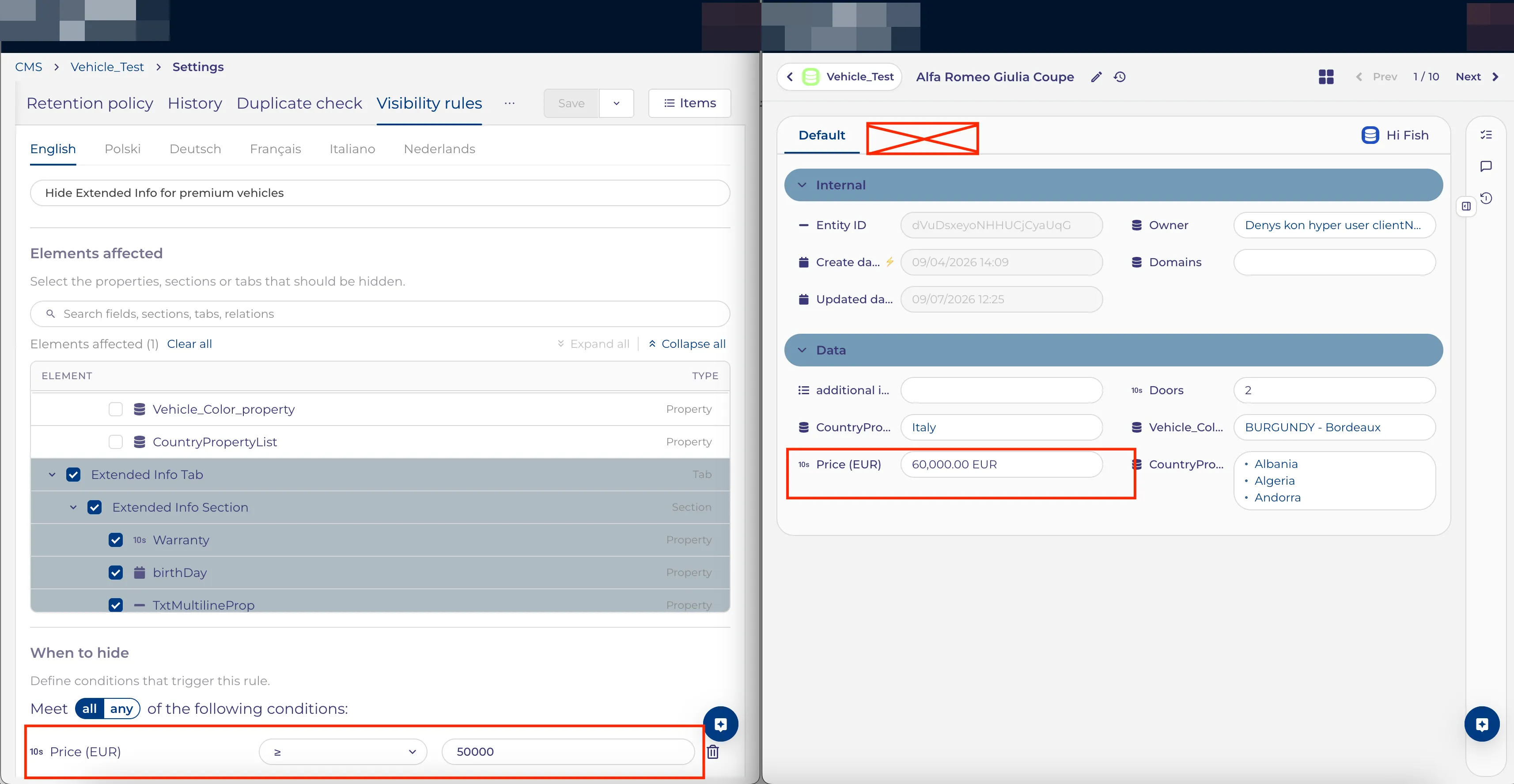
Example: the rule "Hide Extended Info for premium vehicles" hides the Extended Info tab when Price (EUR) ≥ 50000. On a vehicle priced at 31,200 EUR the Extended Info tab is shown; on a vehicle priced at 60,000 EUR the same tab is hidden.
Show hidden conditional fields
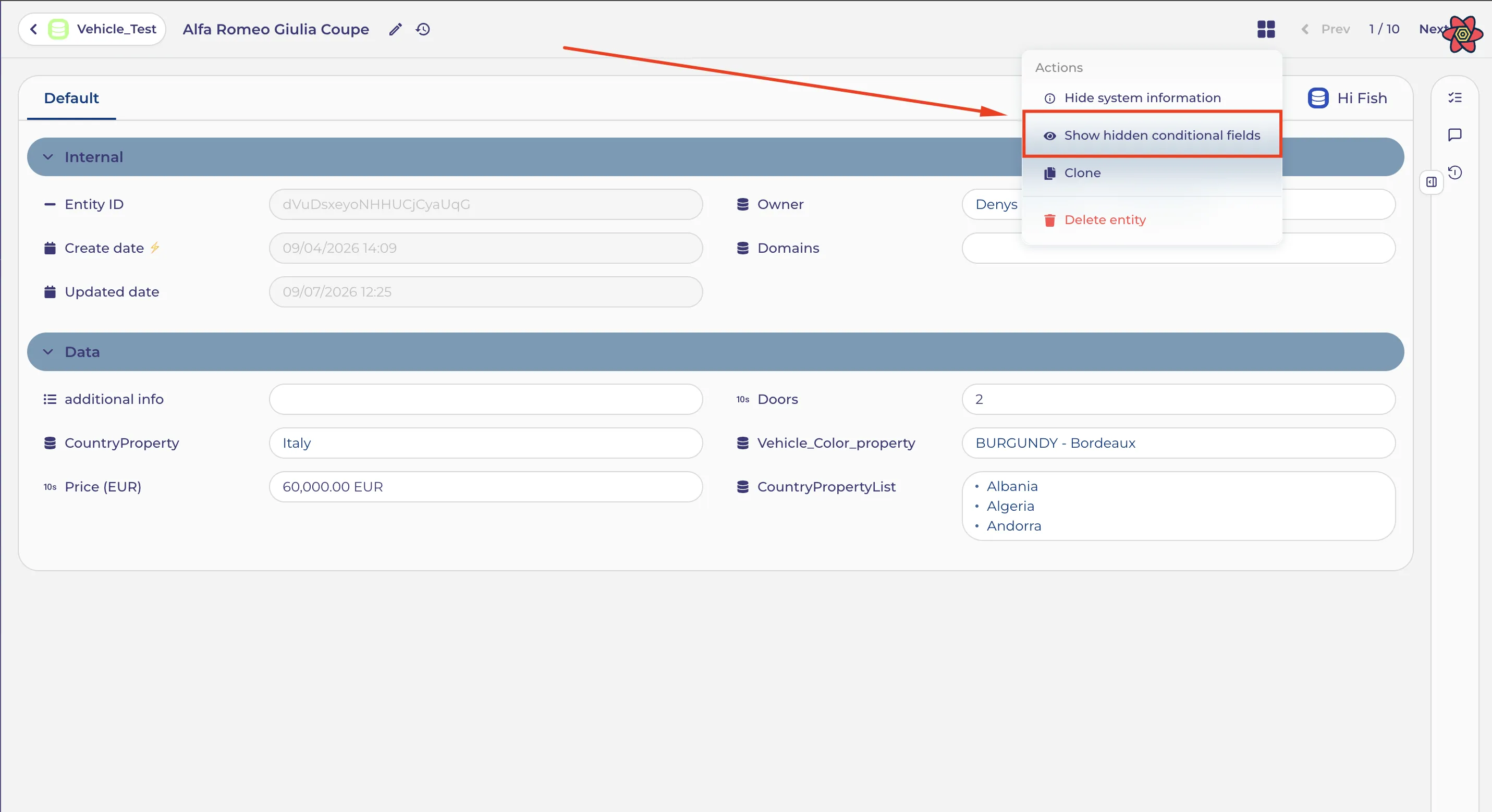
On the record detail page, the record's  menu contains a "Show hidden conditional fields" action — temporarily reveal everything hidden by rules.
- Available to all users, but only if the entity actually has visibility rules. If there are no rules, the menu item is not shown either.
- Temporarily reveals all elements hidden by rules, so everything can be seen and verified.
- It is a personal display toggle (remembered per user and per entity) — it does not change the rules themselves and does not affect other users.
Rule indicator in Properties settings
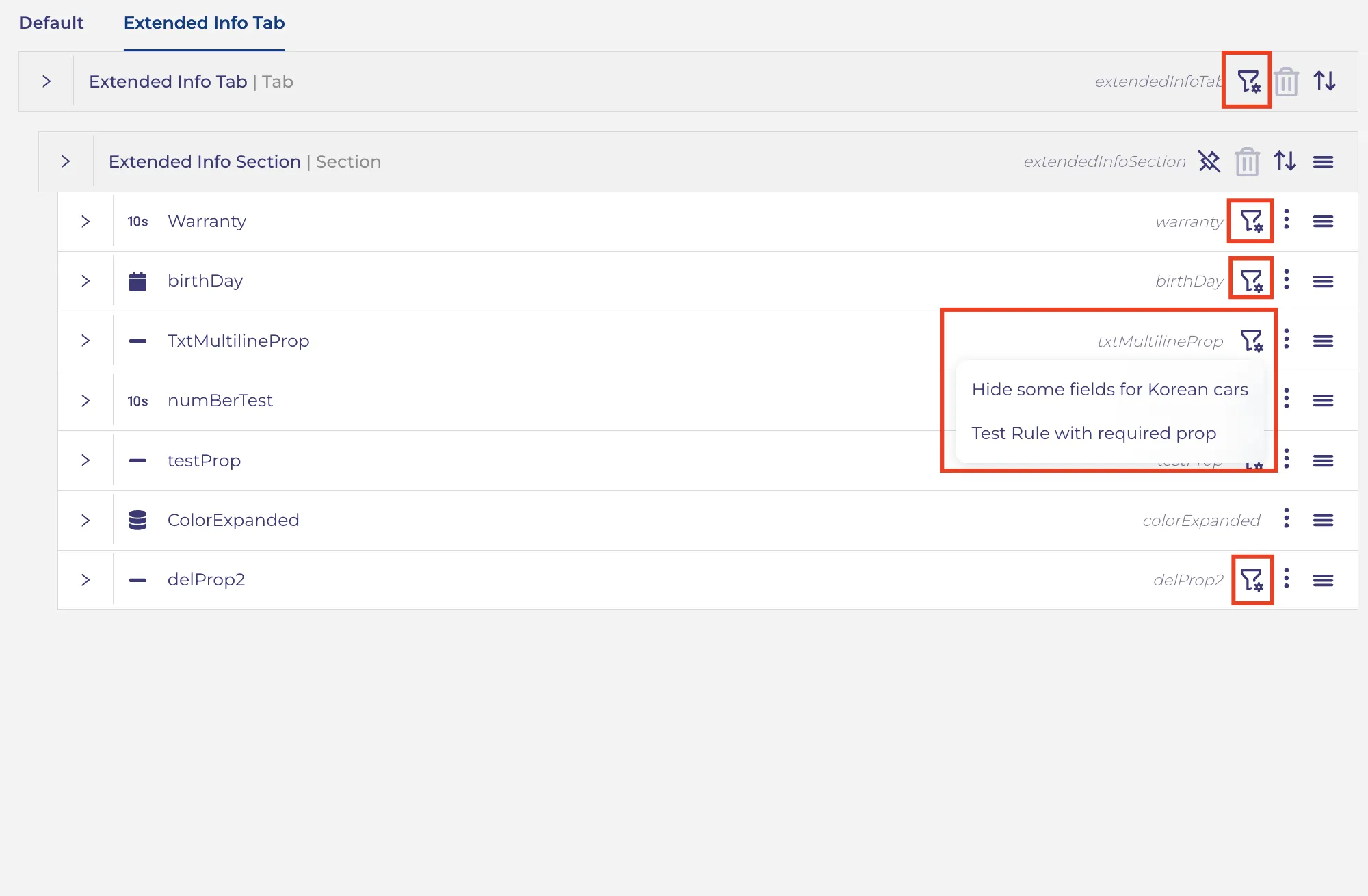
In Settings → Properties editor, any field, section or tab affected by a visibility rule shows a small indicator icon.
- The indicator appears at all three levels: the field row, the section header, and the tab header.
- The icon is visible only if the element is affected by at least one rule.
- Clicking it opens a short menu listing the rules that affect this element (there can be several). Selecting a rule navigates to the "Visibility rules" tab for review/editing.
This makes it immediately clear, while editing the data model, which elements are governed by rules and why.
Selection behaviour and edge cases
- Whole tab/section selected: everything inside is hidden. If you later add a new field inside that tab/section, it is hidden automatically too (the rule "owns" the container).
- Unchecking one descendant: if you uncheck a single field inside an otherwise fully selected section/tab, the rule switches to "specific elements" mode: only the ones you explicitly left are hidden, the parent shows a partial-selection mark (−), and newly added fields are no longer hidden automatically.
Moving a field or section
- If an element is hidden because its parent tab/section is selected, and you later move it out — it becomes visible again automatically (and moving it into a hidden container hides it). The behaviour follows the container.
- If an element was selected individually, it stays hidden regardless of where it is moved.
Required fields cannot be hidden
A required field cannot be hidden — that would block saving the record.
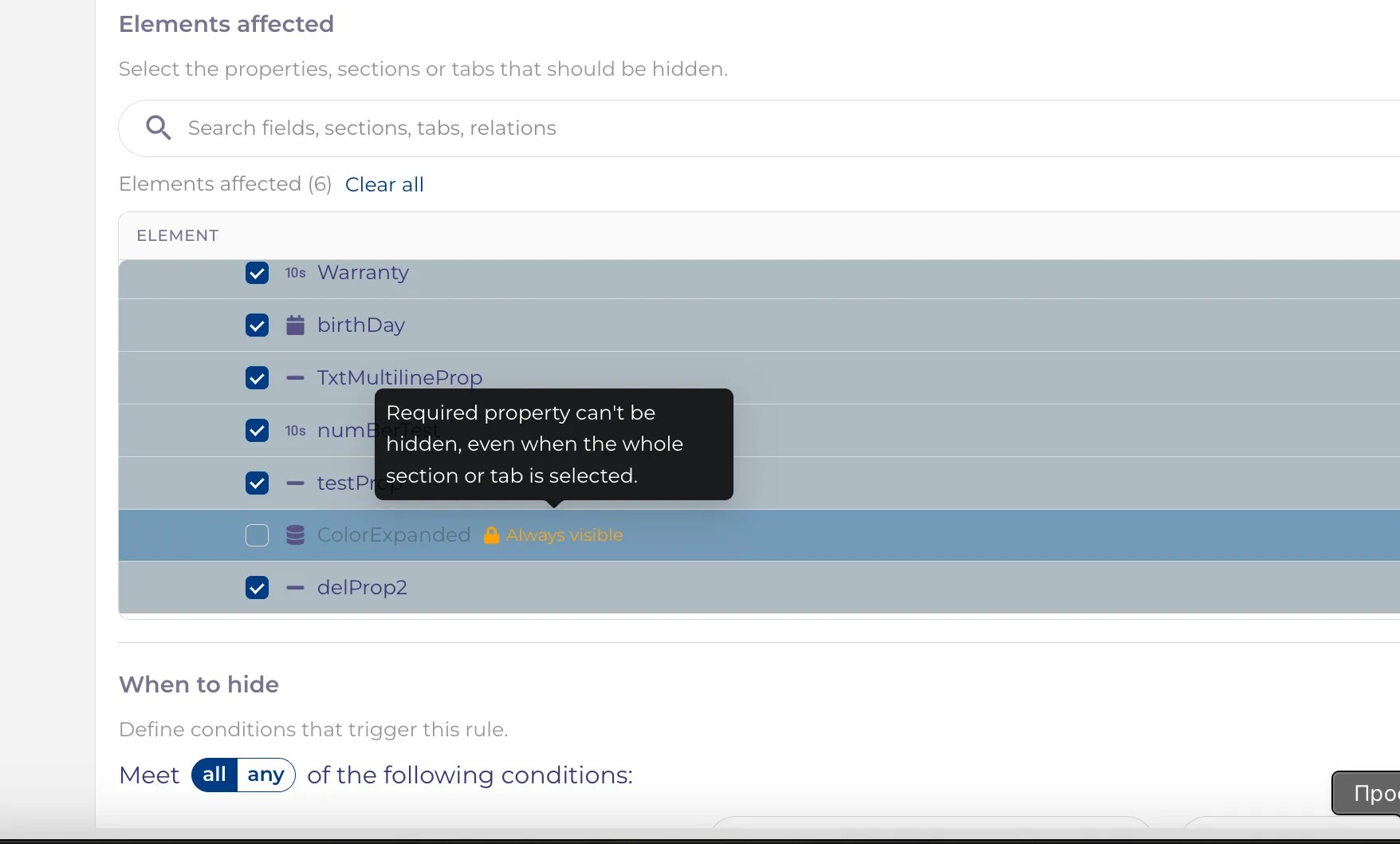
- In the selection tree, required fields are shown but disabled for individual selection and marked with an "Always visible" badge (lock icon) with an explanatory tooltip.
- Even if the whole parent tab/section is selected, its required fields are not hidden: the section hides everything it can, while required fields remain visible.
- If a field was added to a rule and later made required (or deleted/hidden in Properties), the reference to it is removed automatically from the rule, and the "Elements affected" counter is recalculated.
-
A field used both as a condition and as a hidden element
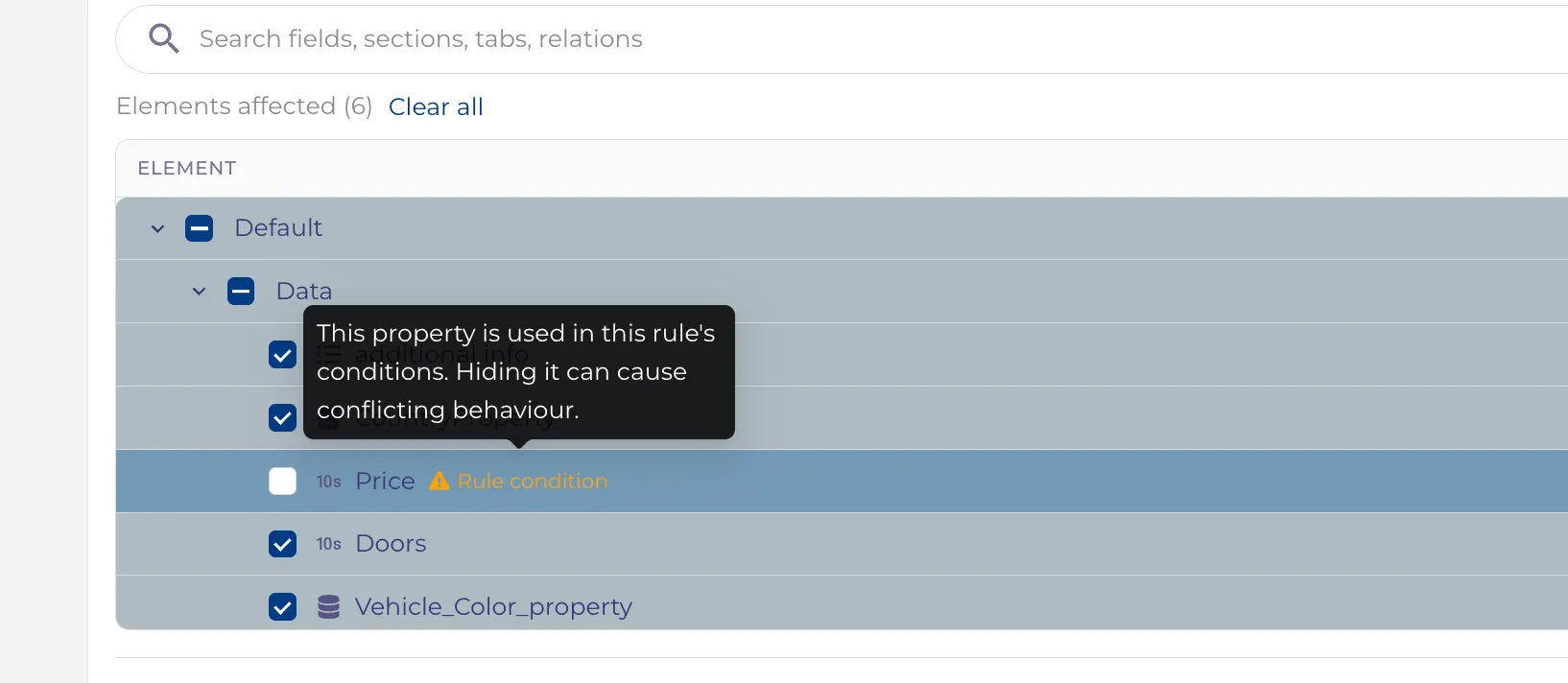
If a field is used in a rule's conditions and you try to hide the same field, the system shows a small warning ("This property is used in this rule's conditions. Hiding it can cause conflicting behaviour."). It does not block the selection — it is just a hint that hiding a field you are also testing a condition on may give unexpected results.
Multiple rules on one element
Each rule is independent. An element is hidden if any enabled, matching rule hides it.
Each rule needs at least one condition and one element
A rule must have at least one condition and at least one affected element — both are required. A rule with no conditions is not allowed: this rules out accidental "always hide" rules — hiding is always contextual, based on record data.