Global dashboard filters
- What this feature is for
Previously, to filter dashboard data by «Country», «Dealer», «Status», «Owner», «Team», etc., you had to open every widget and configure the filter individually. On large dashboards this became tedious, and teams ended up duplicating dashboards just to serve different countries or departments.
Dashboard Global Filters solve this:
- Filters are managed centrally from a dedicated Filters panel.
- They appear as dropdowns / date selectors at the top of the dashboard.
- They apply automatically to every compatible widget.
- When a new widget is added, the system tries to match a field to each filter by itself.
- A single dashboard with global filters replaces dozens of «per-country / per-team» dashboard copies.
**Example:**
Instead of one dashboard per country, keep a single dashboard with a global «Country» filter. Management picks a country — every widget refreshes.
- Where to find the feature
Global filters are available on every dashboard inside HyperBI.
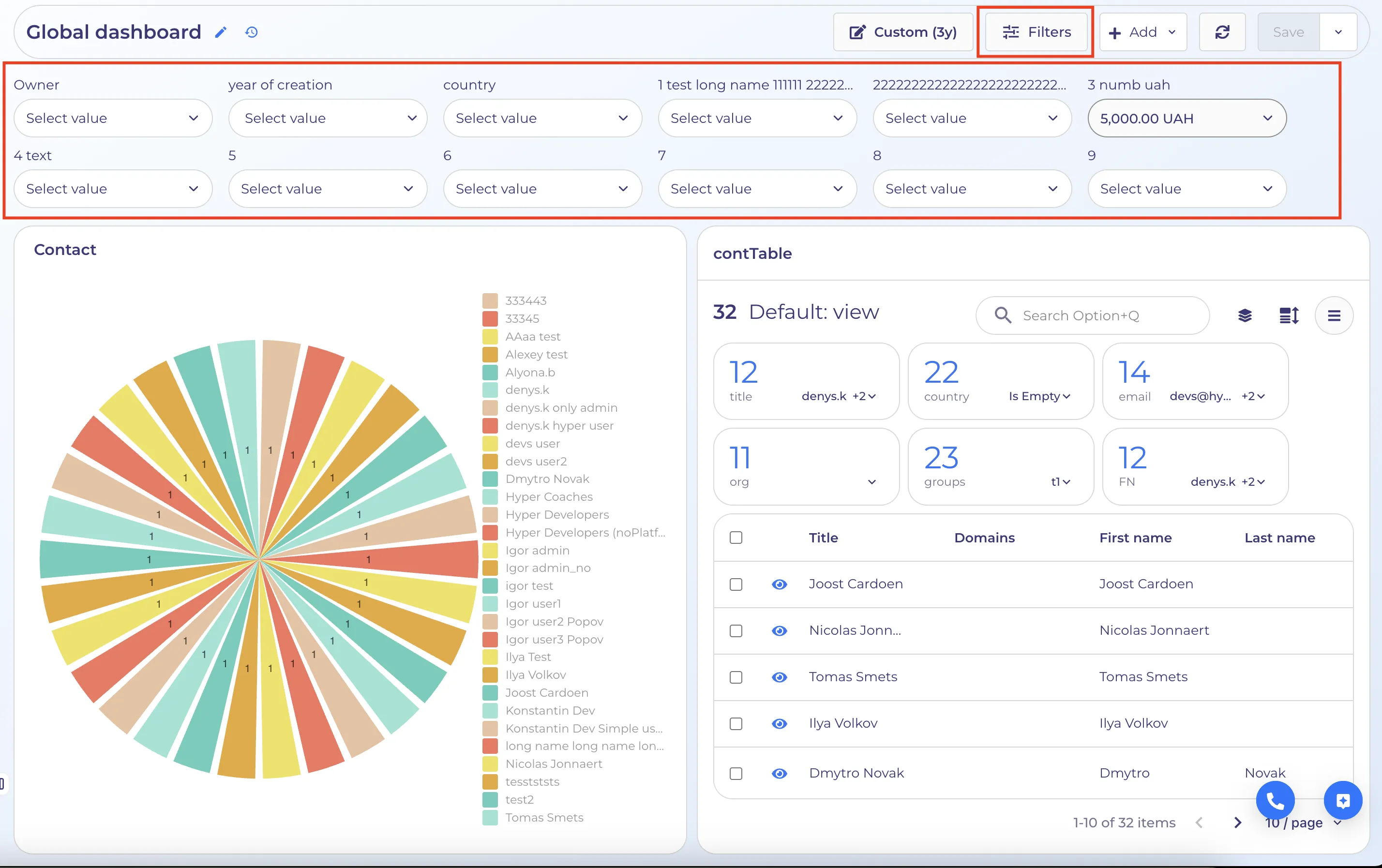
In the dashboard header, next to the date-range picker, there is a Filters button with a slider icon.
Once filters are created, they appear below the header as a row of «chips» that you use to apply values.
- Managing the list of filters
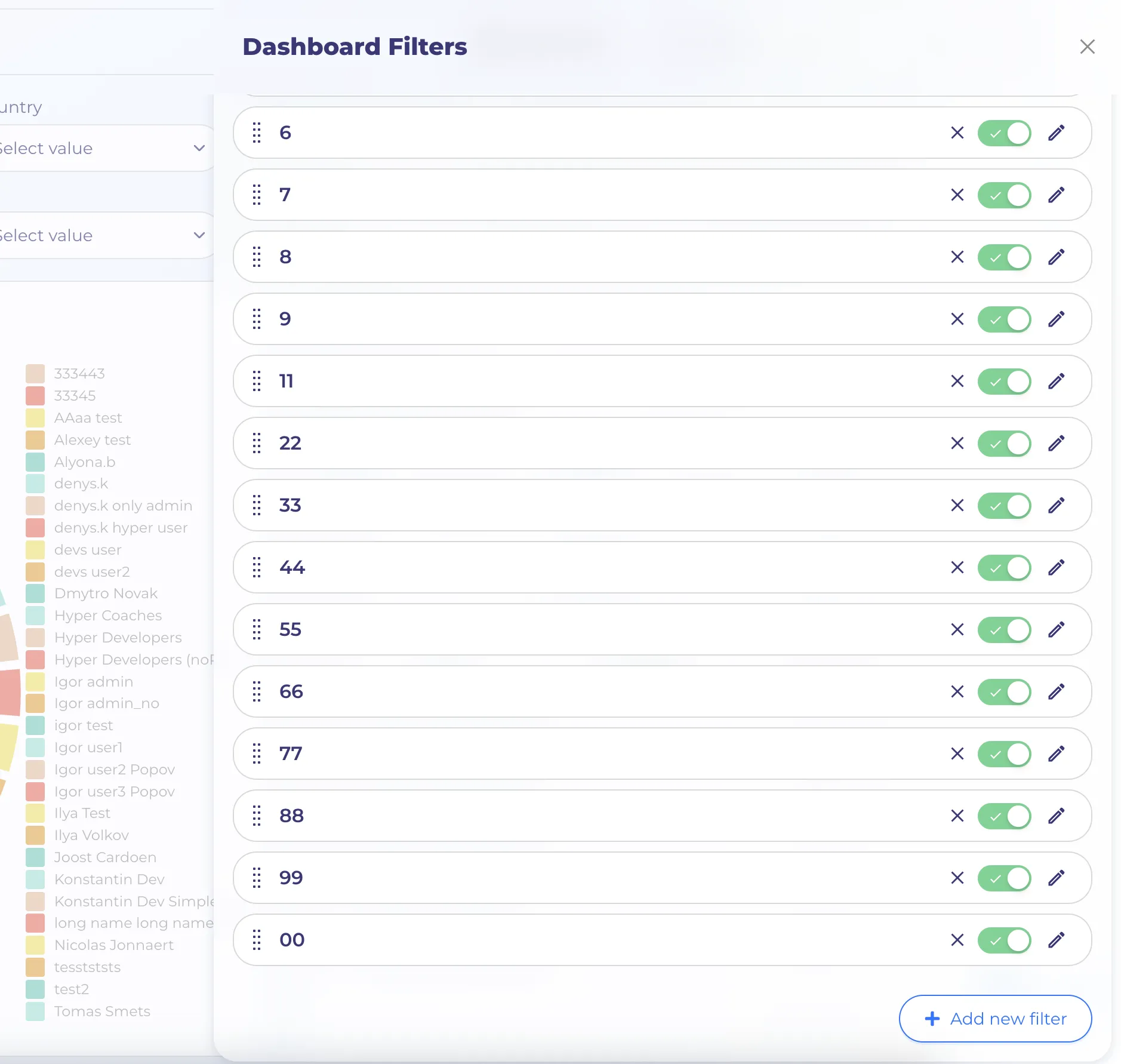
Clicking opens a right-side panel with all filters for the current dashboard.
From this panel you can:
- Create a new filter (the button at the bottom).
- Enable/disable a filter with the toggle (button). Disabled filters don't appear on the dashboard.
- Edit a filter .
- Delete a filter. X
- Reorder filters by dragging — the row order in this panel defines the order of the chips on the dashboard.
- Creating / editing a filter
Clicking or the pencil icon opens a form (a separate panel) with the fields below.
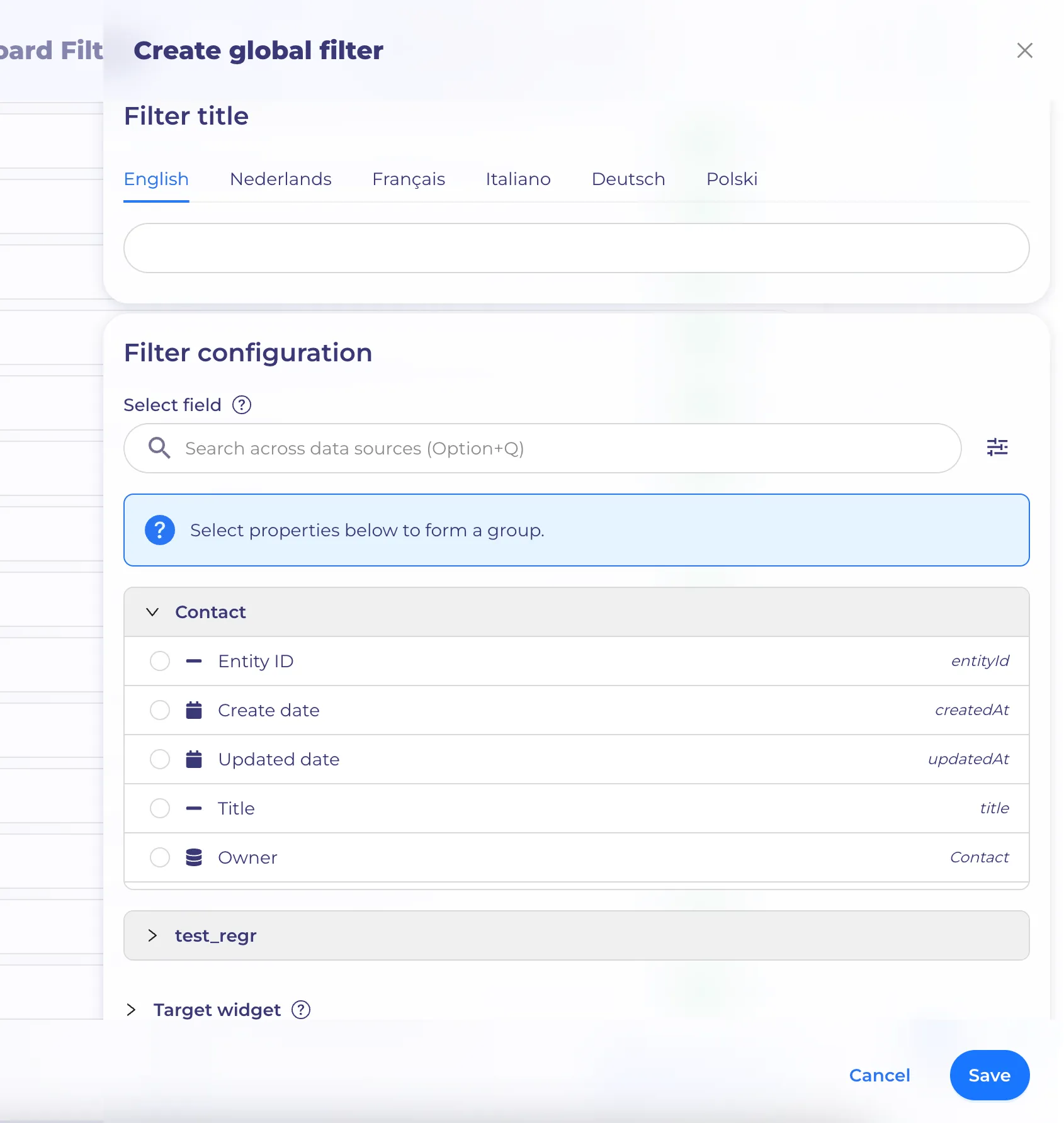
Title
A multilingual name for the filter. It's shown:
- In the filter list (right-side panel).
- As the chip label on the dashboard
- Inside the filters dropdown on each widget.
Select property
The main section of the form — pickwhich field to filter by. Since a dashboard can include widgets built on different objects/flows, the filter has to be «wired» to each of them through its own field.
What's available:
- Search by property name.
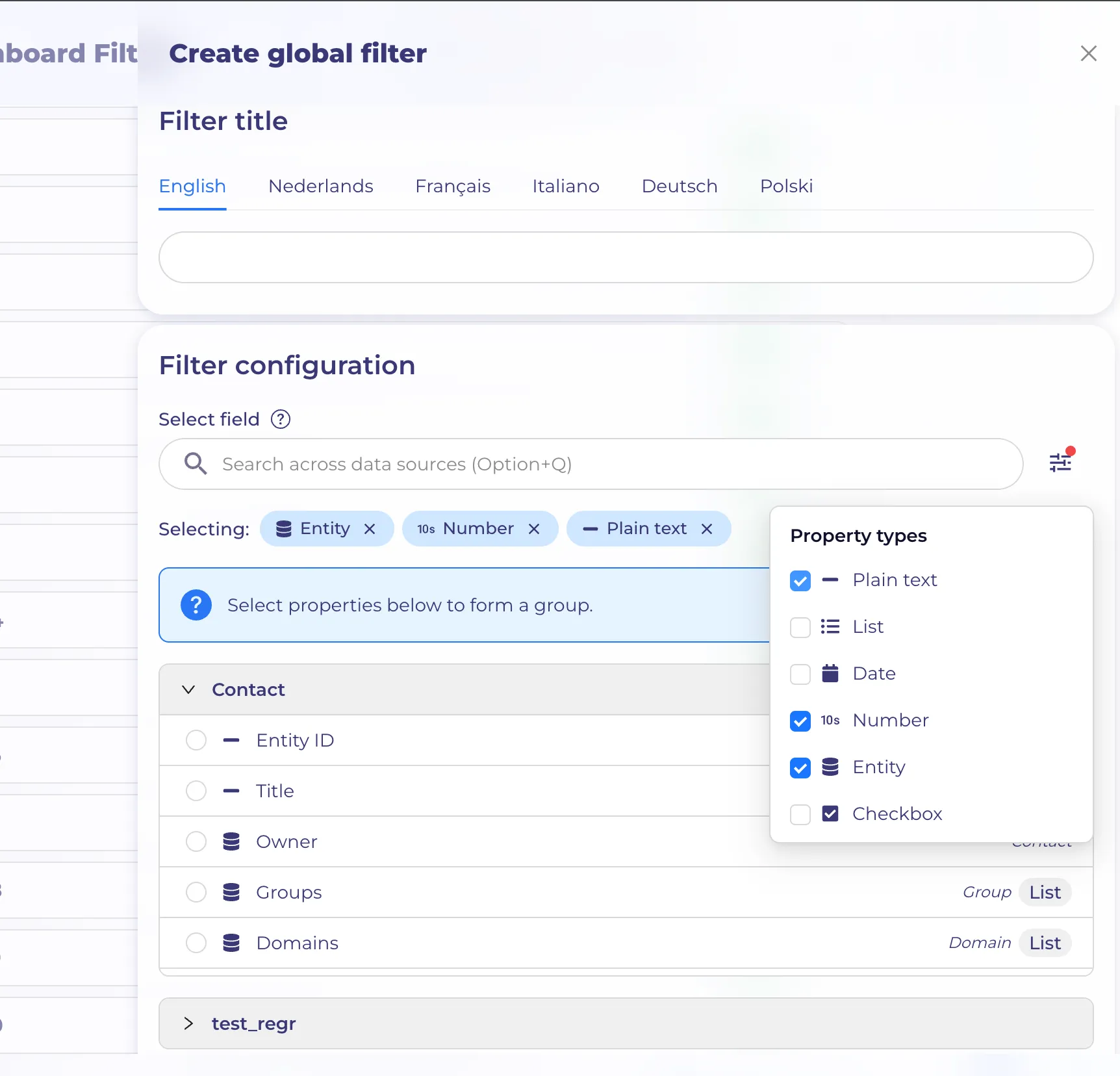
- Property type filter (popover) — limit visible properties to one or several types. Supported: - text - multitext - date - number - entity - checkbox
- Below the search, selected types are shown as chips; remove a type with its cross icon.
- Below that — the list of target objects (definitionIds)/flows. Each object expands into a list of its properties.
Selection logic:
- Inside each block, properties are picked with a radio button — one filter = one field per object.
- Once you pick the first property, the filter's type is locked (for example, `date`), and the rest of the blocks filter themselves automatically to show only compatible properties.
- For entity types, an extra rule: only properties referencing the same object (Definition) are shown. E.g., if you pick «Owner → Contact» in the first widget, the second widget will only offer entity fields referencing Contact.
- If the current user has lost access to the previously selected property (e.g. it was deleted), it's highlighted with a warning icon.
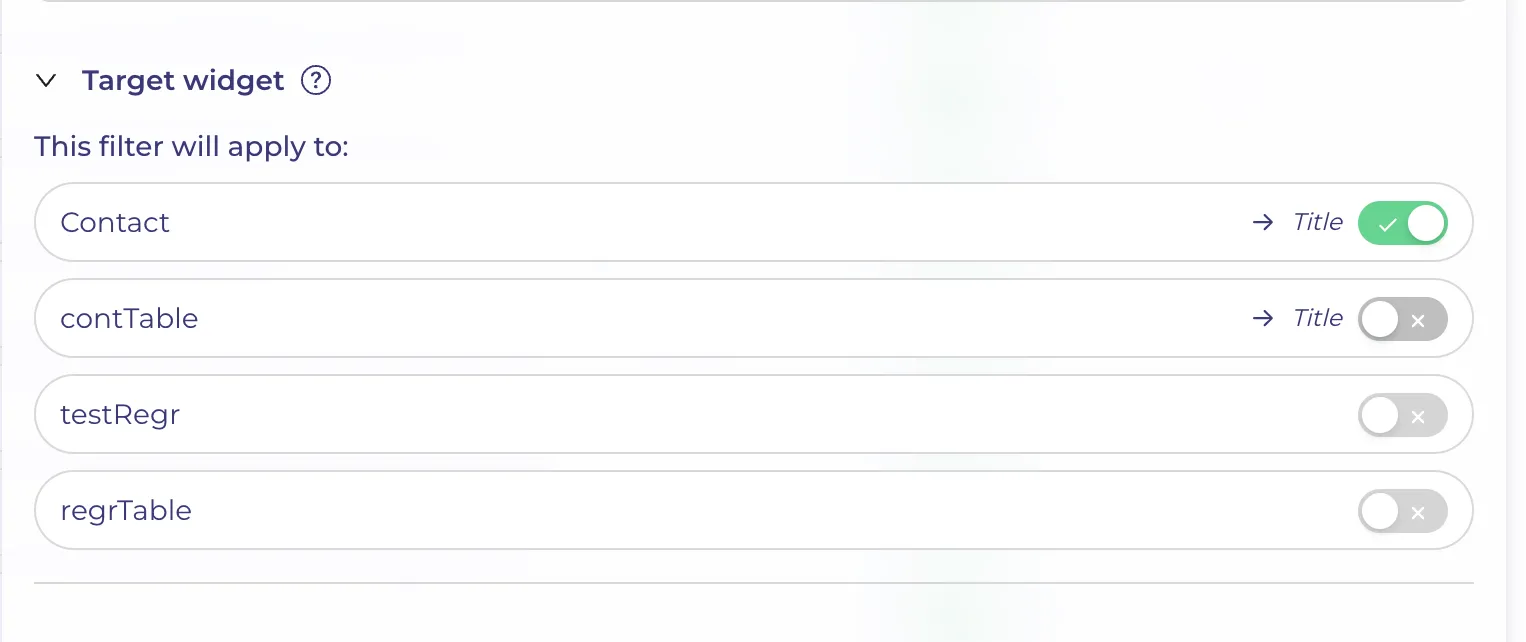
Target widget
The «Target widget» collapse shows every widget on the dashboard and which field the filter will apply to in each of them.
- If the widget's object has a mapping — the toggle is active. Use it to disable the filter locally on this specific widget.
- If the widget's object has no mapping — the toggle is disabled and the property slot is empty.
- This block helps you see where the filter will actually work and lets you opt out specific widgets when needed.
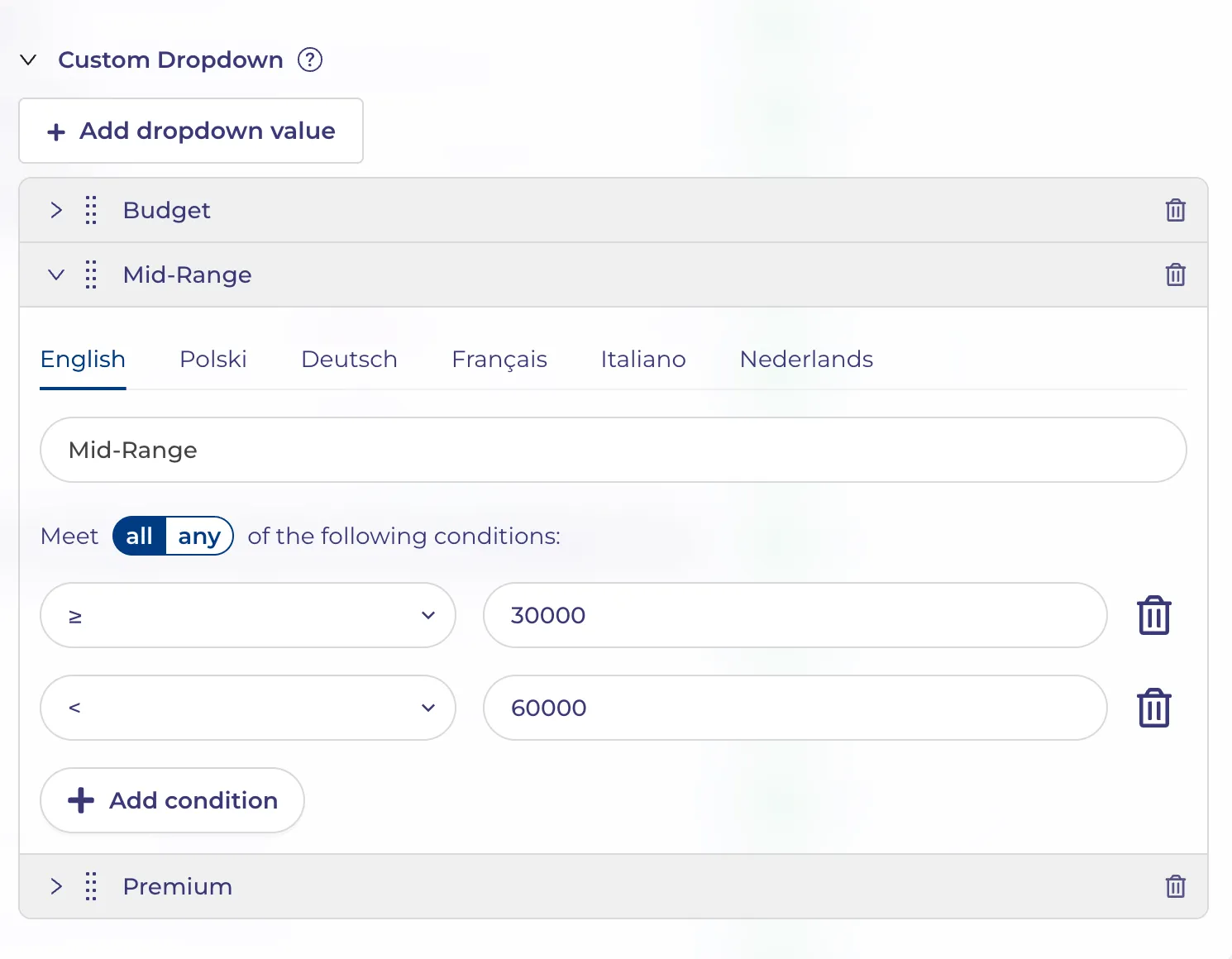
Custom dropdown (optional)
By default the filter behaves like a widget «quick filter»: the user picks an operator and a value. But sometimes you want to restrict the choice to a predefined list — buttons like «Last 7 days», «Last 30 days», «This Year», or «Top Tier dealers», «Mid Tier dealers».
In Custom dropdown you can:
- Add multiple options — each becomes a separate row in the dashboard dropdown.
- Set a multilingual label per option.
- Define the filter condition per option.
- Reorder options by dragging — the order defines the dropdown order.
If a filter has a custom dropdown, the dashboard renders it as a plain Select with those options (instead of the popover editor).
Validation
You can save a filter only if:
- At least one title (Title) is filled in.
- At least one property is selected.
- Date filters
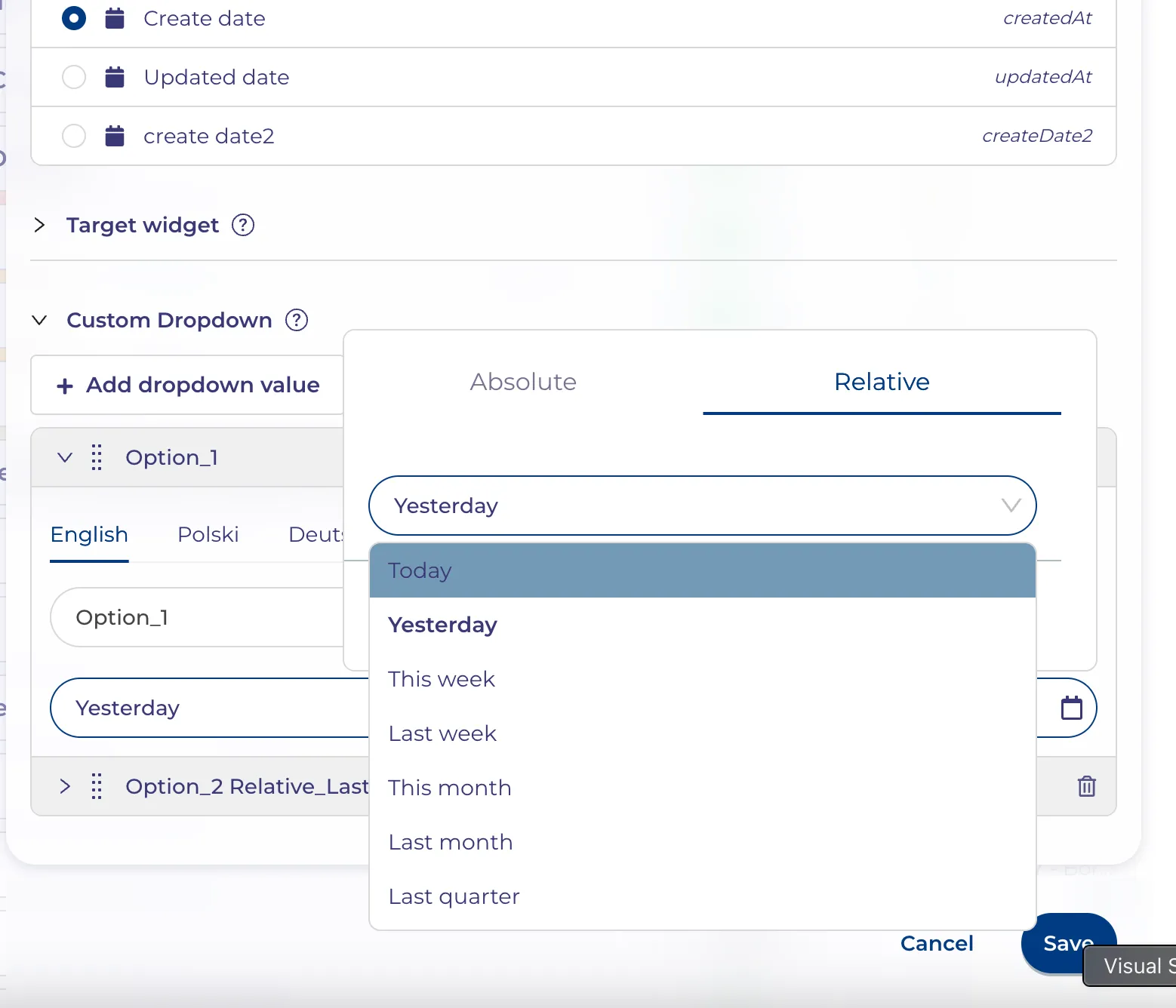
For dates there are two range selection modes
.
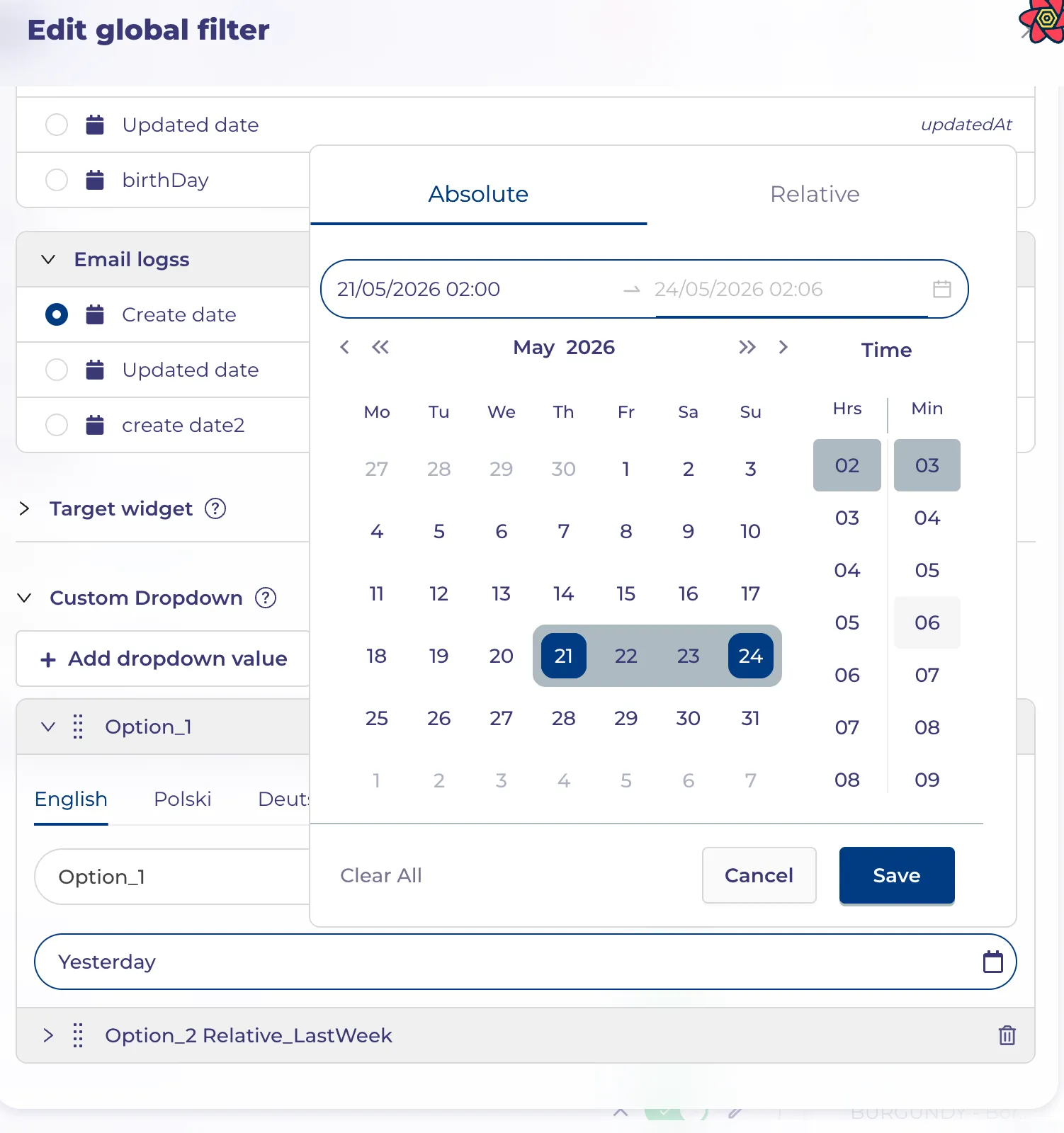
Absolute (Calendar)
A regular calendar range: start date and time — end date and time.
Relative — presets
A dropdown with predefined options:
| Preset | Meaning |
|---------------|----------------------|
| Today | Today |
| Yesterday | Yesterday |
| This week | The current week |
| Last week | The previous week |
| This month | The current month |
| Last month | The previous month |
| Last quarter | The previous quarter |
| Last year | The previous year |
A relative preset is recalculated every time the dashboard is opened: «Last month» on May 1 and on May 30 will return different intervals.
5What is shown on the dashboard
The chip label displays:
- The preset name — if the current value matches one of them.
- Otherwise — `start - end` as formatted dates.
- What happens when a new widget is added
When you add a new widget to the dashboard, the system tries to wire the existing global filters to it automatically — so you don't have to open every filter and add the field by hand.
How matching works:
For each enabled global filter:
- If a mapping for the new widget already exists — skip it.
- If the filter is of entity type — pick from the widget's properties. If the filter already has mappings in other widgets referencing a specific object (e.g. Contact), pick the first property that references the same object.
- If the filter is any other type (date, text, number, checkbox, multitext) — pick the first property of the same type.
- If nothing matches — no mapping is added; the filter won't apply to this widget.
Manual override
If auto-matching picked the wrong field — just open the filter form and switch the mapping manually (section 4.2). Any choice in the form takes precedence over auto-matching.
Cleanup when a widget is changed or removed
- If a widget's data source (object/flow) is changed and the old one is no longer used anywhere on the dashboard, it's automatically removed from all global filters.
- If a widget is deleted, it's automatically removed from the «individually disabled» lists of every filter; and if no widget on the dashboard uses its data source anymore, that source is also removed from the mappings.
- Applying filters on the dashboard
Once filters are created and enabled, a row of chips appears below the dashboard header.
Regular chip (no custom options)
Looks like [ Title │ value ▼ ]. Click opens a popover with the condition editor (the same one used in the table quick filter) — pick an operator and values there.
If multiple values are selected, the chip shows «Value1 +2»; the full list appears in the tooltip on hover.
Chip with custom options
Looks like [ Title │ Select ▼ ]. It's a plain Select. The user picks one of the predefined options. The cross icon next to it clears the value.
Where the values are stored
The current filter values (what the user selected) live in the **dashboard URL** — which means:
- You can send the dashboard link to a colleague with the filter values already set.
- Reloading the page doesn't reset the values.
The filter configurations themselves (what the filter is, which mappings it has) are saved together with the dashboard.
- Behaviour at the widget level
Filter button on the widget
If at least one global filter (with a non-empty value) applies to a widget, its controls show a button with a number: a filter icon plus the count of applied filters.
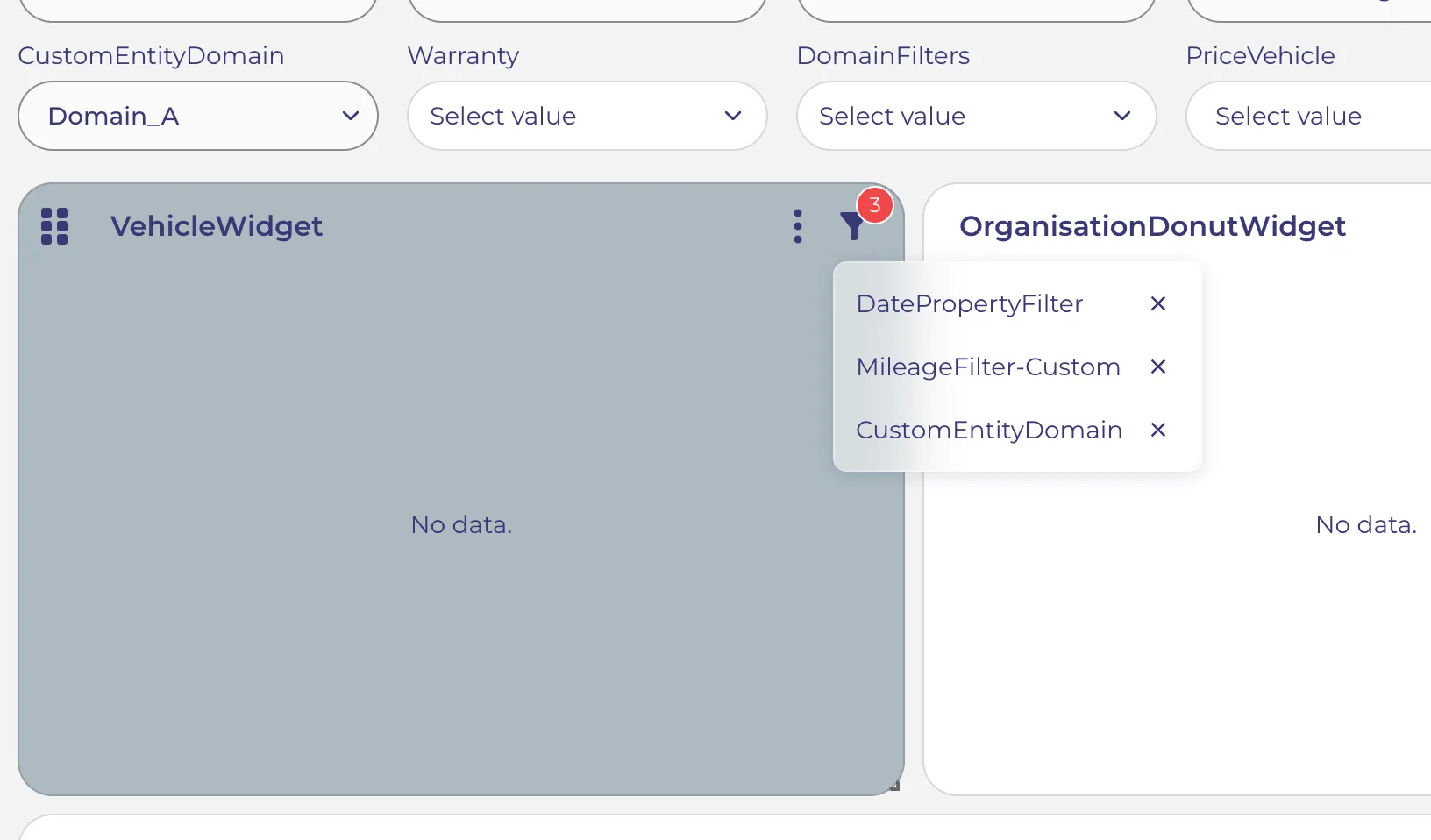
Click opens a dropdown listing the applied filters. Each item has a cross icon — clicking it disables that global filter for this widget only; other widgets on the dashboard keep using the filter as before.
This is handy when you need to «freeze» one widget in an unfiltered view while the rest of the dashboard keeps reacting to global filters.
How global filters combine with the widget's own filters
If a widget has its own filter in its settings, global filters apply on top of it, joined with logical AND. In other words, a global filter always narrows the selection — it never expands it.
- Good to know
- Read-only users see every global filter and can change its values — those changes are applied locally, in their dashboard link. They cannot edit the filter configuration (create, delete, change mappings).
- When editing a filter — if you change the property type, the mappings, or the custom options — the filter's currently applied values are reset, otherwise they would become invalid.
- When editing a chip value, saving to the URL happens with a small delay (about 500 ms), so the browser history isn't spammed and widgets don't recompute on every keystroke.
- The special value «Current user» (shown as «⚡️ Me») is available in entity filters pointing to a user. It automatically resolves to whoever is viewing the dashboard.