Address search property
Turn a JSON property into an address search field: users start typing, pick an address from a live dropdown, and related fields (city, ZIP, country, coordinates…) are filled in automatically from a search provider of your choice.

How it works
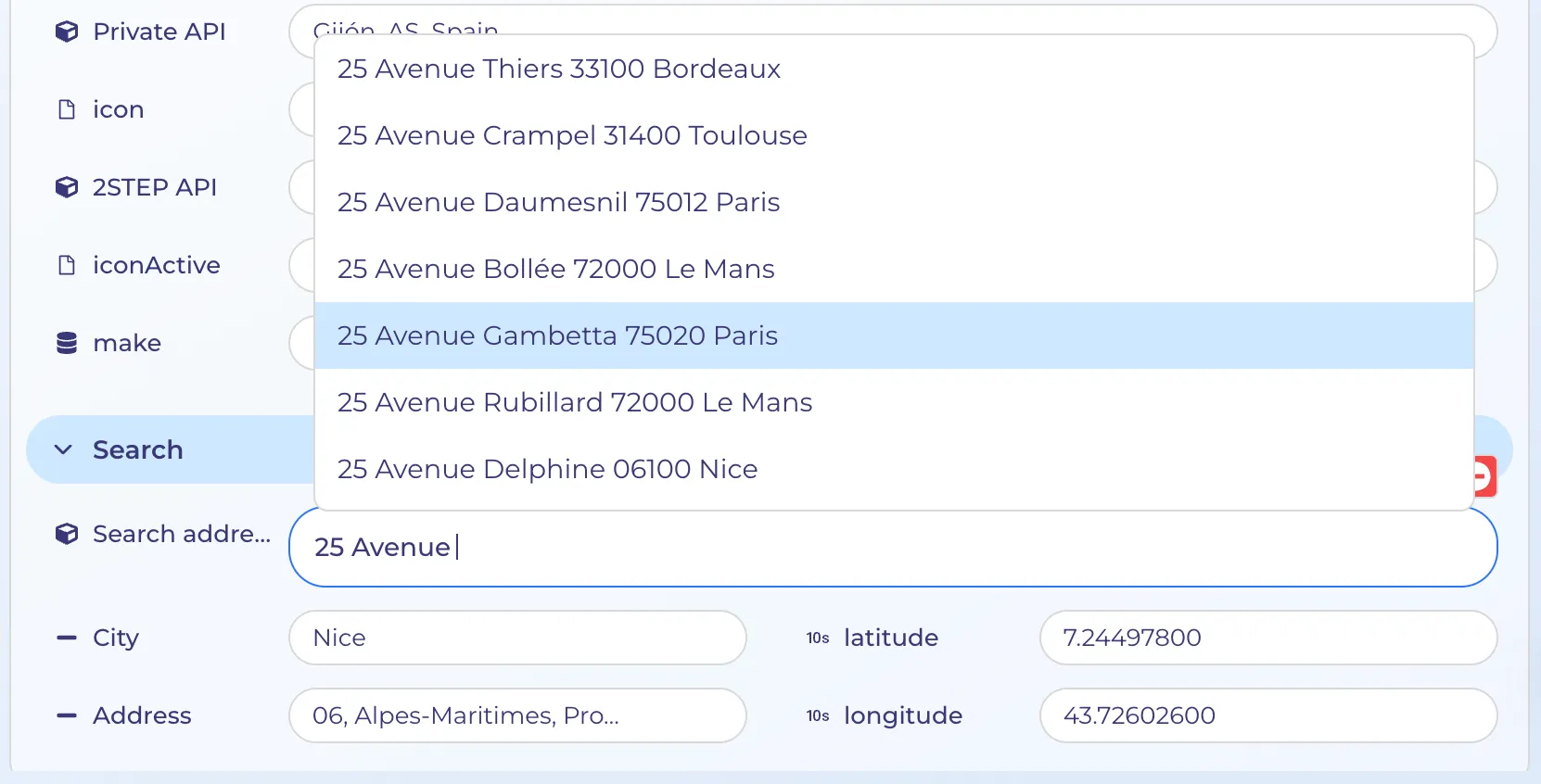
- User types into the address field.
- HyperPortal queries your provider and shows matching suggestions.
- The user selects one. The chosen address is saved, and — if you configured a Response mapping — its parts are copied into other properties of the same item.
Some providers return everything in one call. Others use two steps: a first call returns suggestions with an internal ID, and a second call fetches the full details for the selected suggestion. Both are supported.
Setup
Step 1 : Create a Search Service
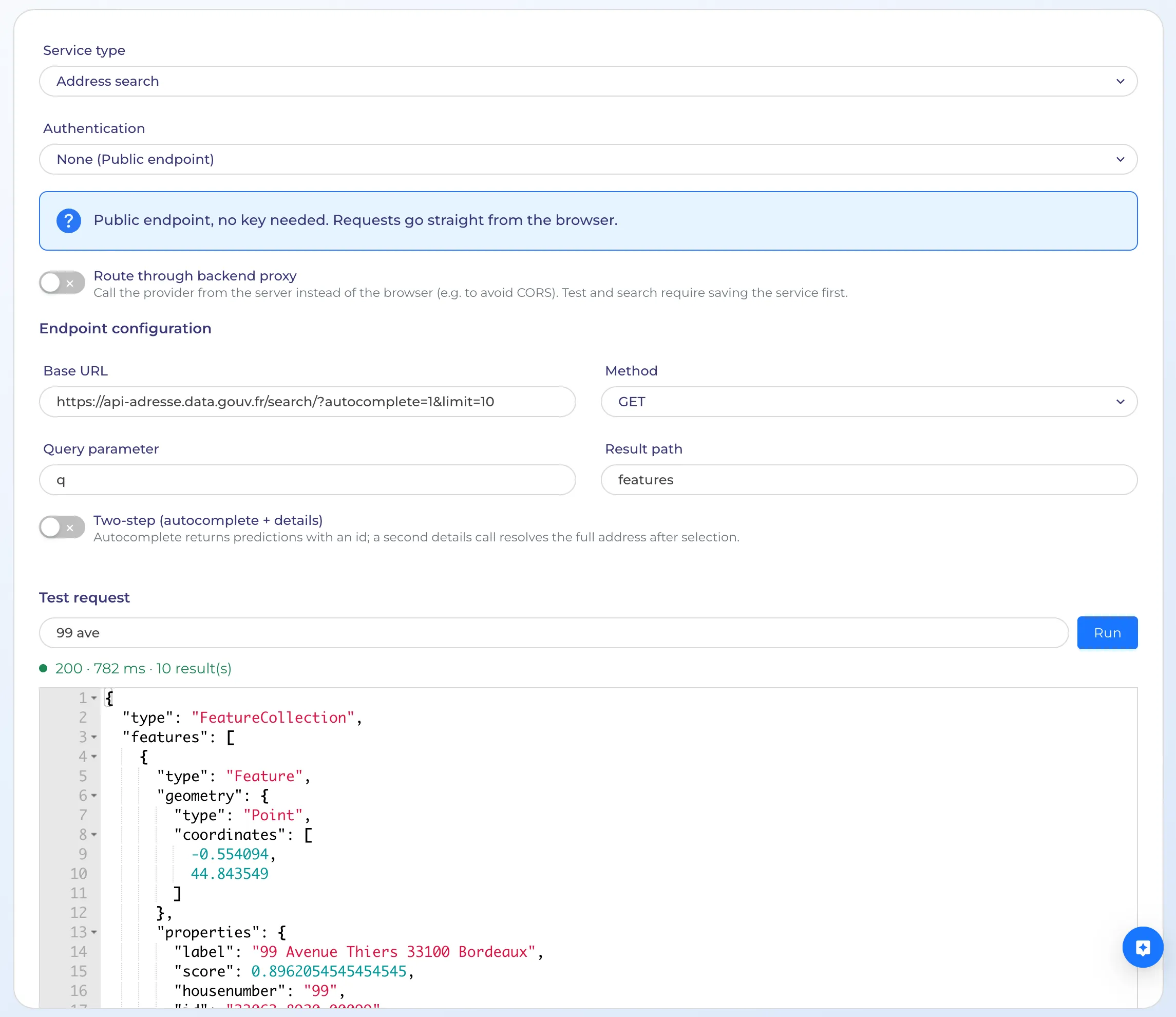
Go to Settings → Apps → 3rd Party Search and add an instance.
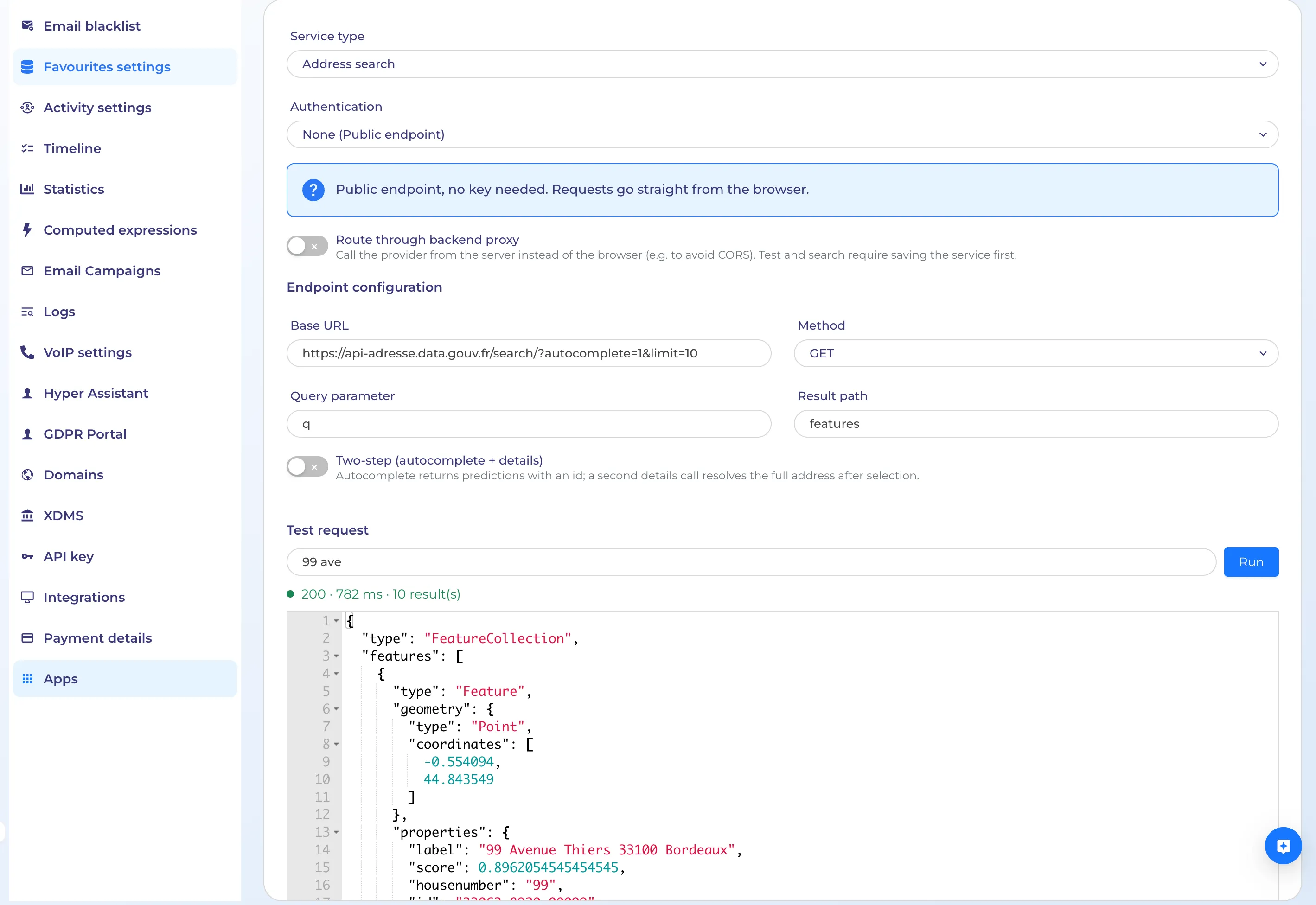
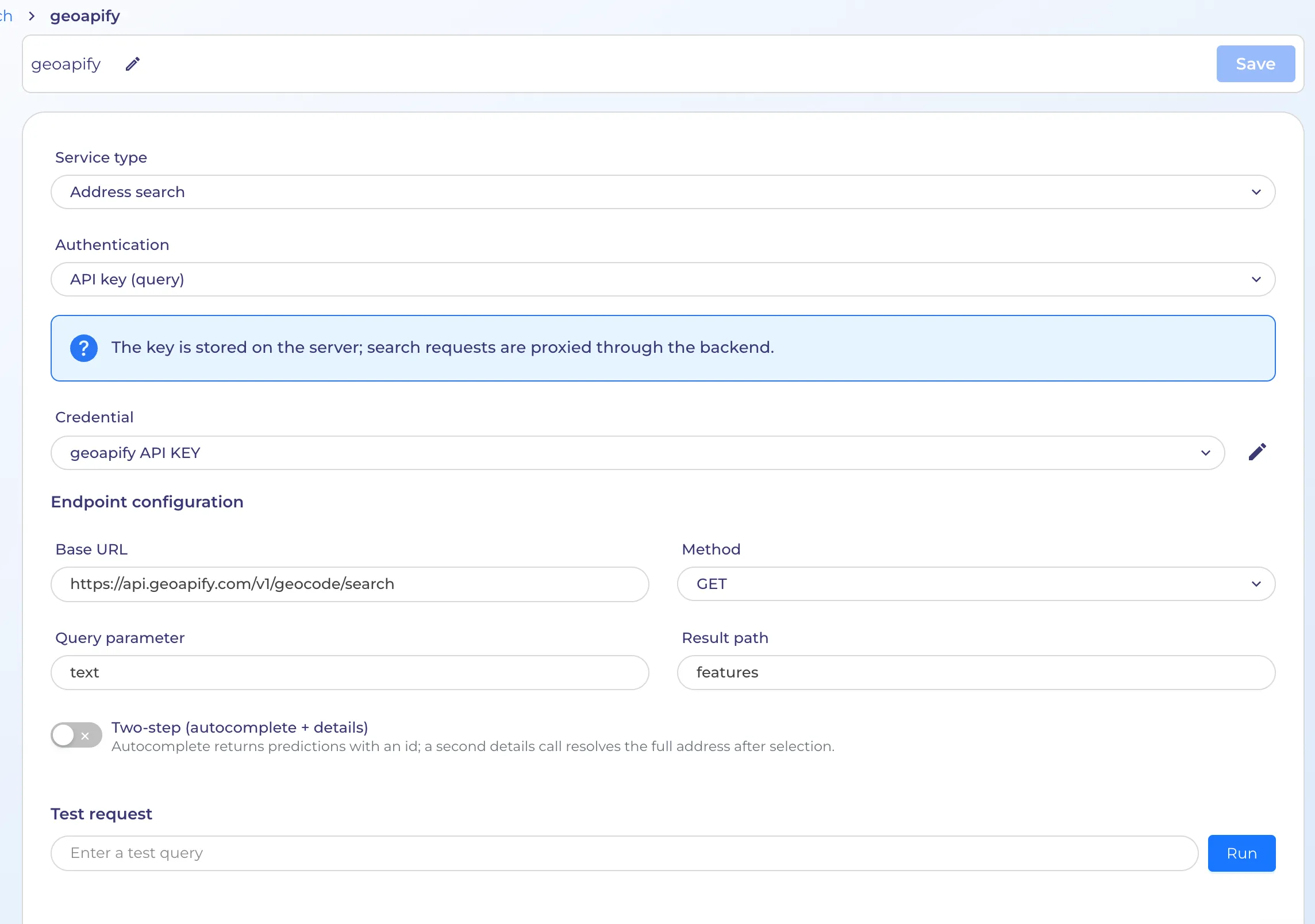
Authentication Choose how your provider is accessed:
- None — the provider needs no key. Optionally enable Route requests through HyperPortal if the provider can’t be called directly from the browser.
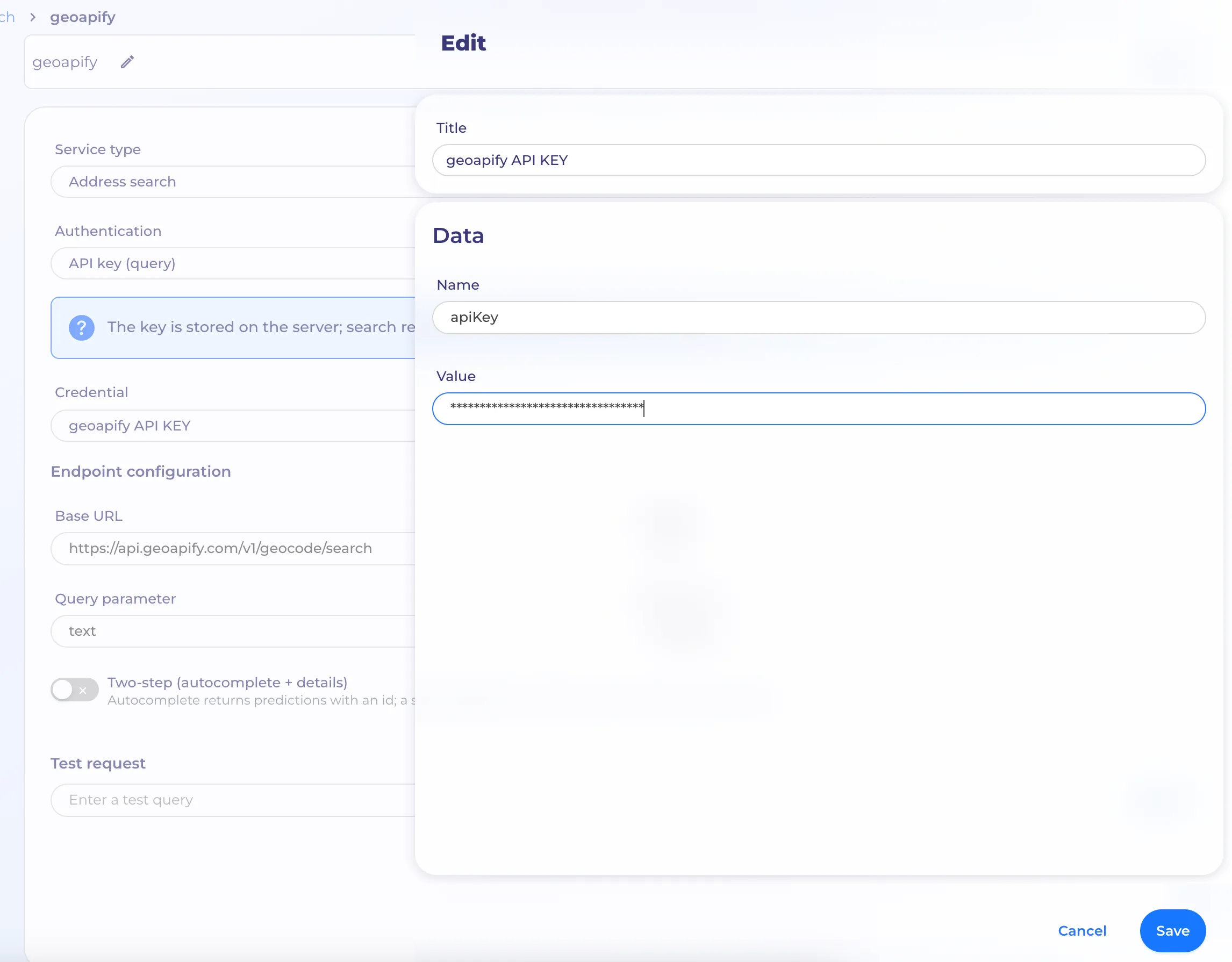
- API key (header) / API key (query) — paste your key and choose where it goes: as a Query parameter or a Header, and its name (e.g. apiKey, key, or Authorization). The key is stored securely and never shown in the browser of users.
- OAuth2 (client credentials) — for providers that issue access tokens. Enter Token URL, Client ID, Client secret, and optional Scope / Audience. HyperPortal obtains and refreshes the token automatically.
Endpoint configuration
- Base URL — the provider’s search endpoint.
- Method — GET/POST. Usually GET.
- Query parameter — the name of the parameter that carries the user’s text (e.g. text, input, q).
- Result path — where the list of suggestions lives in the response (e.g. features, predictions, results).
Two-step providers
Enable Two-step if your provider needs a second call to return full address details:
- ID path — path to the identifier inside each suggestion (e.g. place_id).
- Details URL — the details endpoint. Use {id} as a placeholder, or set a Details ID parameter.
- Details method — GET/POST. Usually GET.
- Details ID parameter — the parameter name that carries the ID (if not using {id} in the URL).
- Details result path — where the full address object lives in the details response (e.g. result).
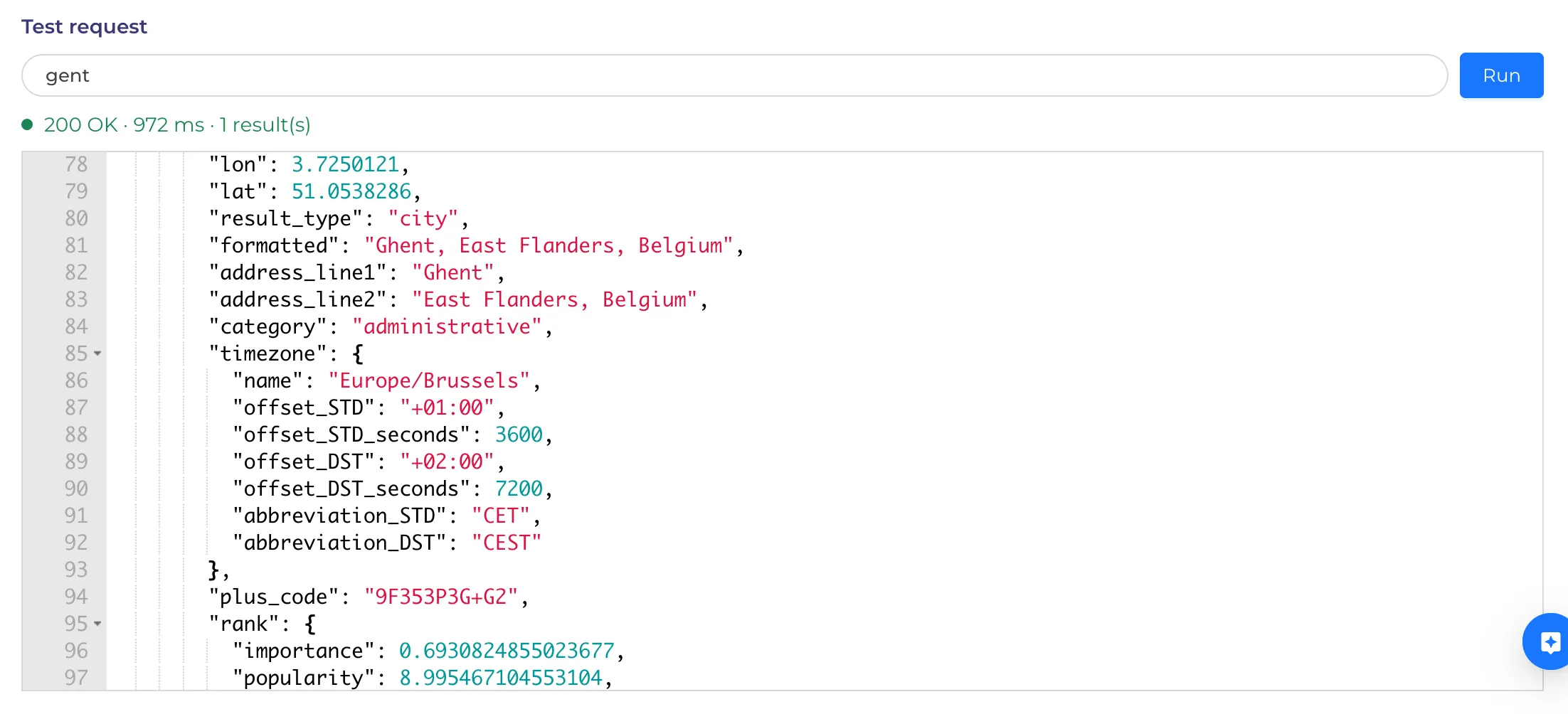
Test request
Type a sample query and press Run to confirm the connection works. You’ll see the status and the raw response, so you can check the paths above. For providers that require credentials, save the service first, then Run.
Step 2 : Enable Address Search on a property
Add a JSON property to your entity, and go to the View tab. Set the View type to Search field. Then configure:
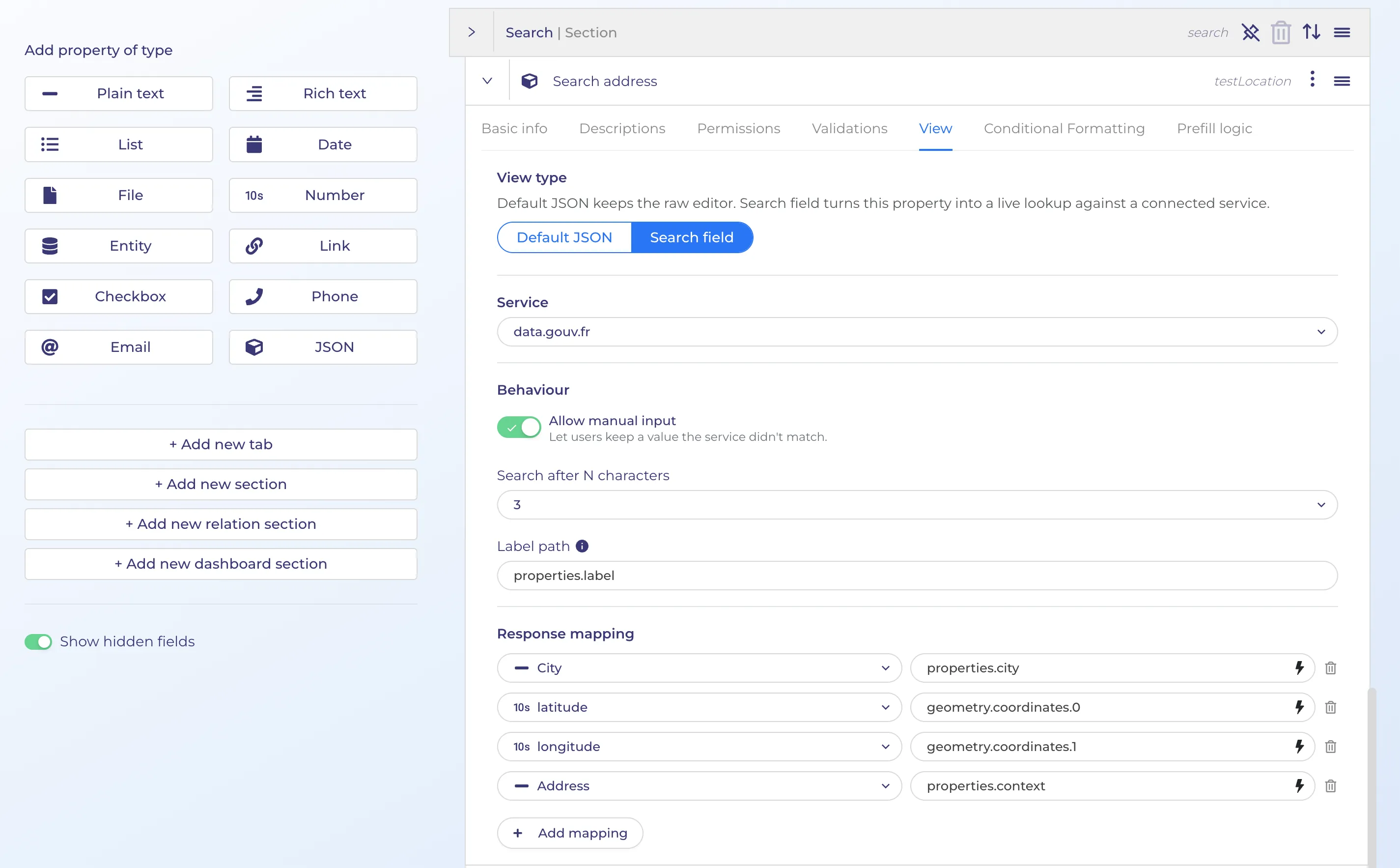
- Service — the Search Service (from Part 1) this field should use.
- Allow manual entry — let users type a free-form value that isn’t in the suggestions.
- Minimum character — how many characters before suggestions appear.
- Label path — the field shown as each suggestion’s text (e.g. properties.formatted, description).
Response mapping
Automatically fill other properties when an address is selected. Add a row per target field:
- Property — the item property to fill (e.g. City, ZIP, Country).
- Value — the path to the value in the selected address (e.g. properties.city).
Response mapping applies everywhere items are edited: the item page, table inline editing, quick add, and bulk edit.
Provider examples
Geoapify
Free worldwide provider. Need a registration to get an API key. https://www.geoapify.com/
Data.gouv.fr
Free French provider. Works without authentication.