Data-driven steps
In workflows, it is possible to track the execution progress based on data from the current process.
Administrators can configure this feature by adding the required number of steps and specifying the conditions for their ‘ongoing’ and 'completed’. These conditions can reference properties that fall within the current administrator's permission scope. However, even end users without permissions to access those specific properties will be able to see the execution or completion status of the steps.
Please also note that if Step node"step" nodes are configured in the current process, they will be overridden by the settings of the current steps.
This feature applies to all processes within the current definition as a whole, rather than to process runs activities.
Setting configuration
Feature configuration
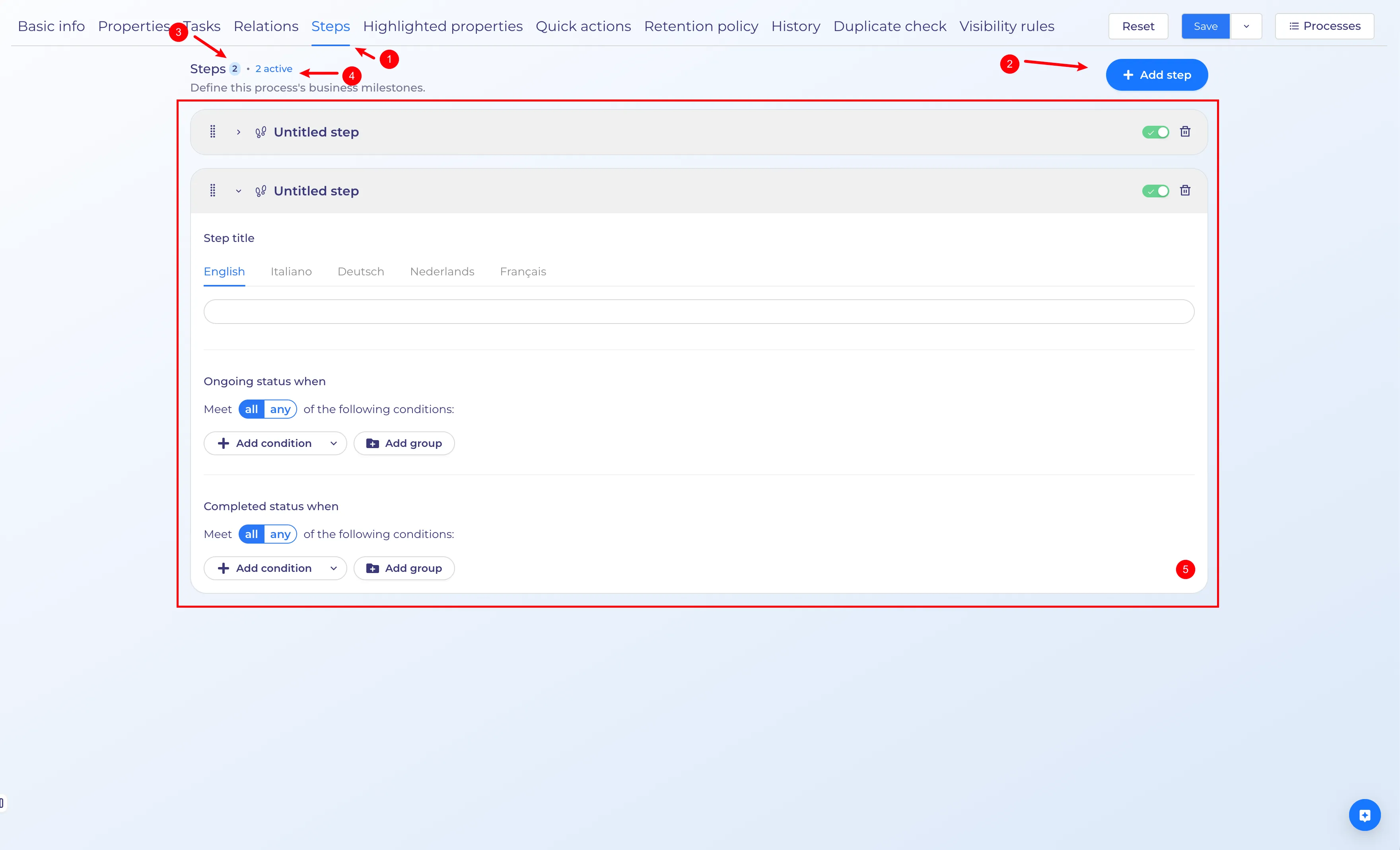
- This feature is located in the "Steps" tab
- Here you can add the number of steps
- Number of added steps
- Number of active steps (enabled)
- List of added steps
Step header configuration

- Option to change the step display order (this change will be visible to the end user)
- Step configuration collapse button
- Display of the step name in the current interface language (required field)
- Rule activation toggle (disabling step without deletion)
- Rule deletion button
Step body configuration
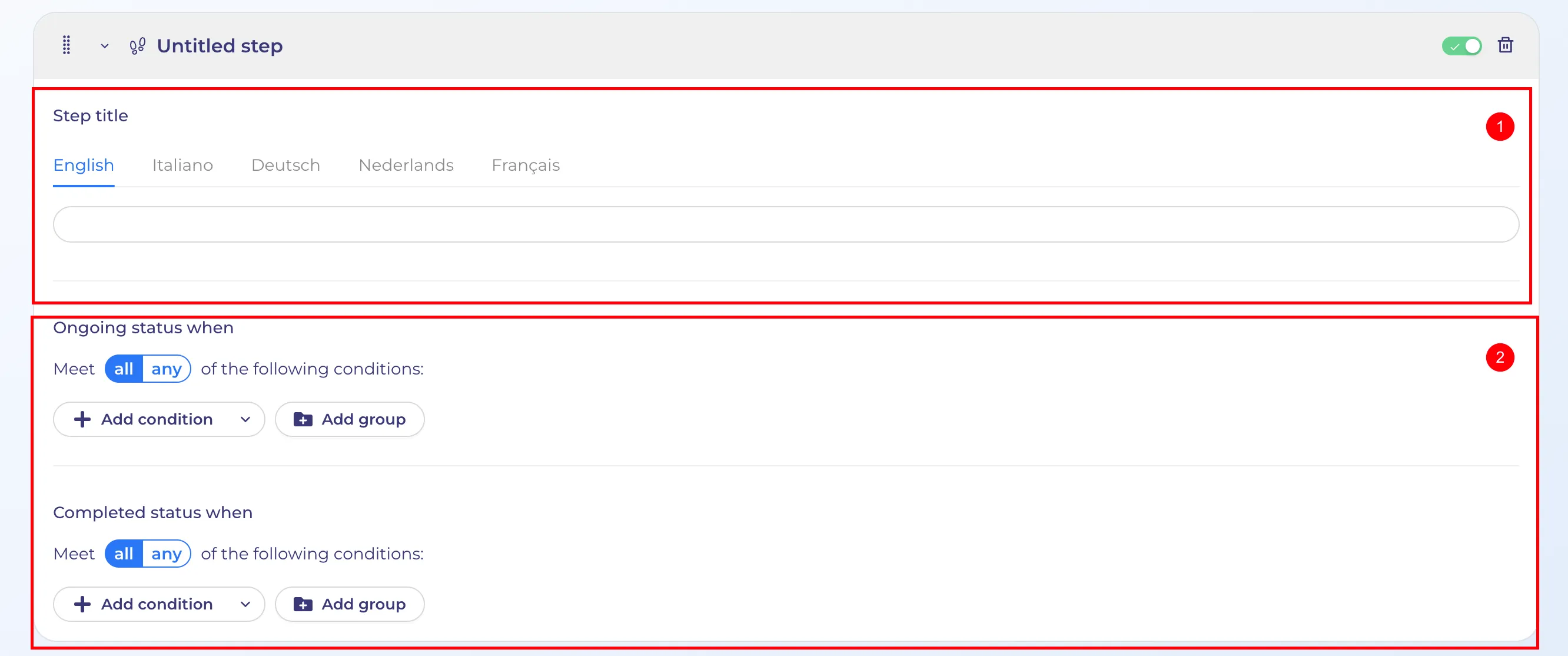
- Step name input block (multilingual, required field)
- "Ongoing/Completed" status condition block
Condition configuration
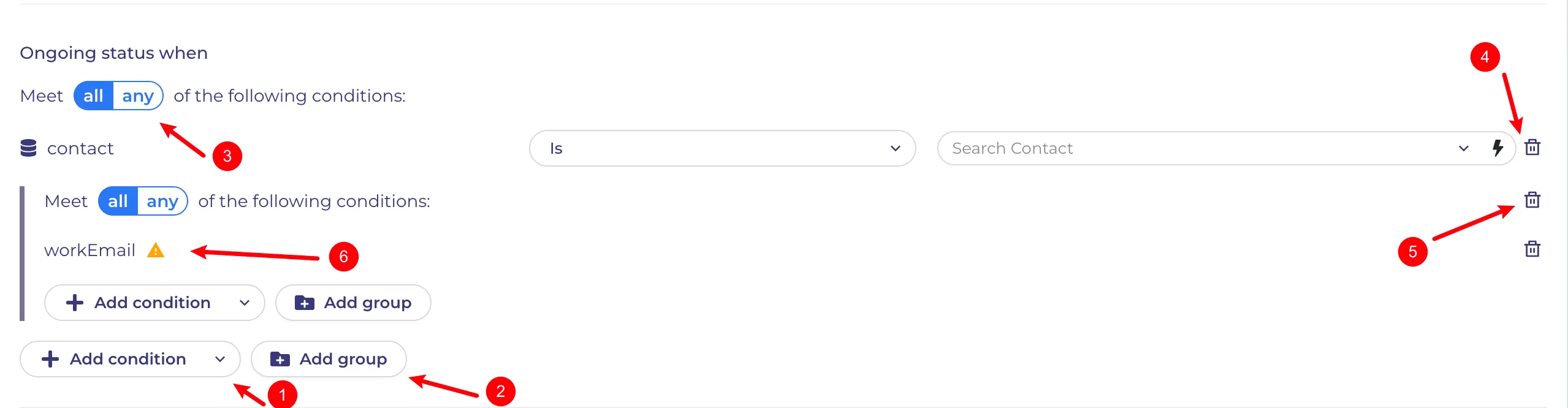
- Add condition property
- Add filter group
- Select filtering method (AND or OR)
- Delete property button
- Delete filter group button
- Property removed from definition or inaccessible to the current administrator
How it works
In the step settings, the administrator configures the number of steps, their order, their names, and the conditions for displaying them in the "Ongoing" and "Completed" states.
Conditions are configured based on the administrator's property permissions; if the administrator lacks access to specific properties, they cannot select them.
Available properties, including hidden ones, can be selected.
When an end user accesses an process, they see the configured steps at the top, regardless of their own permissions. This allows for the configuration of conditions based on properties that are unknown to the end user.
The execution order of steps need not be sequential; it is based on data rather than the display order. For instance, if "Step 1" is awaiting data that has not yet appeared, while "Step 5" has already received the data needed for completion, "Step 5" will appear green while "Step 1" remains gray.
Rendering conditions
Steps have four states:
gray – the step is not yet due to run
blue – the step is "ongoing"
green – the step is complete
red – the step failed via failed process
The display of a step's state depends on several factors:
- process status
- fulfillment of one of the conditions
Full list of states
"Completed" condition | "ongoing" condition | Process status | Step color |
|---|---|---|---|
yes | — | any | green |
no | yes | succeeded | blue |
no | yes | running | blue |
no | yes | failed | red |
no | yes | canceled | blue |
no | no | any | gray |
TLDR:
In summary, there are only four output values:
- Green — step completed;
- Red — step is running, but the process has failed ("ongoing" and failed);
- Blue — step is running with any other process status (‘started’, ‘completed’, ‘cancelled’);
- Gray — step has not yet started (neither ‘completed’ nor ‘ongoing’).
Examples
- Running process

- Canceled process

- Failed process
