Convert from/to file
Convert from file
The Convert from/to file node(with selected operation "Read From File") now has the ability to read table files(XLSX/XLS/CSV) and convert them to JSON.
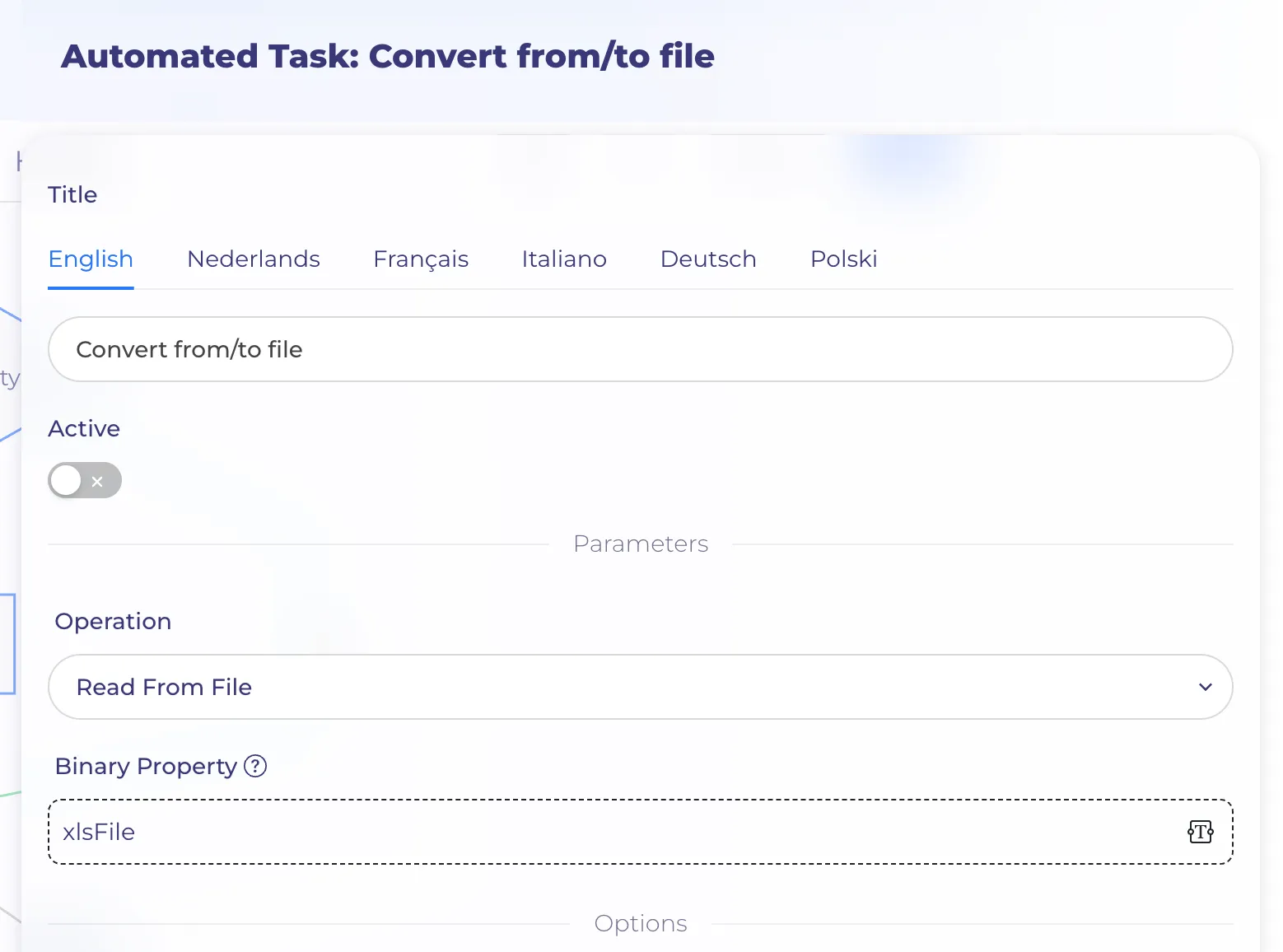
Binary property is the name of the property from which to read the binary data of the spreadsheet file.
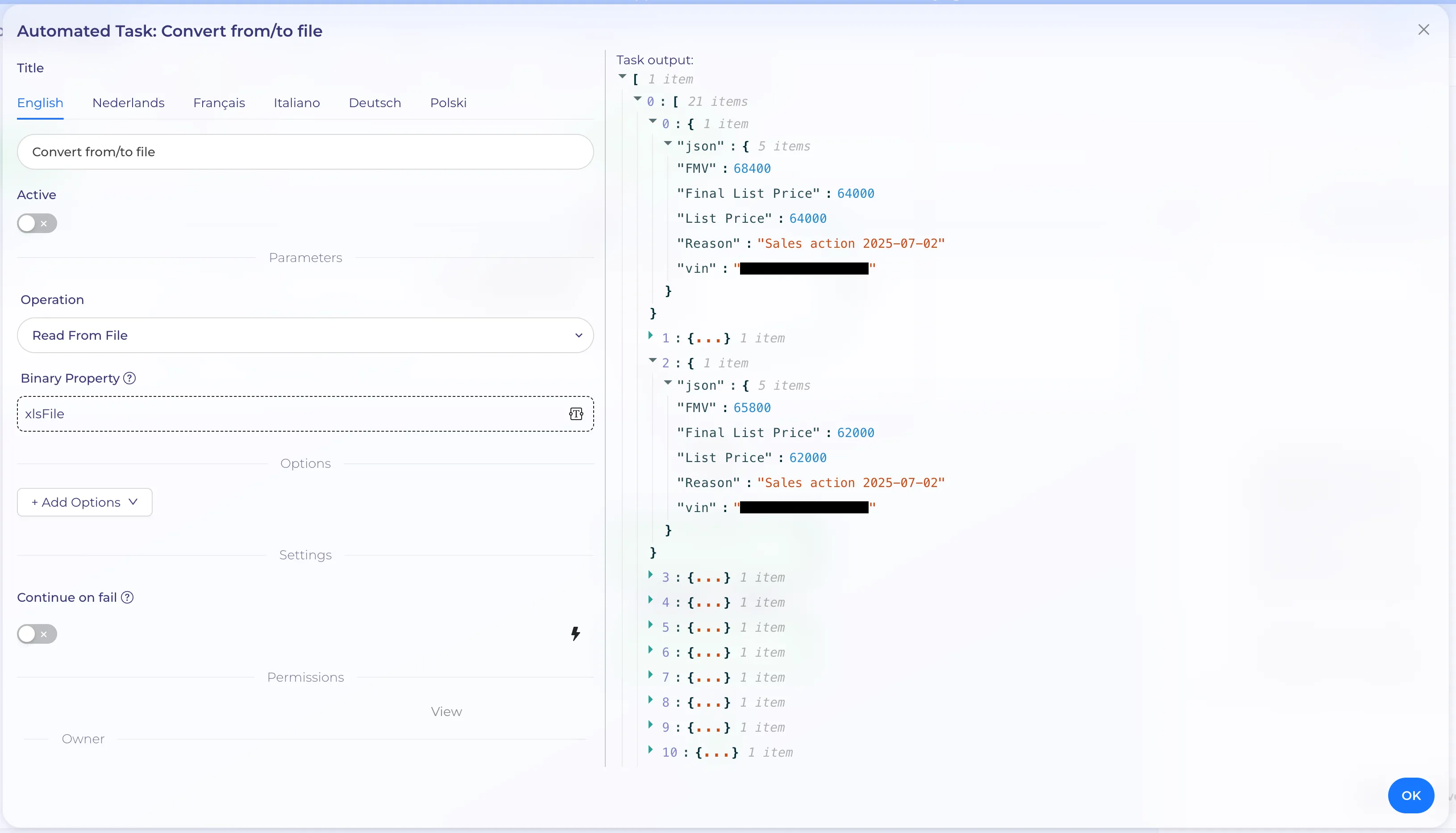
You can use the following format to get the relevant value : $json.key_name
In the case where the key has a space in the name, you can use the following format: $json["Key with space"]

Convert to file
The Convert from/to File node(with selected operation "Write to file") transforms input JSON data into a file format, allowing for seamless conversion of structured data into formats such as CSV, HTML, ODS, RTF, XLS, or XLSX.
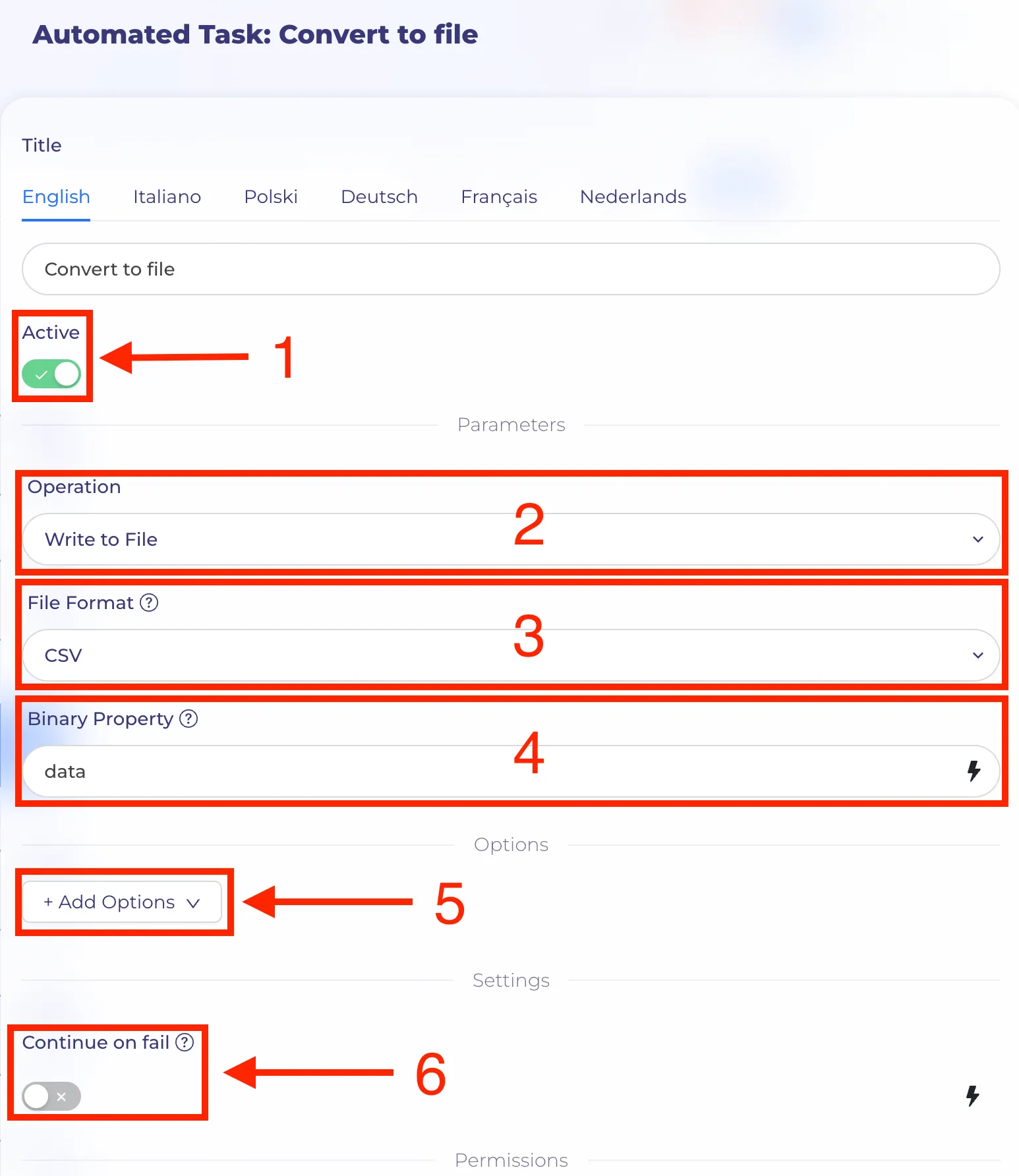
- Activate or deactivate the node. If the node is inactive, the node will be skipped (1)
- The "Write to File" operation requires specifying the file destination, file name, and file extension to ensure proper storage and retrieval. (2)
- Choose from the following file formats for conversion: CSV, HTML, ODS, RTF, XLS, or XLSX (3)
- The Binary Property field will be named the binary property in which to save the binary data of the spreadsheet file (4)
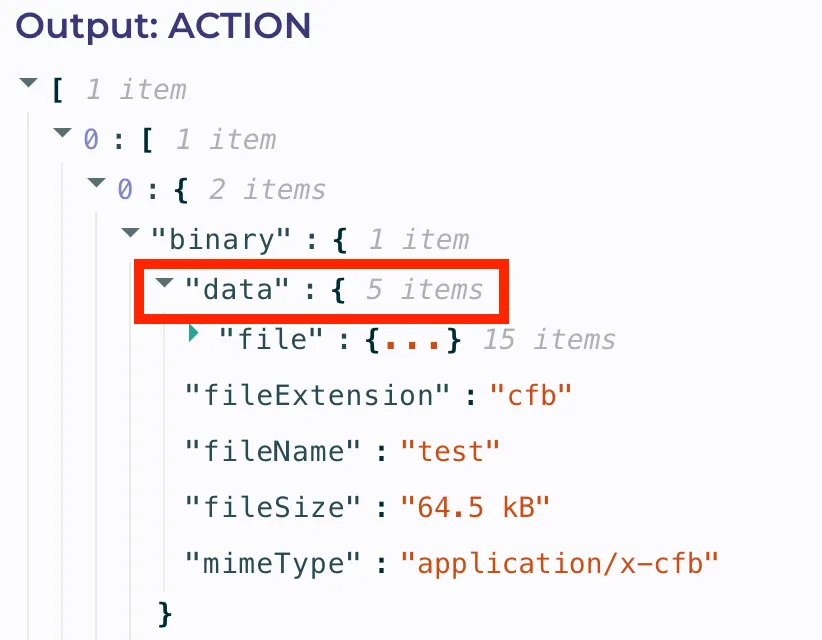
- Each file format has different options depending on the type (5)
- If "continue of fail" is active, the workflow will continue even if this node execution fails (6)
Operations
Configure the node for this operation with the Put Output File in Field parameter. Enter the name of the field in the output data to contain the file.
Convert to CSV options:
- File Name: Enter the file name for the generated output file.
- If the first row of the file contains header names, turn on the Header Row option.
Convert to HTML options:
- File Name: Enter the file name for the generated output file.
- If the first row of the file contains header names, turn on the Header Row option.
Convert to ODS options:
- Compression: Choose whether to compress and reduce the file's output size.
- File Name: Enter the file name for the generated output file.
- Header Row: Turn on if the first row of the file contains header names.
- Sheet Name: Enter the Sheet Name to create in the spreadsheet.
Convert to RTF options:
- File Name: Enter the file name for the generated output file.
- If the first row of the file contains header names, turn on the Header Row option.
Convert to XLS options:
- File Name: Enter the file name for the generated output file.
- Header Row: Turn on if the first row of the file contains header names.
- Sheet Name: Enter the Sheet Name to create in the spreadsheet.
Convert to XLSX options:
- Compression: Choose whether to compress and reduce the file's output size.
- File Name: Enter the file name for the generated output file.
- Header Row: Turn on if the first row of the file contains header names.
- Sheet Name: Enter the Sheet Name to create in the spreadsheet