Change primary relation
Feature description
By default, the contact property (Name) is set for activities in the Activity definition. However, the Portal now allows you to select a different property in the Activity definition to display in the activity action, node and timeline.
For example, here's the "Name" property replaced with "Organization" in a "Quick action".
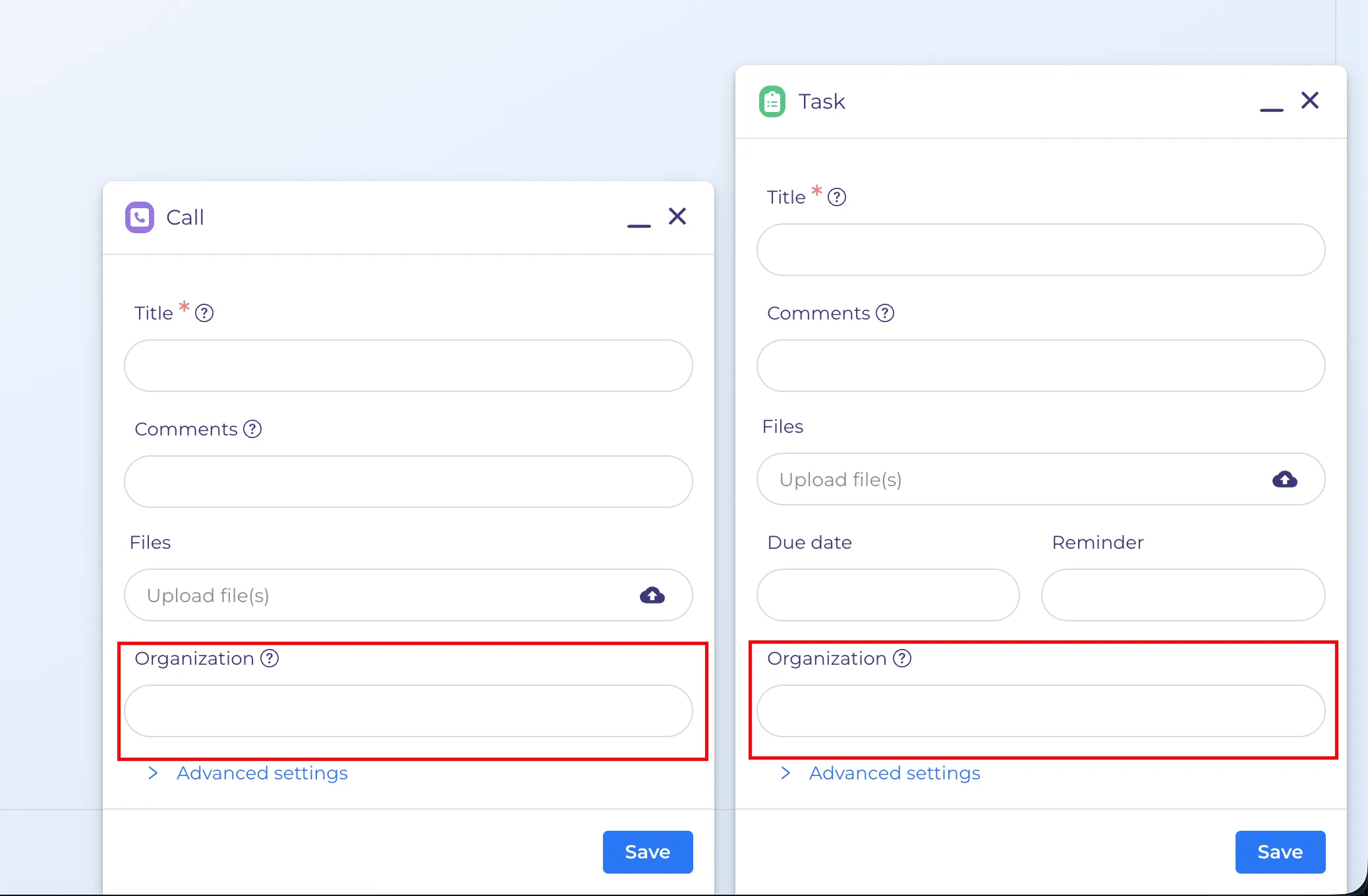
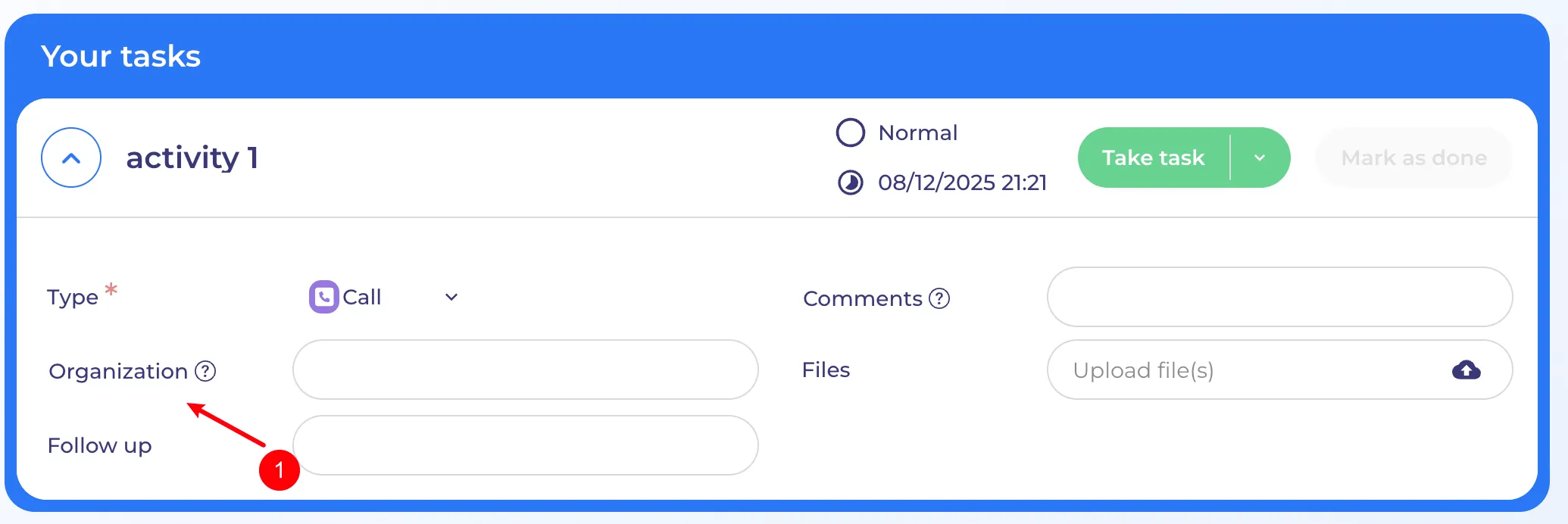
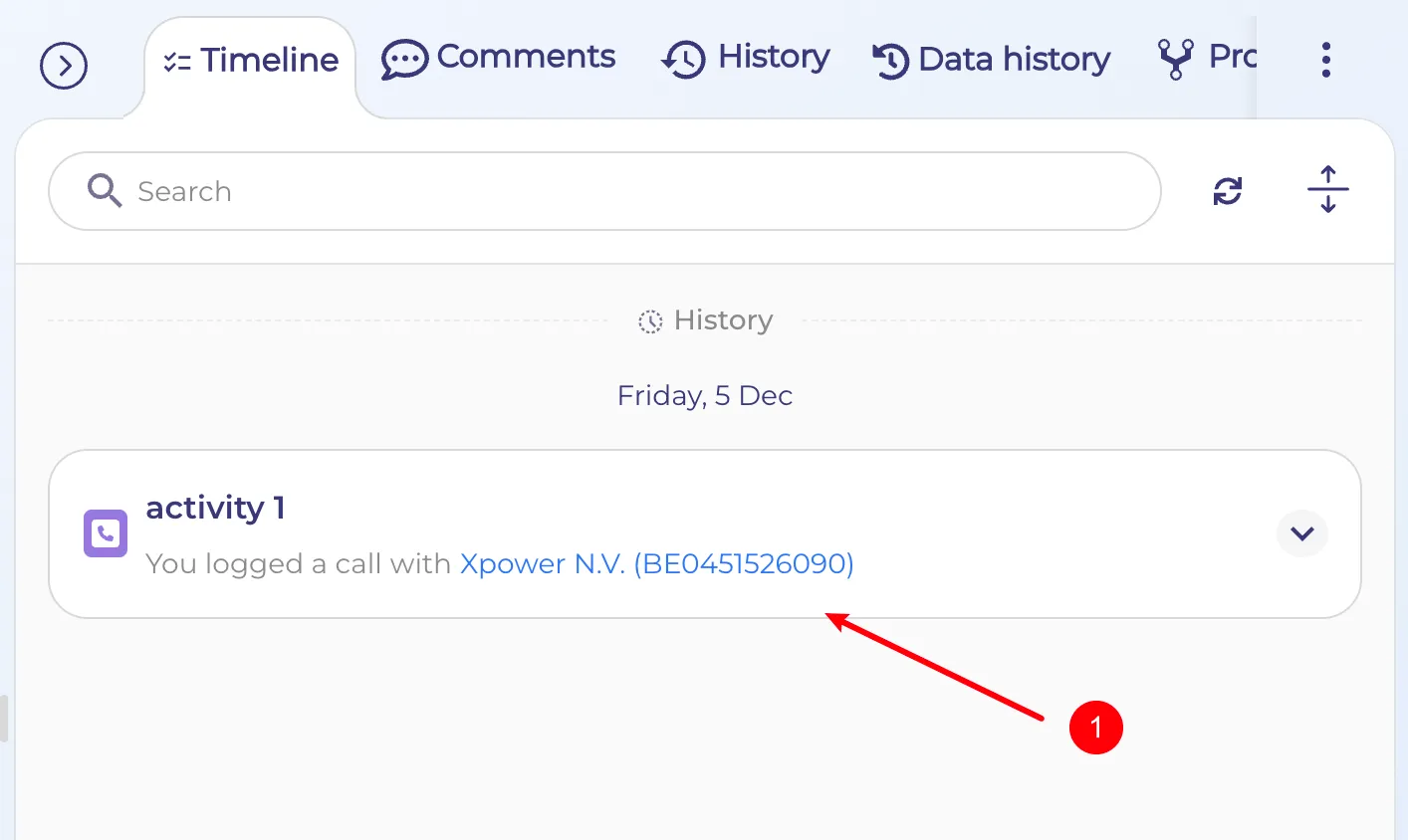
How it will look after registering a new activity
Property settings
A new "Activity settings" section has been added to the Portal settings (requires "Portal administrator" permissions). Here you can select a property in the "Activity" definition to display in the activity action, node and timeline.
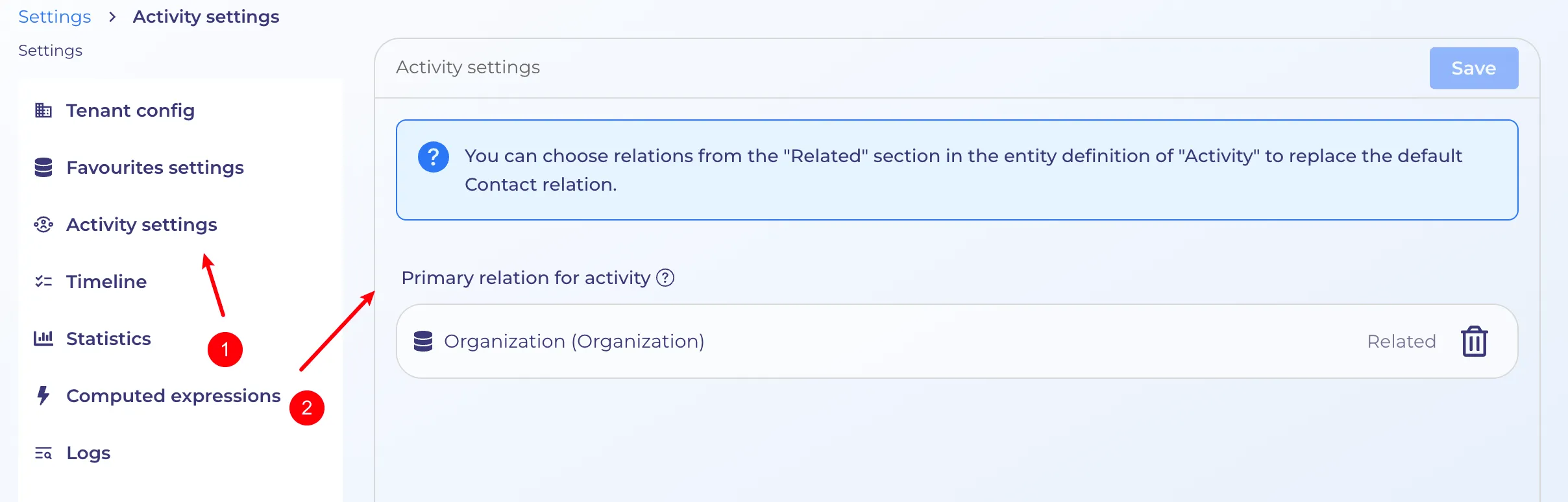
New properties can be added to the Activity definition in the "Related" section with the entity type.
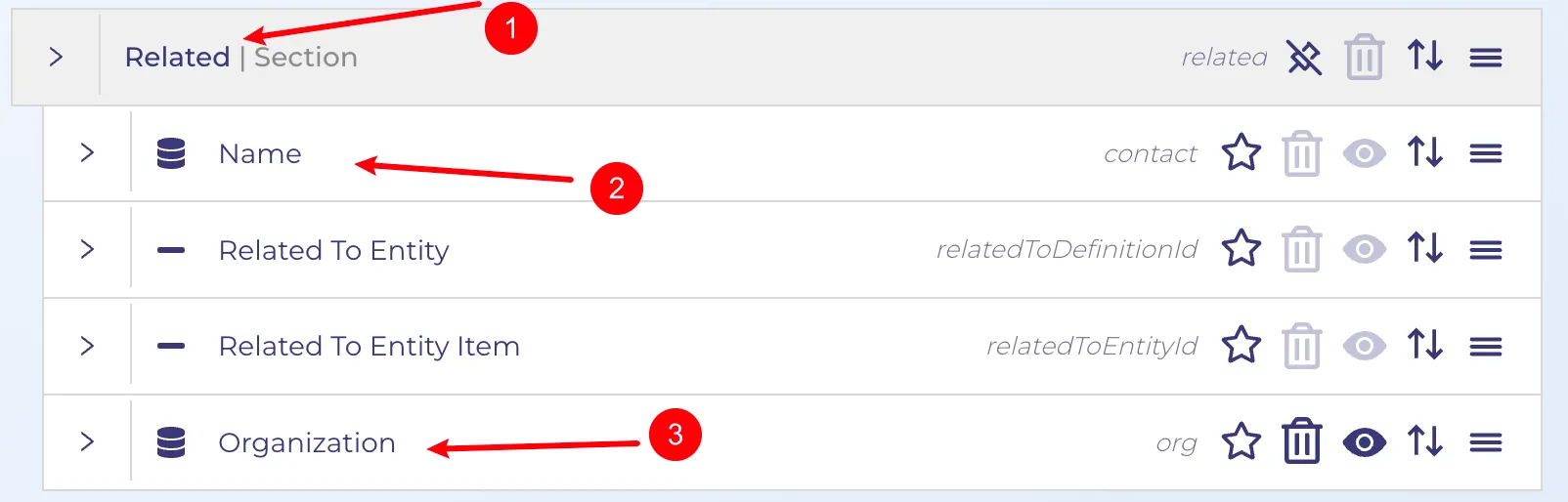
- Section where to add new properties
- The old "Name" property (included out of the box)
- The newly added "Organization" property
Display settings
Data display for quick action properties and activity nodes can be customized, including the label and description.
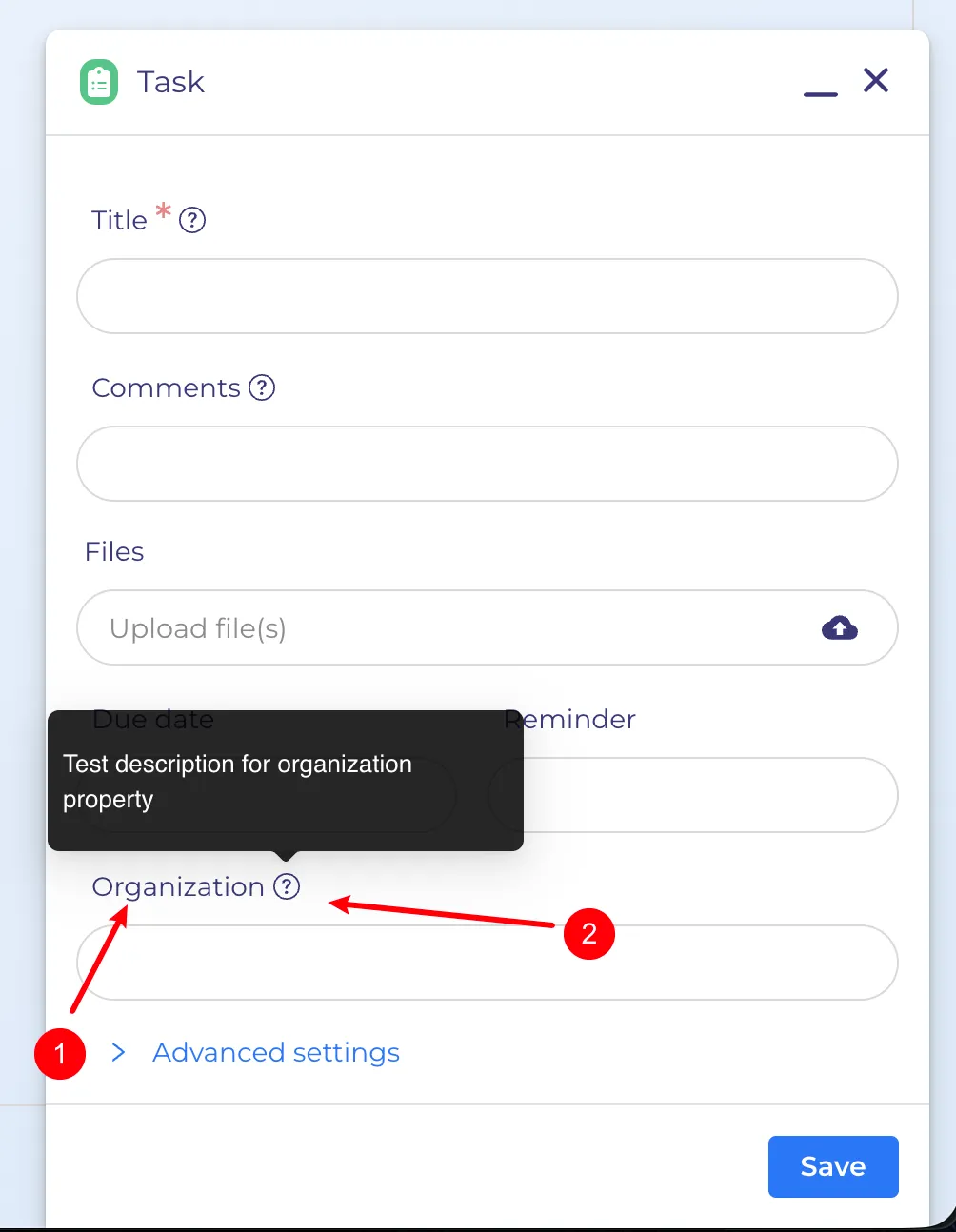
- Property label
- Tooltip with description
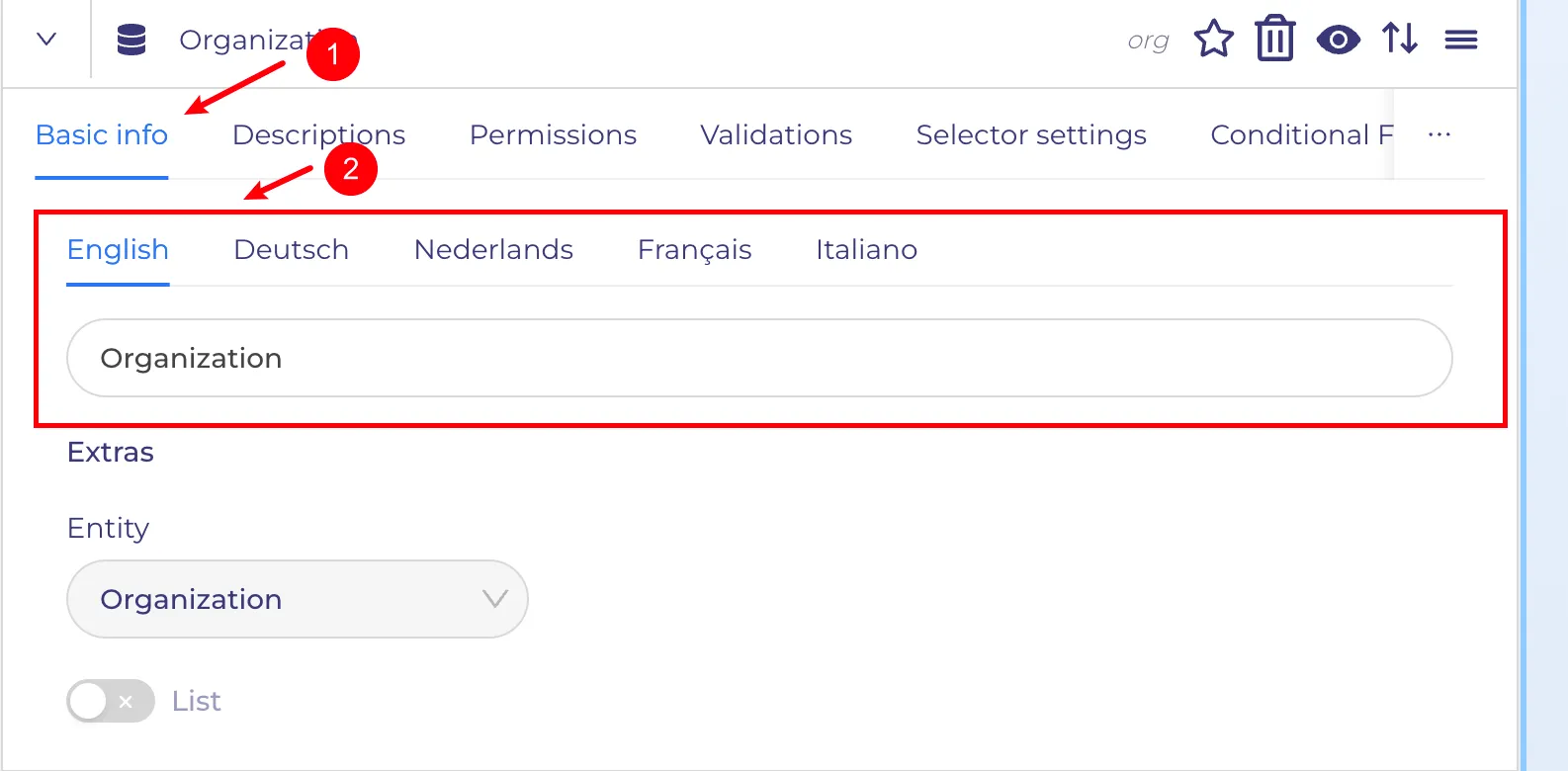
- "Basic info" section
- Setting for label localization
Property labels are configured in the definition settings for the desired property. Open the settings for the desired property and specify the label name for different languages in the "Basic info" tab.
If label data is not specified for a specific application language (the language the user is working in), the translation from the default language of the current tenant will be used. If this is also empty, the first existing translation in the list will be used.
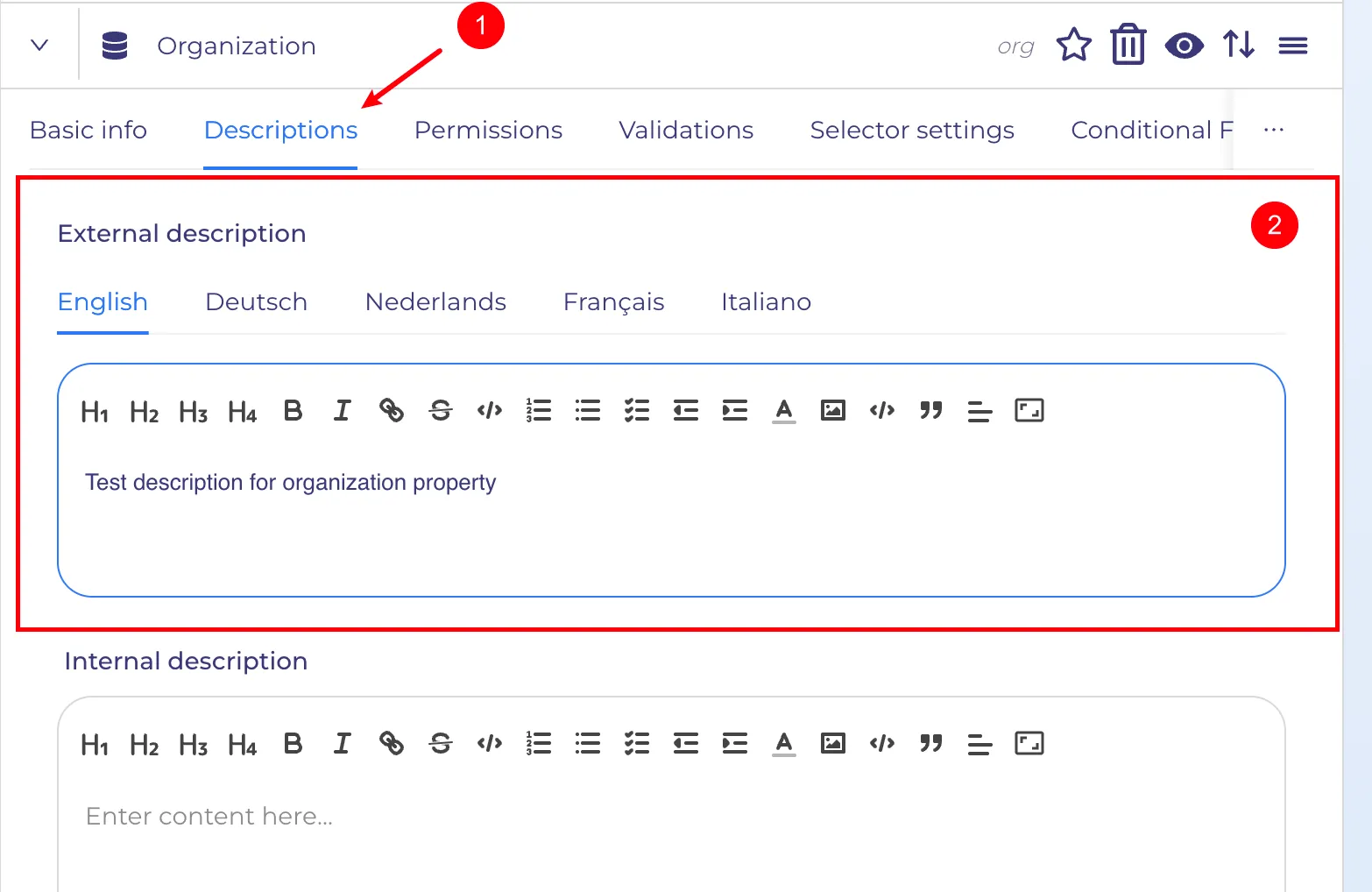
- "Description" section
- Setting for localizing the public description (the external one, which the user sees in the Portal)
You can similarly configure the description for the property that will be displayed in the tooltip. Property descriptions are also configured in the definition settings for the desired property. Open the settings for the desired property and, in the "Description" tab, specify the property description in the "External Description" section. Selecting a description to display works on the same principle as a label
Timeline
After registering a new activity, it can be seen in the assigned data timeline.
- If the activity is filled in progress - the process timeline
- If the activity is filled in progress, the user to whom the task was assigned is registered (in addition to the contact property or another custom property) - the timeline of that user's contact.
- If the activity is registered to a contact (default property) - in the contact timeline
- If the activity is registered to an organization (new field from the example; in your case, it could be any other entity) - in the organization timeline (or the entity you selected)
Also, if these are tasks and they are assigned to someone, this information can be seen on the dashboard.
- Data from the new activity property
To make it easier to work with activity data that was created before the custom property selection feature was implemented, the timeline now features a list of multiple activity properties — the old default and the new one selected in the portal settings.
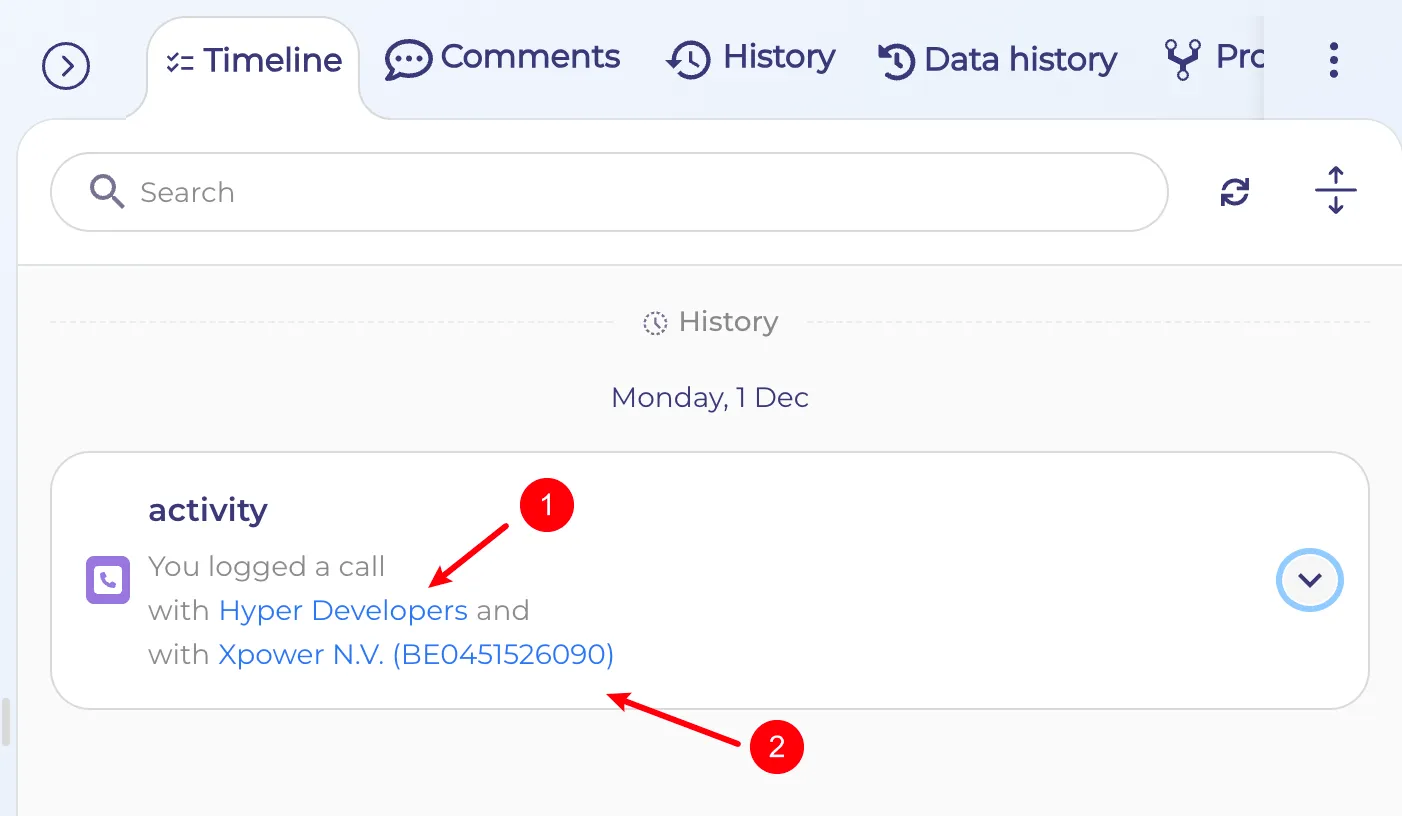
- default property (contact)
- a new field (organization)